

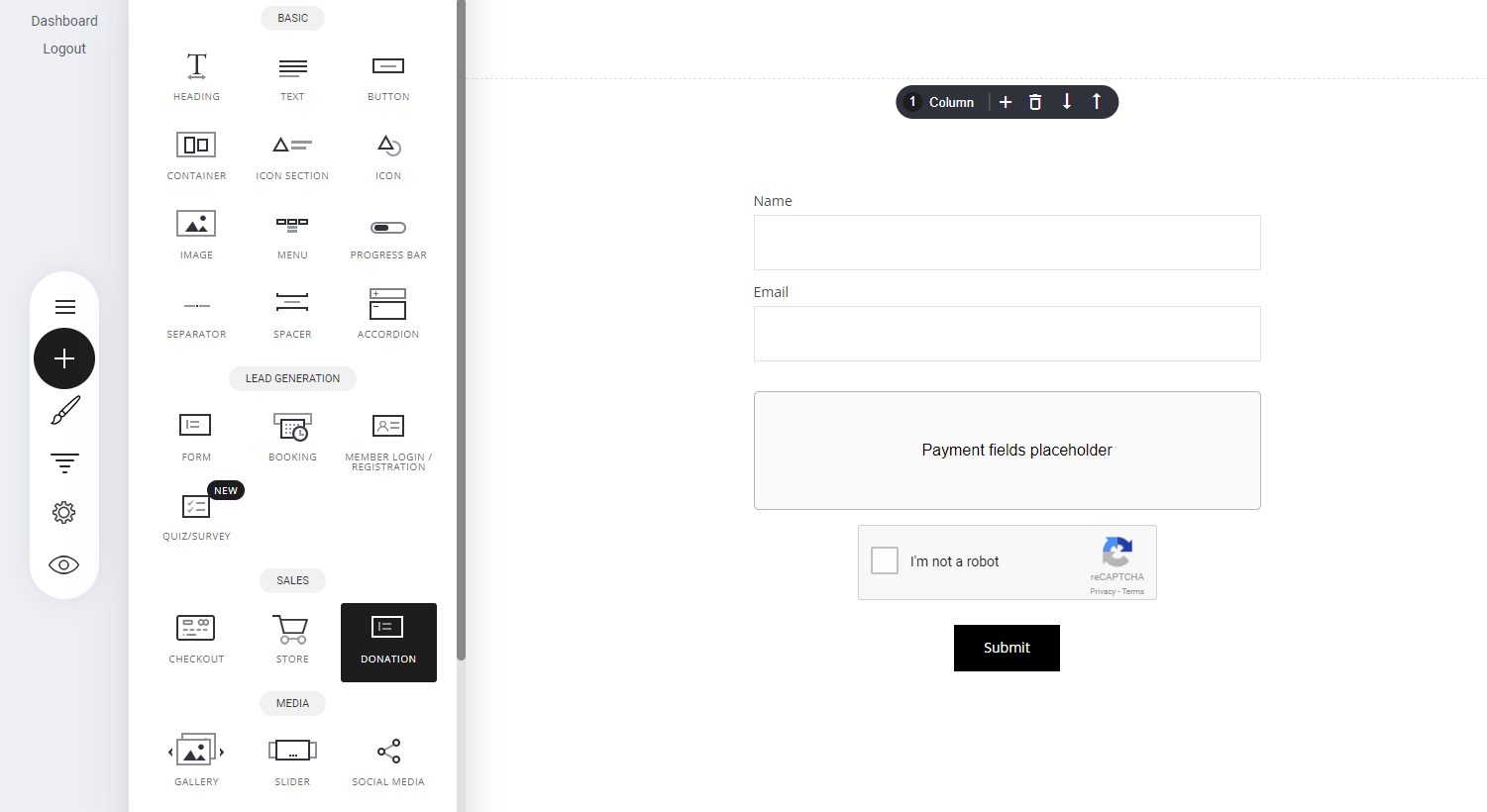
- Navigate to the Donation Widget – Open the Widgets panel in your editor.
- Drag & Drop – Place it on any page where you want to accept contributions.
- Customize Payment Options – Set flexible pricing, fixed amounts, or open-ended donations to fit your needs.
Settings
Unlike the normal store products and checkouts the donation widget works and is set up slightly differently. let’s take a look in the main settings and set up to get your donations widget working.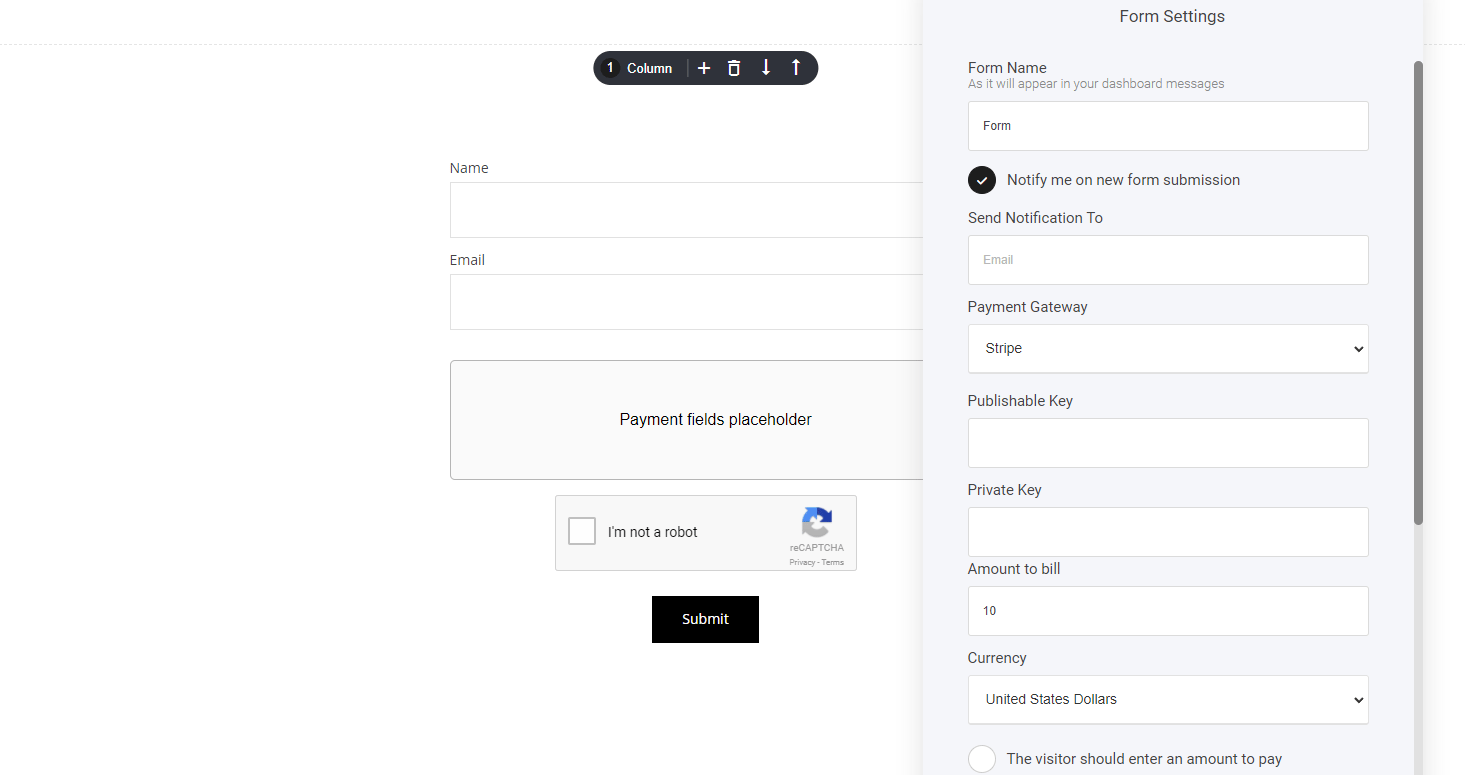
Note: Store donations are not added to the store analytics dashboard