
You will need to set up a Twilio account to use this feature. Click here to read more about setting up your Twilio integration to send SMS and WhatsApp messages.
- Connecting Twilio to Your Projects – Integrate messaging seamlessly into your workflows.
- Sending Messages – Set up direct communication with users via SMS.
- Using Messaging with Automations – Automate interactions for efficiency and engagement.
- Leveraging SMS for Marketing – Discover why SMS is a high-converting tool and how to use it effectively.
Setting up your Twilio Integration
Head to your website builder dashboard and navigate to the settings cog. Select Applications, then add application and scroll down until you see the Twilio integration tab.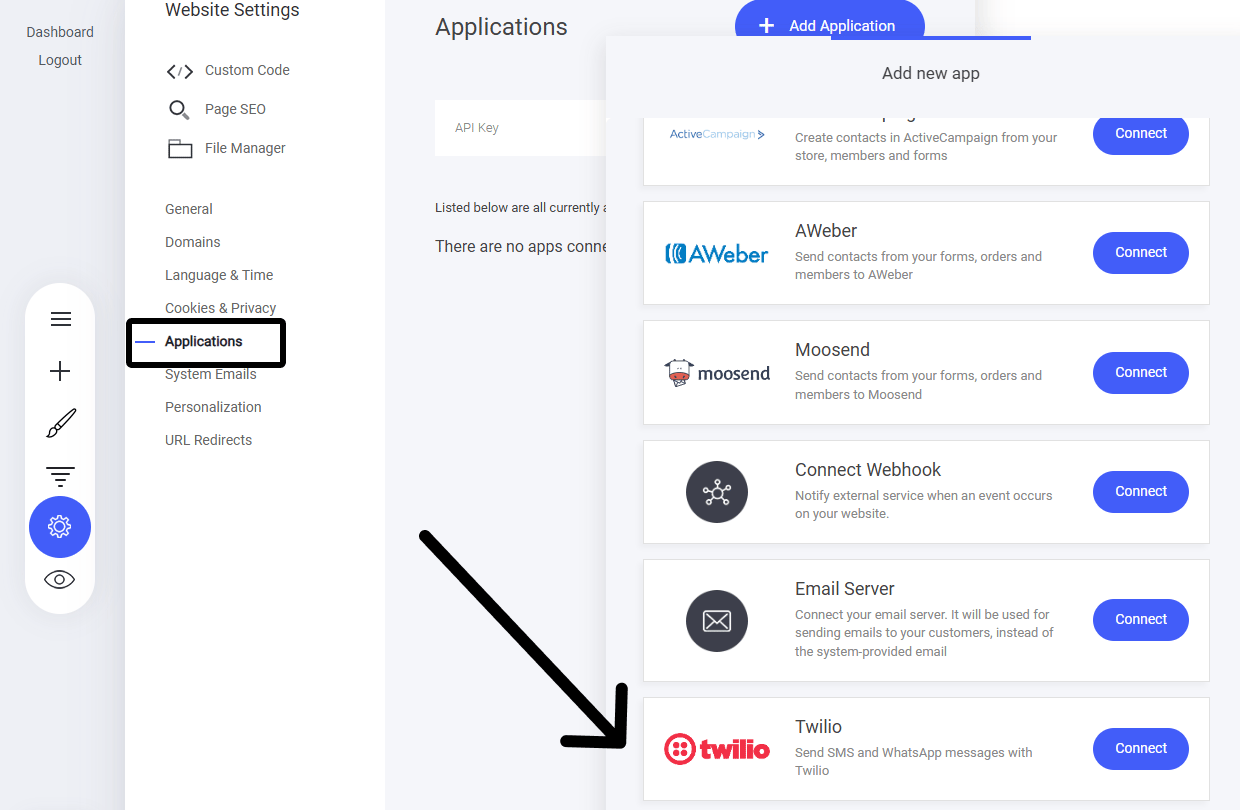
Configure the Twilio Settings
Upon setting up your Twilio connection, within the Twilio dashboard you may of noticed some ID’s etc. You now need to add these credentials to the Twilio application settings below.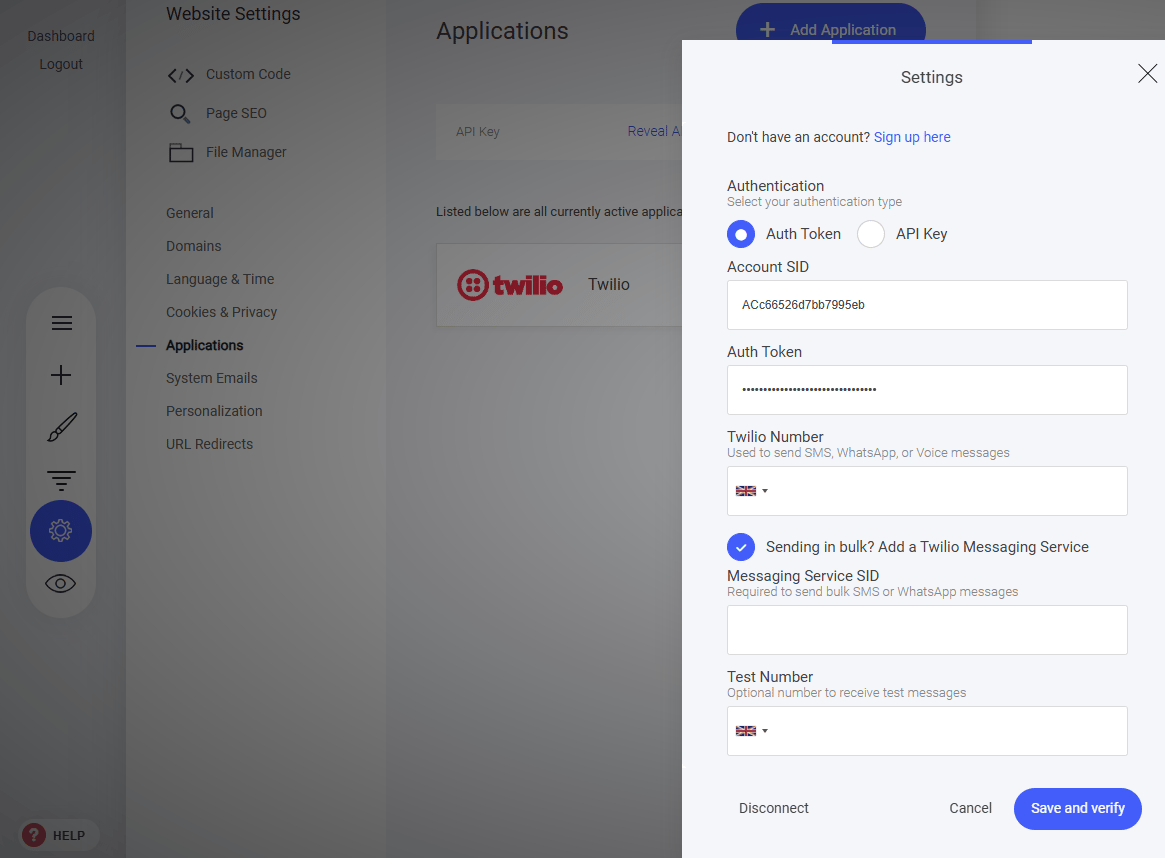
- Account SID
- Auth Token
- My Twilio Phone Number
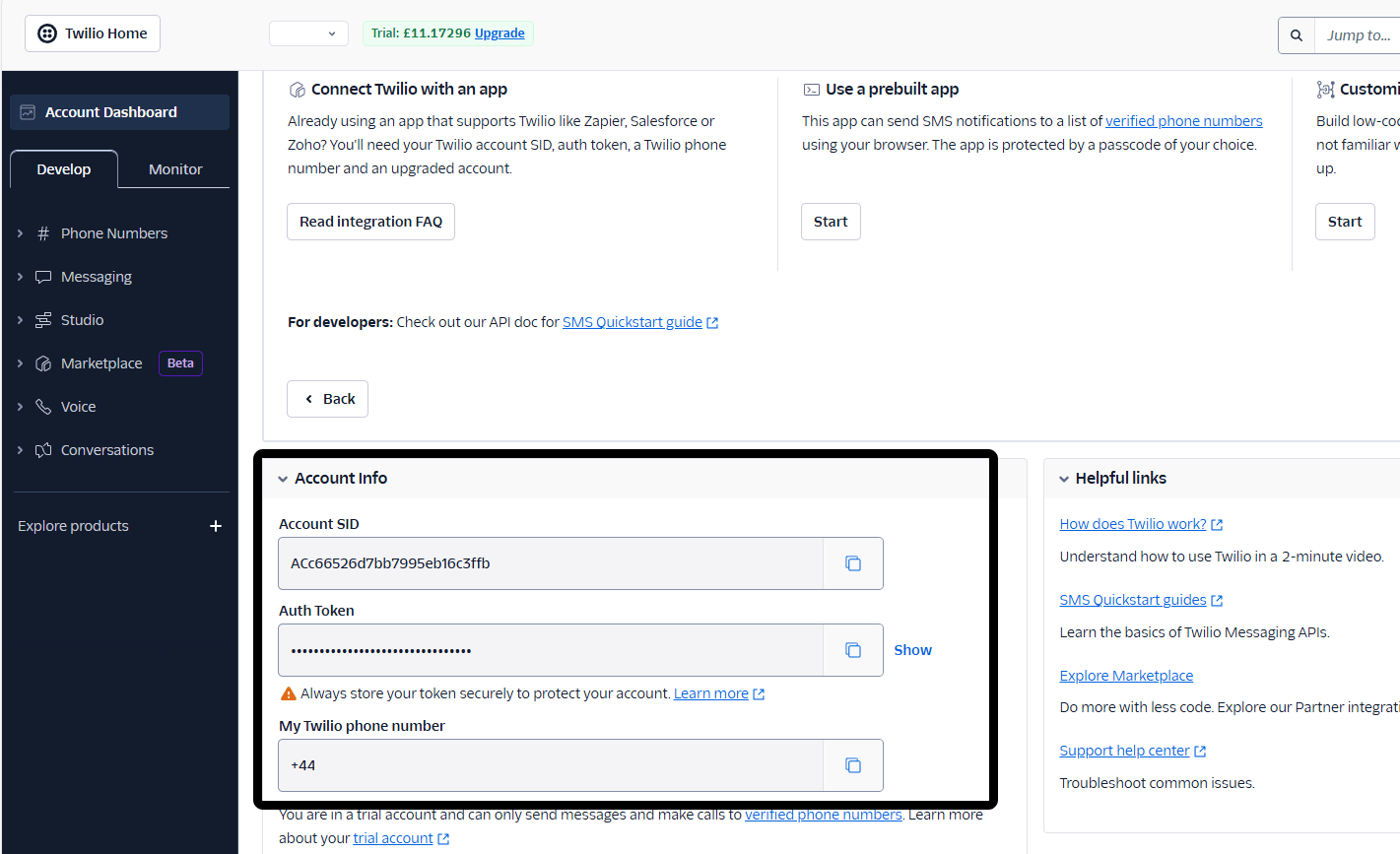
Twilio Dashboard
Sending Bulk Messages
If you want to send bulk SMS and WhatsApp messages you will need to add in your Messaging Services ID. Read more about Messaging Services Here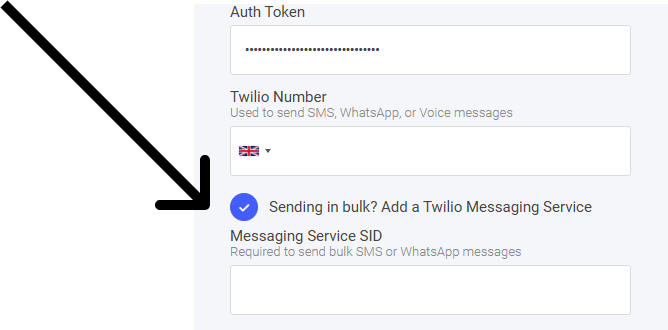
Sending Messages
Great you’re all set up and ready to start sending messages to your customers.How to send messages
To send messages to your customers, you can do so by either sending individual messages or sending in bulk via campaigns and your automation flows.Individual messaging
To send individual messages to your customers it works pretty much the same way the individual email does. First head over to your Contacts tab and select a customer you want to send a message to.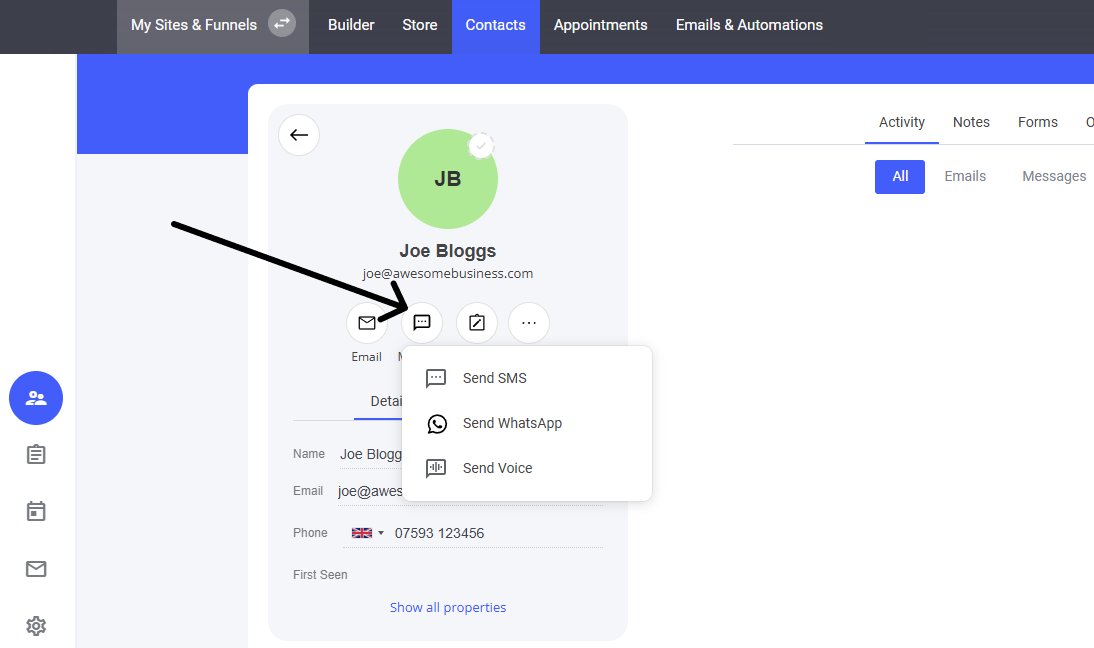
- SMS
- Voice
Individual SMS
Both SMS and WhatsApp are similar in setup, but they differ when it comes to sending messages. WhatsApp requires you to use message templates and tags to comply with their messaging policy. First, let’s send an SMS message.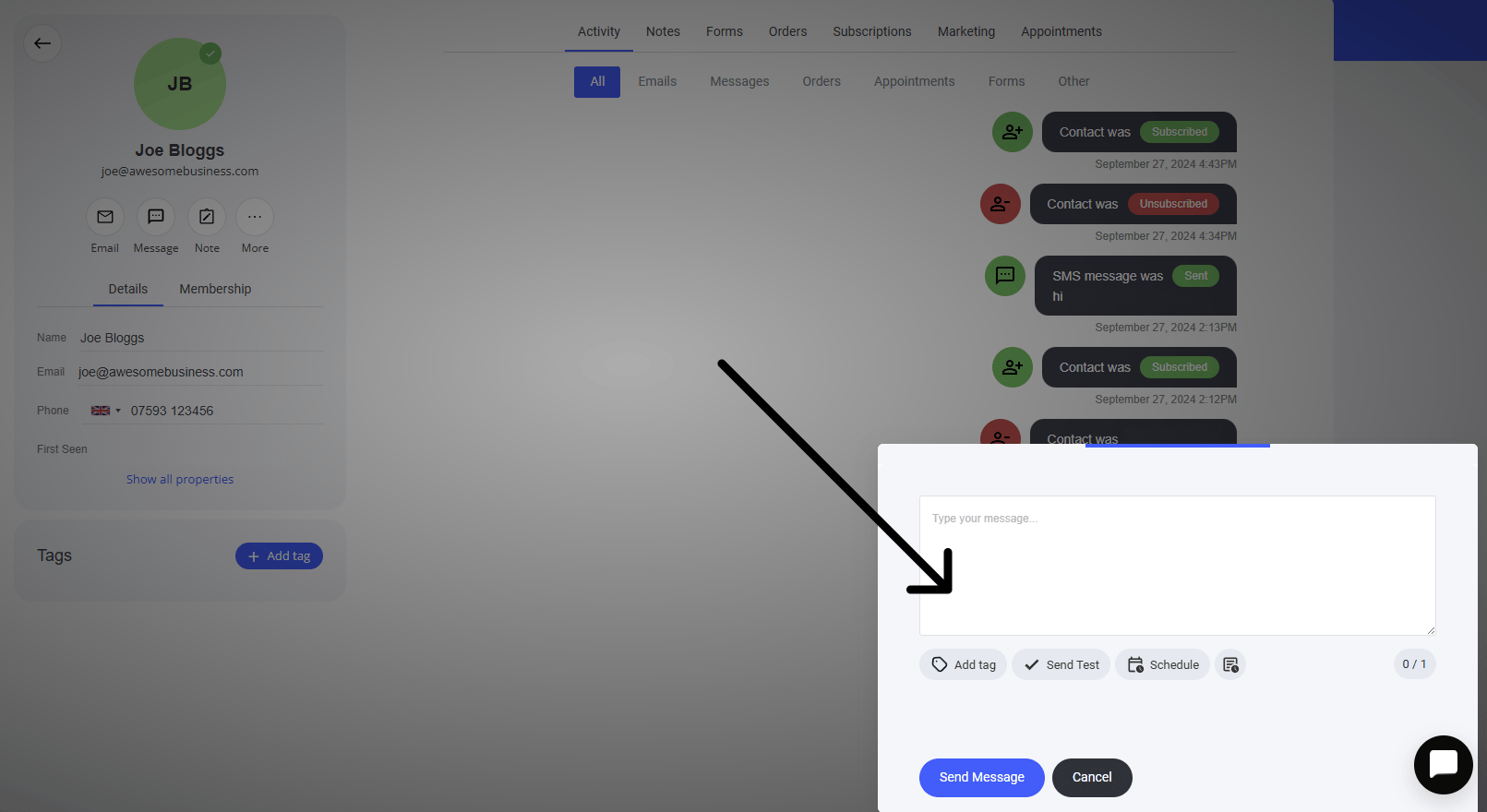
Sending an SMS
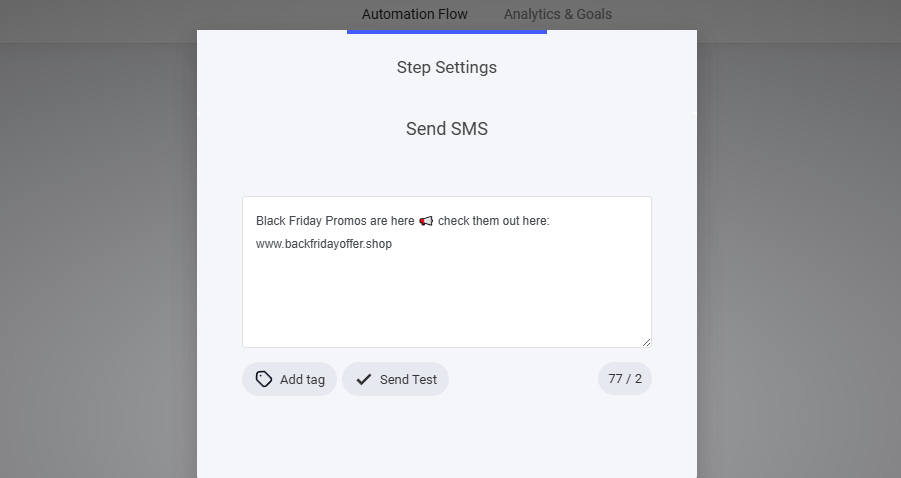
When sending an SMS you can add tags, send test, and schedule Add tag: Help keep the message personalized to your customer. When selecting the Add tag button a new window will display, this is where you can use the CRM properties.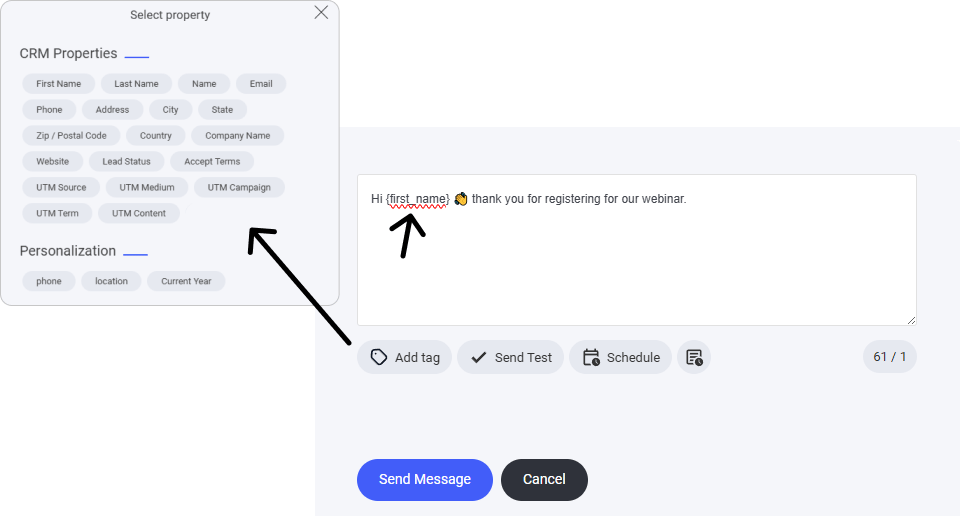
Individual WhatsApp
To send a WhatsApp message to your customers, navigate to the Contacts tab and select the contact you want to message. You will now see the customer’s individual profile displayed. Click the message icon and select ‘Send WhatsApp’.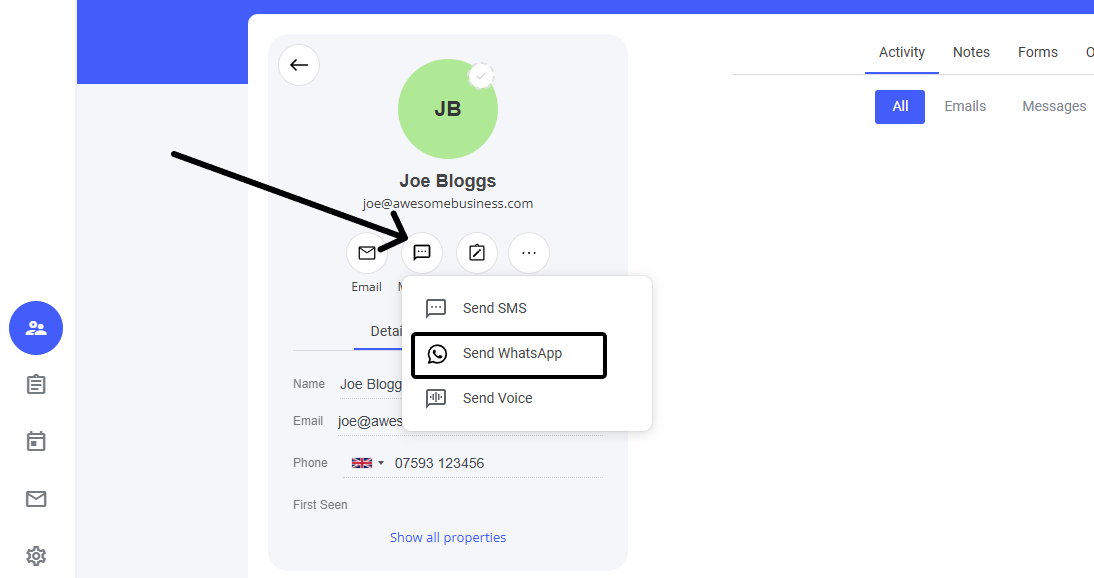
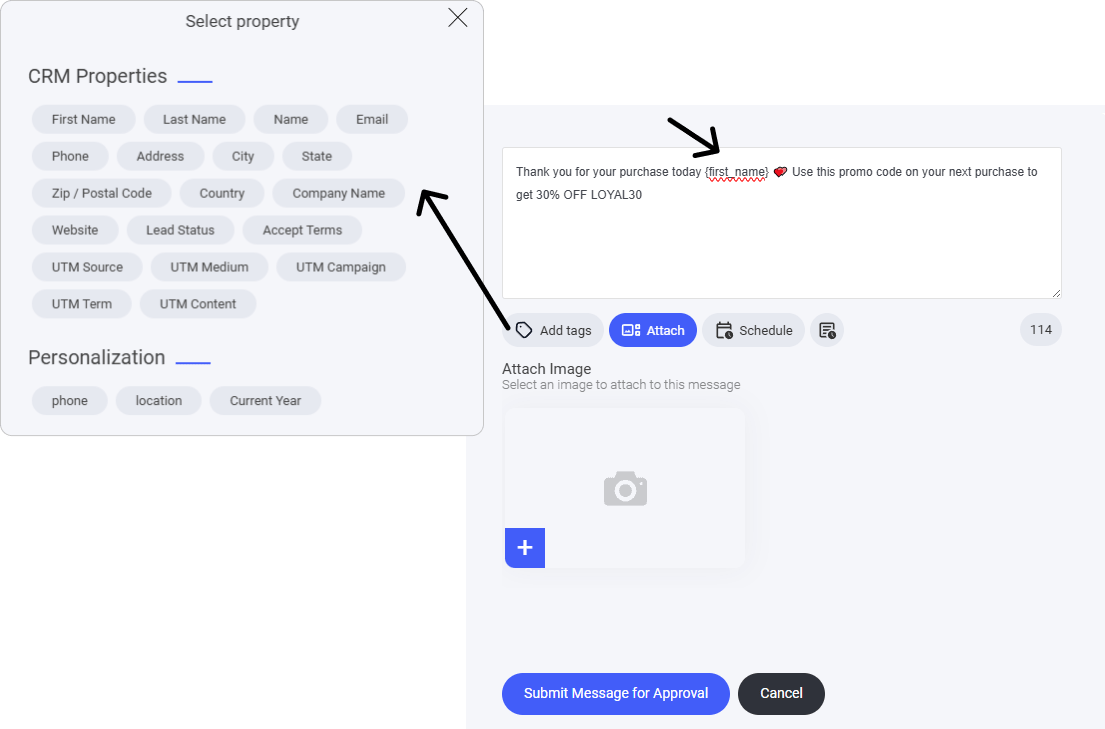
-
Name:
Example Names:
welcome_messageorder_confirmationshipping_updateaccount_verification
Make sure the name you choose is descriptive enough to convey the purpose of the template but also concise. This will help you easily identify the template when you need to use it later.
- Language
- Category
Summary
- Utility: Use for essential, transactional, or account-related messages. It’s about delivering necessary information.
- Marketing: Use for promotional and engagement messages aimed at driving sales or customer interaction.
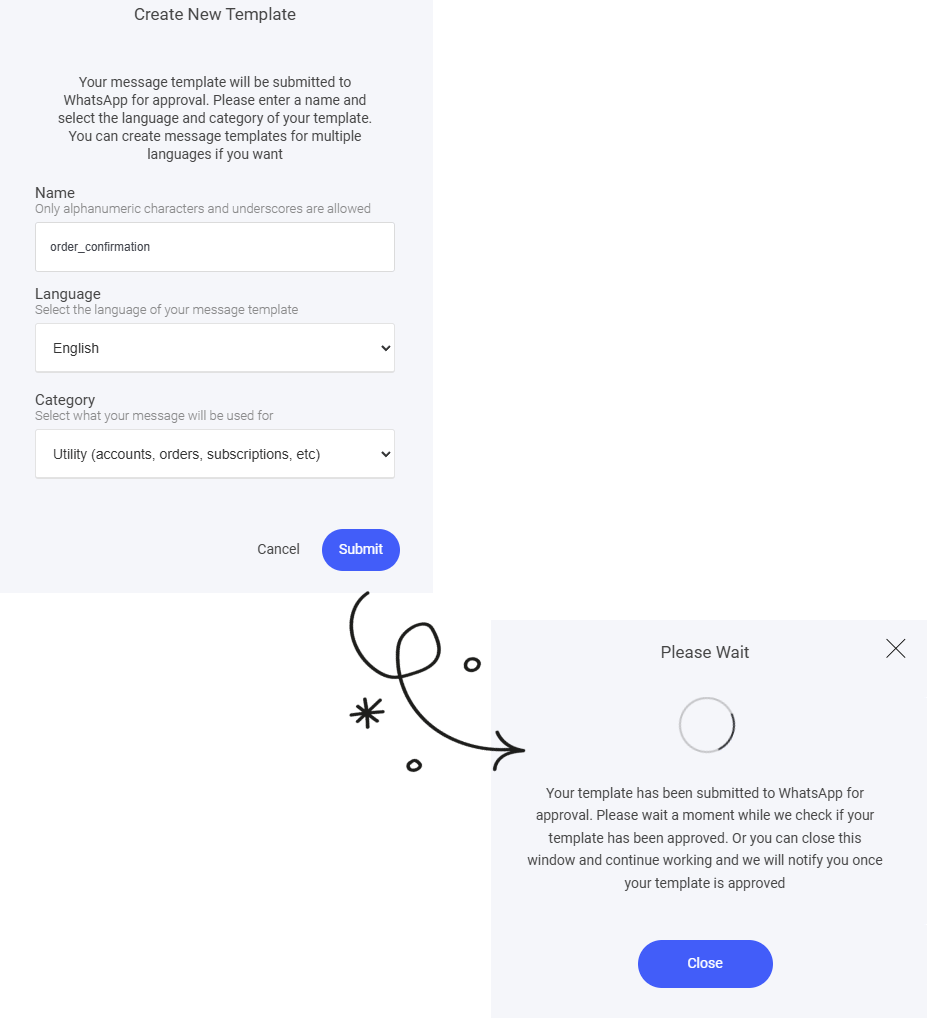
WhatsApp Templates
Once you have sent a message and had your message/template verified, you will be able to use it again or create new templates for different types of messages, whether they are for utility or marketing. To reuse a WhatsApp messaging template, simply go to ‘Send WhatsApp Message,’ and in the messaging window, you will see a new tab and options at the top.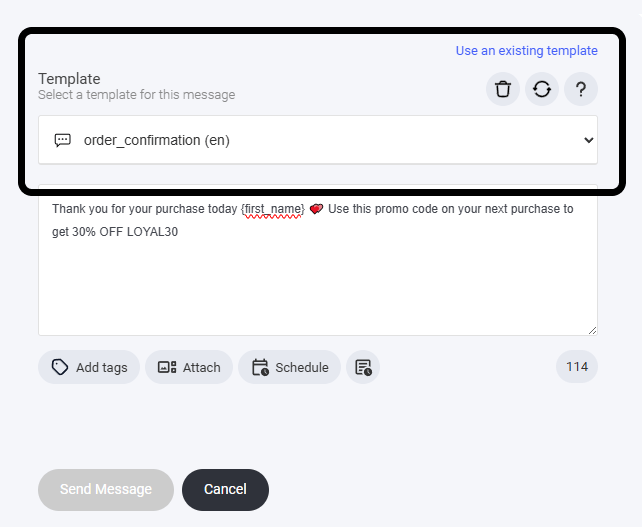
Message Campaign Sending
Not only can you send individual messages to your customers, but you can also unleash the power of mass messaging—just like sending an engaging email campaign! Reach a wider audience and make your communication more impactful!Setup a message campaign
Navigate to the Email and Automations tab, select ‘Campaigns,’ and then click on ‘Create New.’ Next, you’ll need to select the campaign type; in this instance, we will be sending a message, not an email.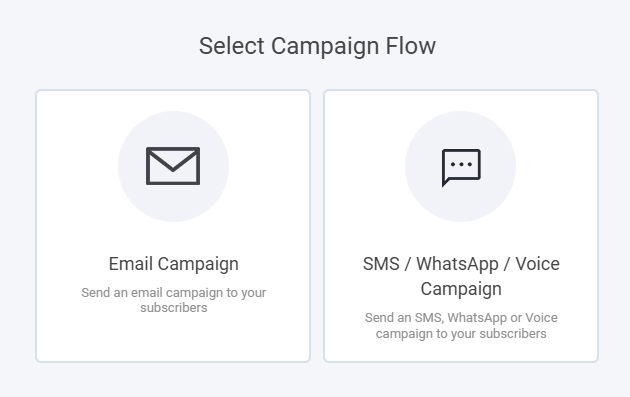
- SMS Campaign
- WhatsApp Campaign
- Voice Campaign
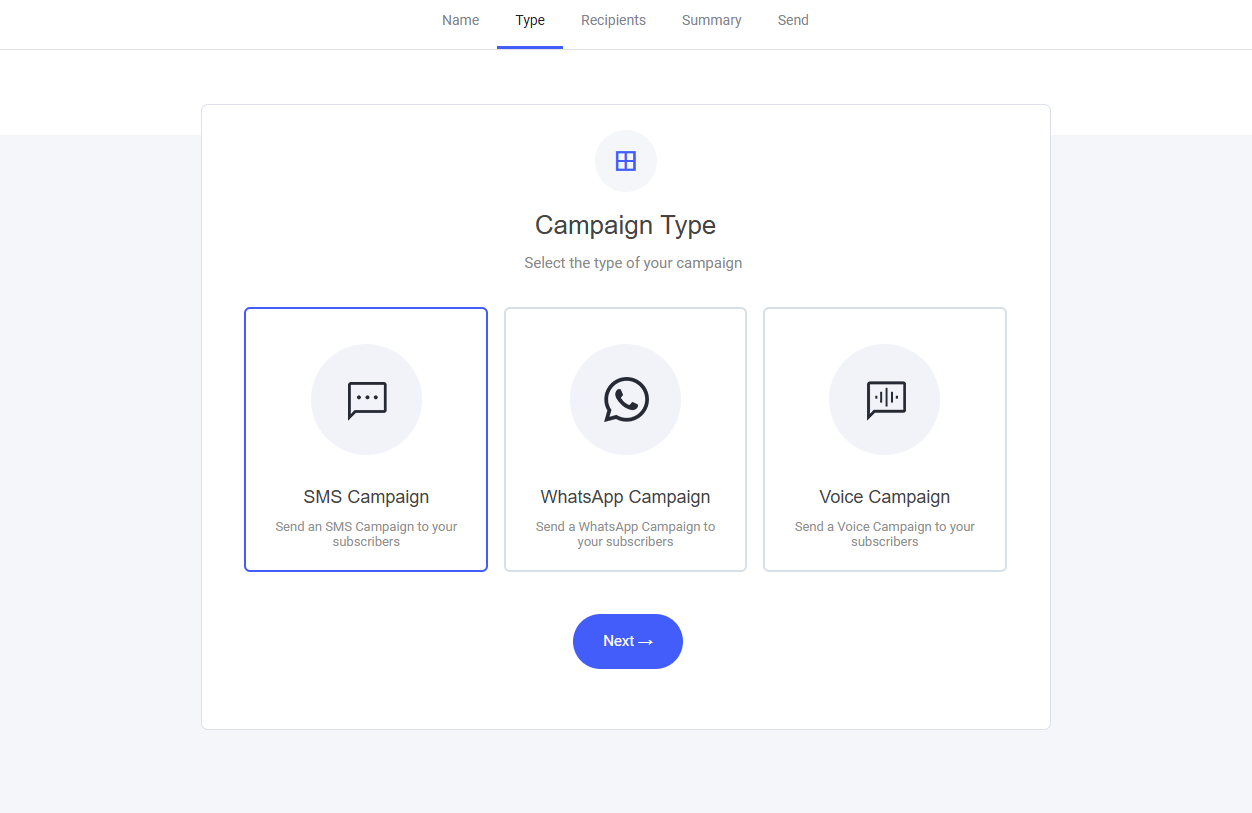
Send a message campaign
Just like setting up an individual message for a customer, the process is exactly the same when creating a bulk message campaign.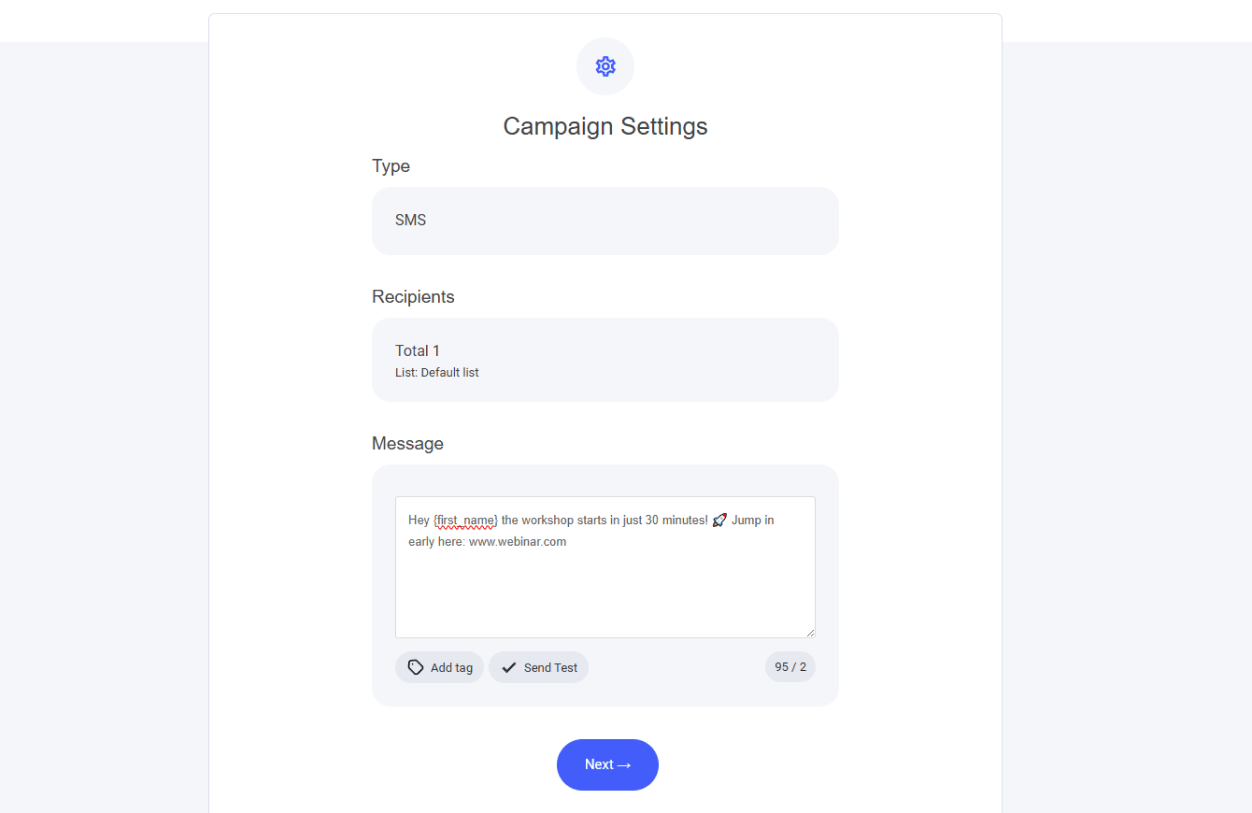
sending a SMS type campaign
Once you have created the message you want to send to a selected audience/list you can now go ahead and send or schedule.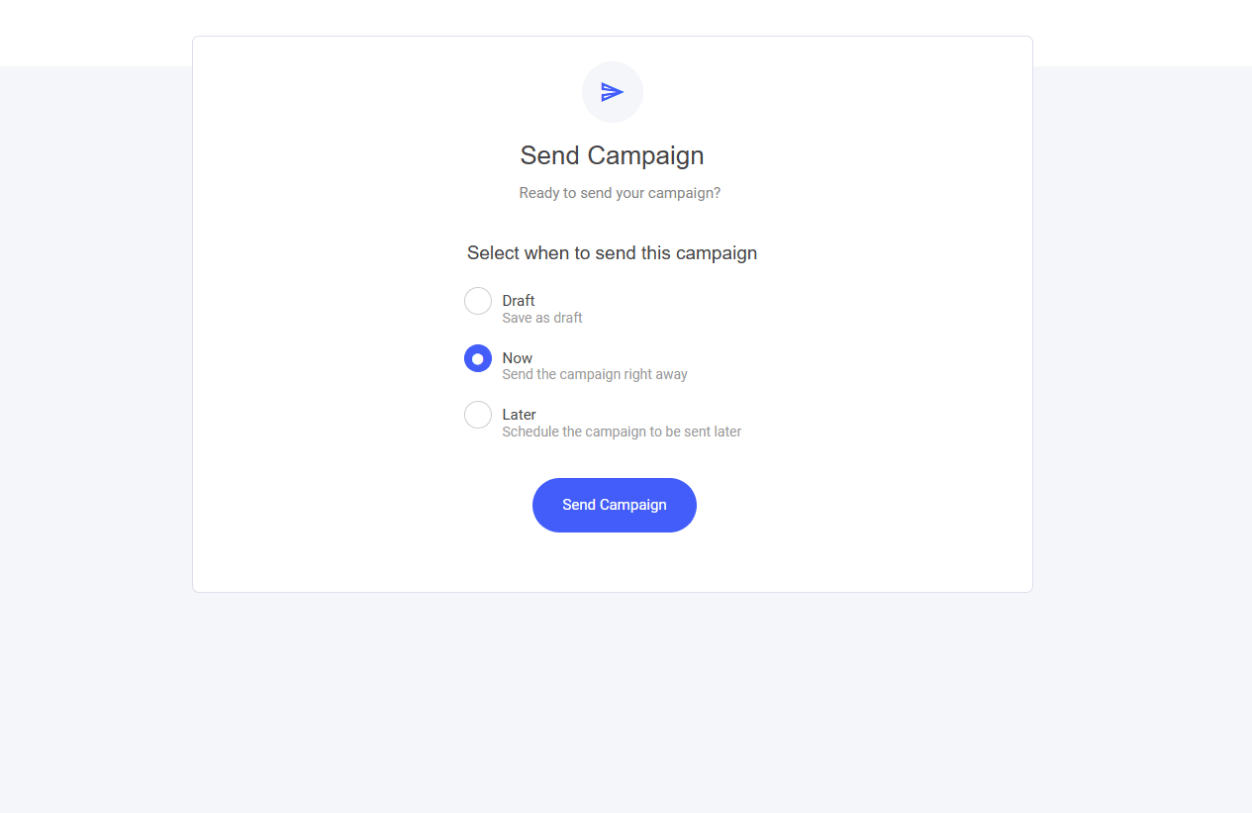
Messaging Automation
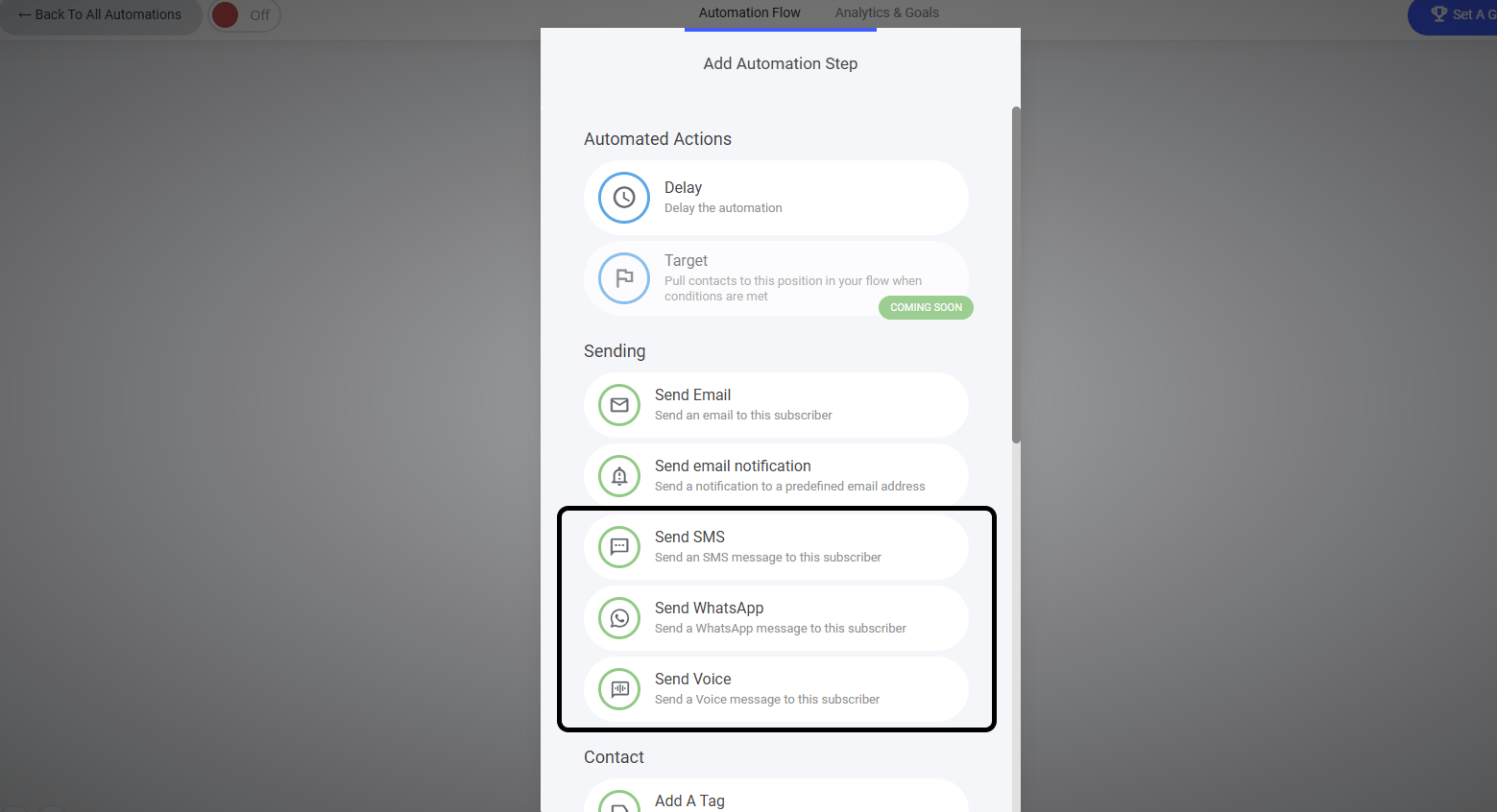
Just like creating an email automation campaign, you can supercharge your workflows by adding SMS, WhatsApp, and even voice messaging into the mix! Expand your reach and engage your audience across multiple channels effortlessly.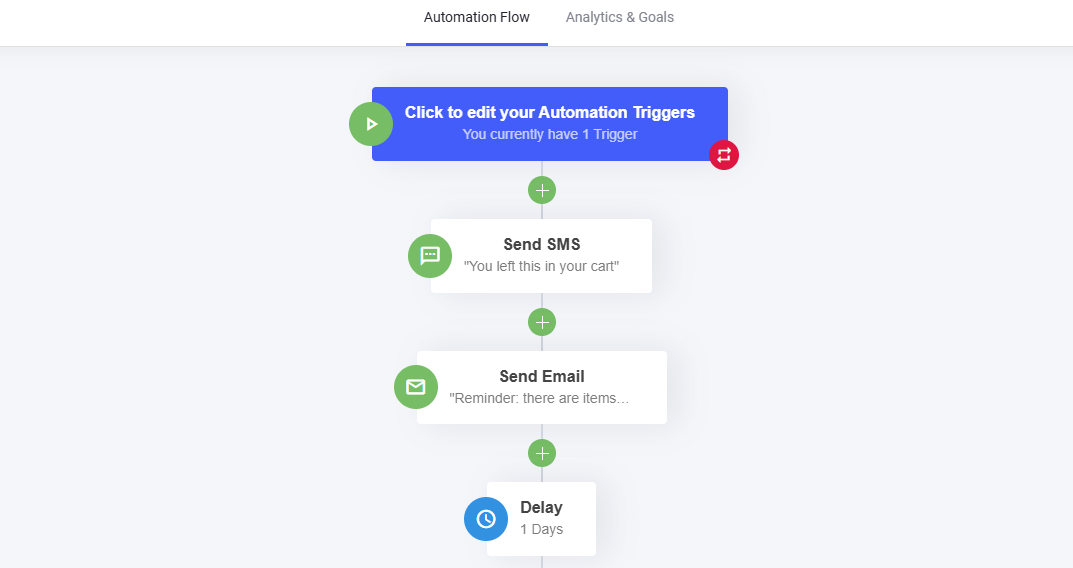
Add a workflow message
Create a new automation flow or add to an existing one. You’ll be able to add the messaging components at any stage in your automation flow. To add a message in to the flow, select where you want to add it. Then select the messaging channel you want to use.