

Upsell & Downsell
In sales funnels, upselling and downselling are techniques used to increase revenue by offering additional products or services to a customer after they have made a purchase or declined to purchase a higher-priced item. Upselling normally involves offering an additional or a product that complements the original purchase, with the goal of increasing the overall sale value. For example, a customer may purchase a beginners course from you, but an upsell could be a more advanced course with better features and a higher price point. Or, maybe a complementary offer that relates to the beginners course. Such as a one-to-one coaching call or even some merch. Either way this will help increase your cart revenue. Downselling, on the other hand, involves offering a less expensive alternative to a customer who has declined to purchase the upsell item. For example, a customer may have declined to purchase a higher-end course, merch or one-to-one call, but a downsell could be a lower-priced product. Such as for example, a branded mug or a how to guide.- Increased revenue: Upselling and down selling can increase the overall value of a sale, leading to more revenue for the business.
- Improved customer satisfaction: By offering customers more options, they may be able to find a product or service that better meets their needs and preferences.
- Increased customer loyalty: If a customer feels that a business is truly interested in helping them find the right product or service, they may be more likely to return in the future.
- Cost-effective marketing: Upselling and down selling can be a more cost-effective way to generate revenue than acquiring new customers, since the customer has already shown interest in the business by making a purchase.
- Increased lifetime value of customers: By offering additional products or services, businesses can increase the lifetime value of their customers by encouraging repeat purchases and building long-term relationships.
Creating an upsell
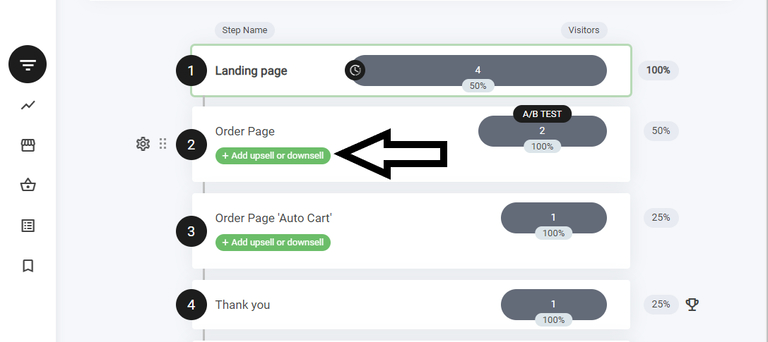
Boost sales by seamlessly adding upsells and downsells within your funnel.- Navigate to the Funnel Step – Ensure you’re on a step where a checkout already exists.
- Look for the Green Bar – You’ll see the “+Add Upsell or Downsell” option.
- Select & Customize – Choose your upsell or downsell offer and adjust settings to maximize conversions.
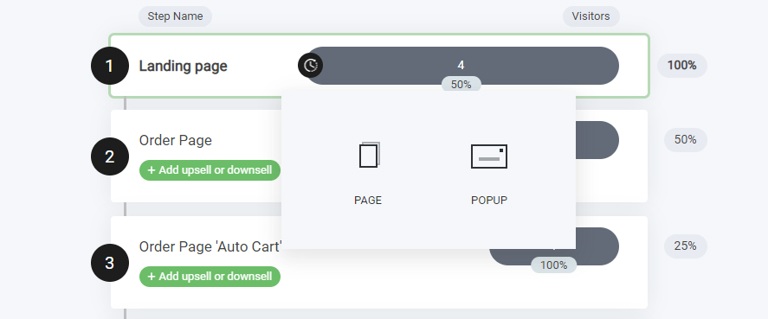
- Page
- Popup
Editing the upsell
Just like any other block or container the editing remain the same. Simply drag and drop any widget element into place.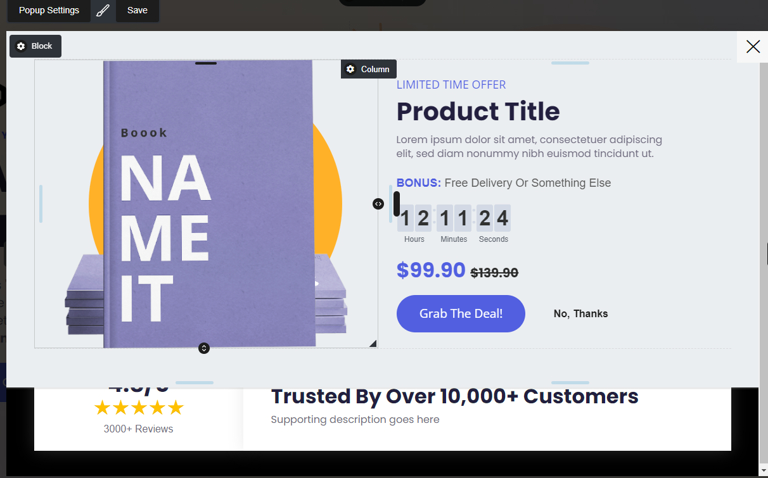
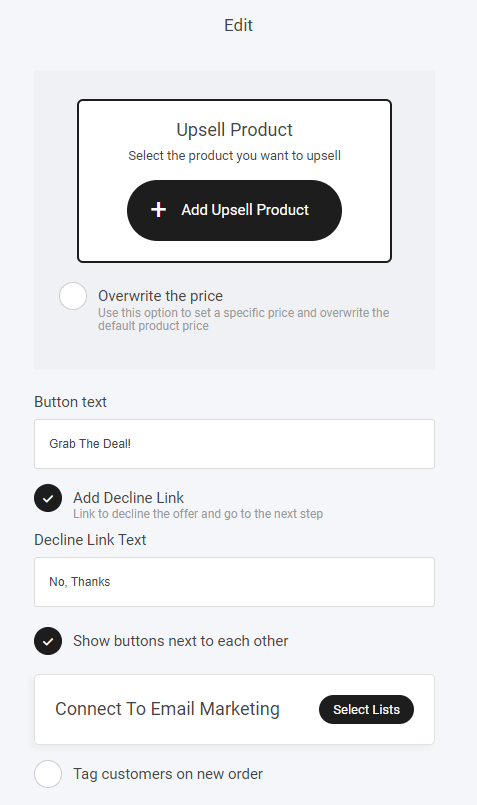
- Overwrite the price
- Button text
- Add decline link
Note: It’s important to note that if the customer sees your upsell/downsell, they DO NOT have to re-enter their payment details again. The product cost will be automatically taken. This helps speed up the conversions.
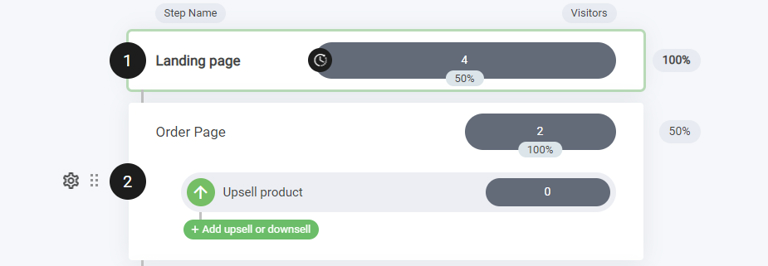
Adding a downsell
Adding a downsell is exactly the same process as creating an upsell. Once created it will be added below the upsell step in the funnel as shown below.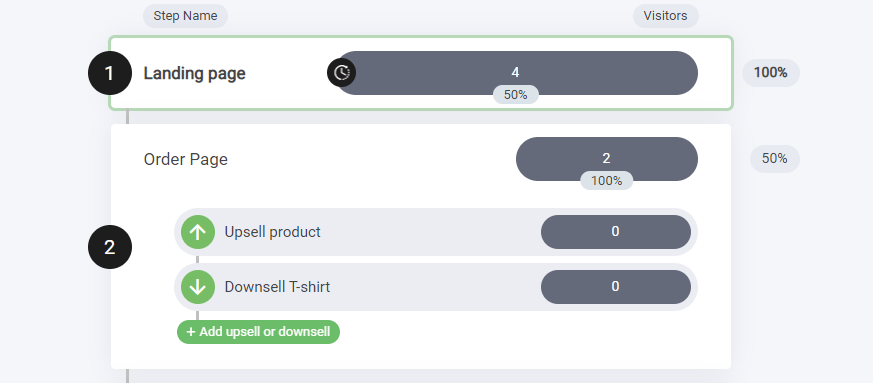
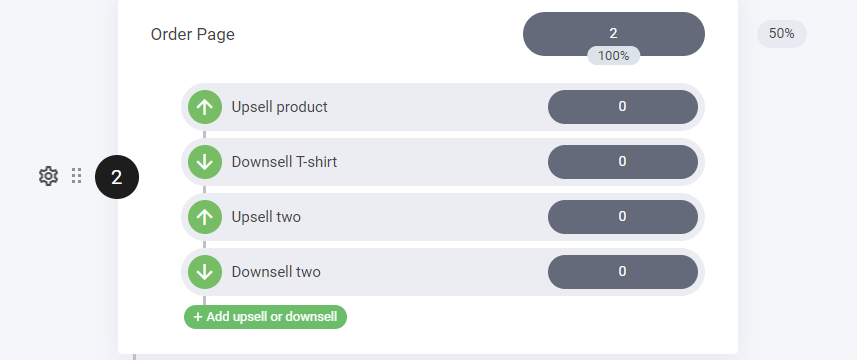
Note: You do have the option to create unlimited upsells and downsells within a funnel.
Summary guide
- Navigate to the funnel step where you already have a checkout and select “+Add upsell or downsell”.
- Choose between a page or a popup, depending on the type of product you want to offer.
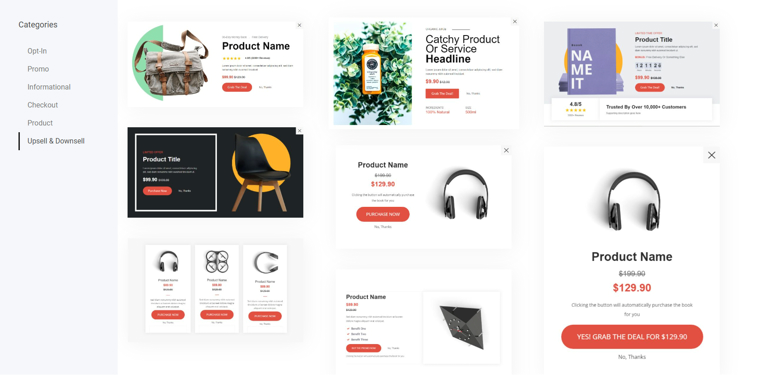
- Select the pre-made upsell/downsell page or popup that you want to use.
- Edit the upsell by adding your product and customizing the call-to-action button, including changing the price, adding a decline link, and adding the customer to an email list or segment.
- Save your upsell and it will appear within the funnel steps.
- Follow the same steps as creating an upsell, but select “Add downsell” instead of “Add upsell”.
- Customize the downsell offer and call-to-action button.
- Save your downsell and it will appear below the upsell step in the funnel.