
Discover Inspiring Funnel Designs
Dive into these carefully crafted funnel designs with step-by-step guides to help bring your vision to life.- Get Inspired – Discover new layouts and strategies tailored for different goals.
- Detailed Walkthroughs – Follow structured guides to implement each funnel effectively.
- Optimized for Conversions – Learn best practices to enhance user flow and engagement.
Lead gen funnel

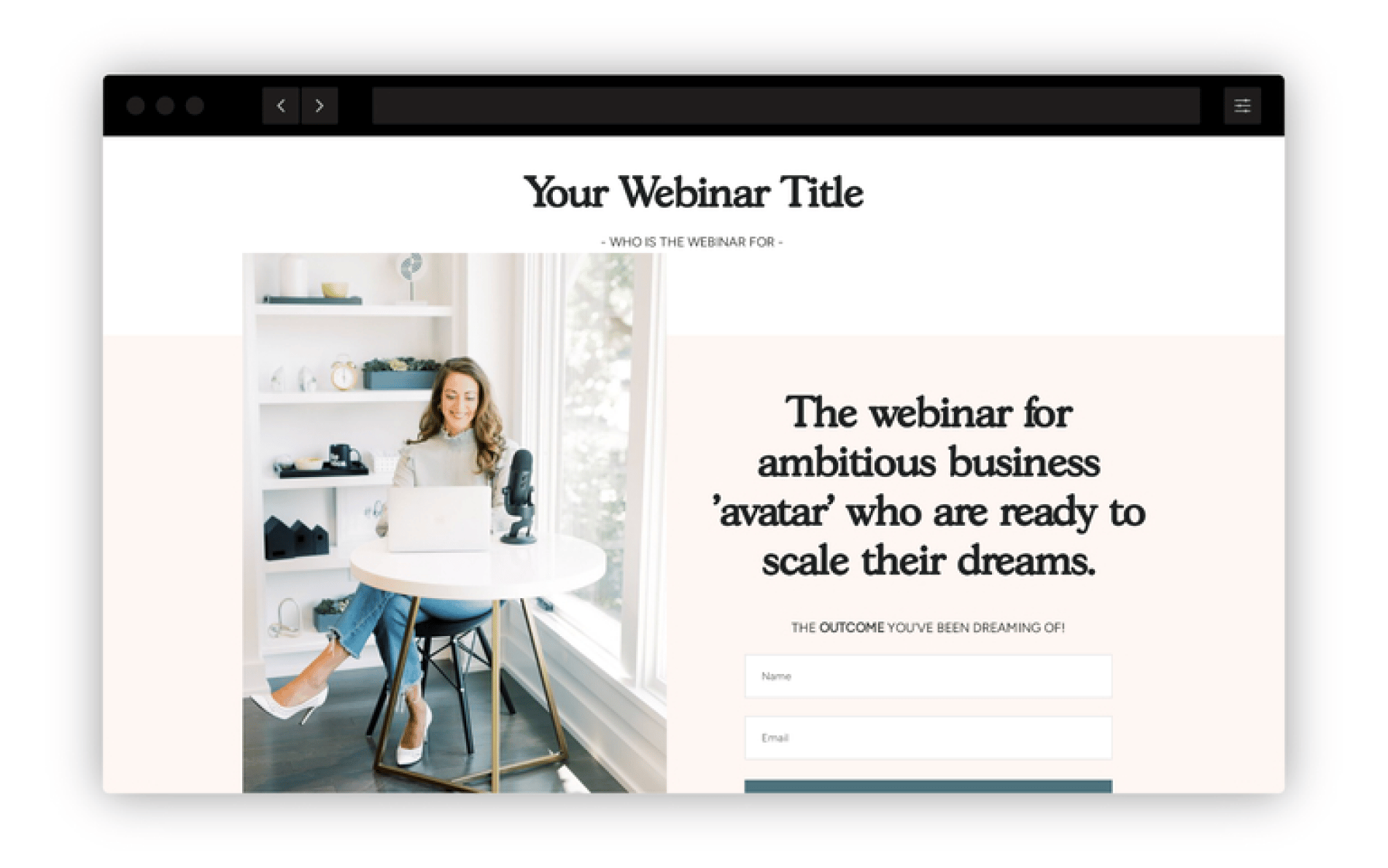
Webinar funnel
Digital download funnel

Online summit funnel
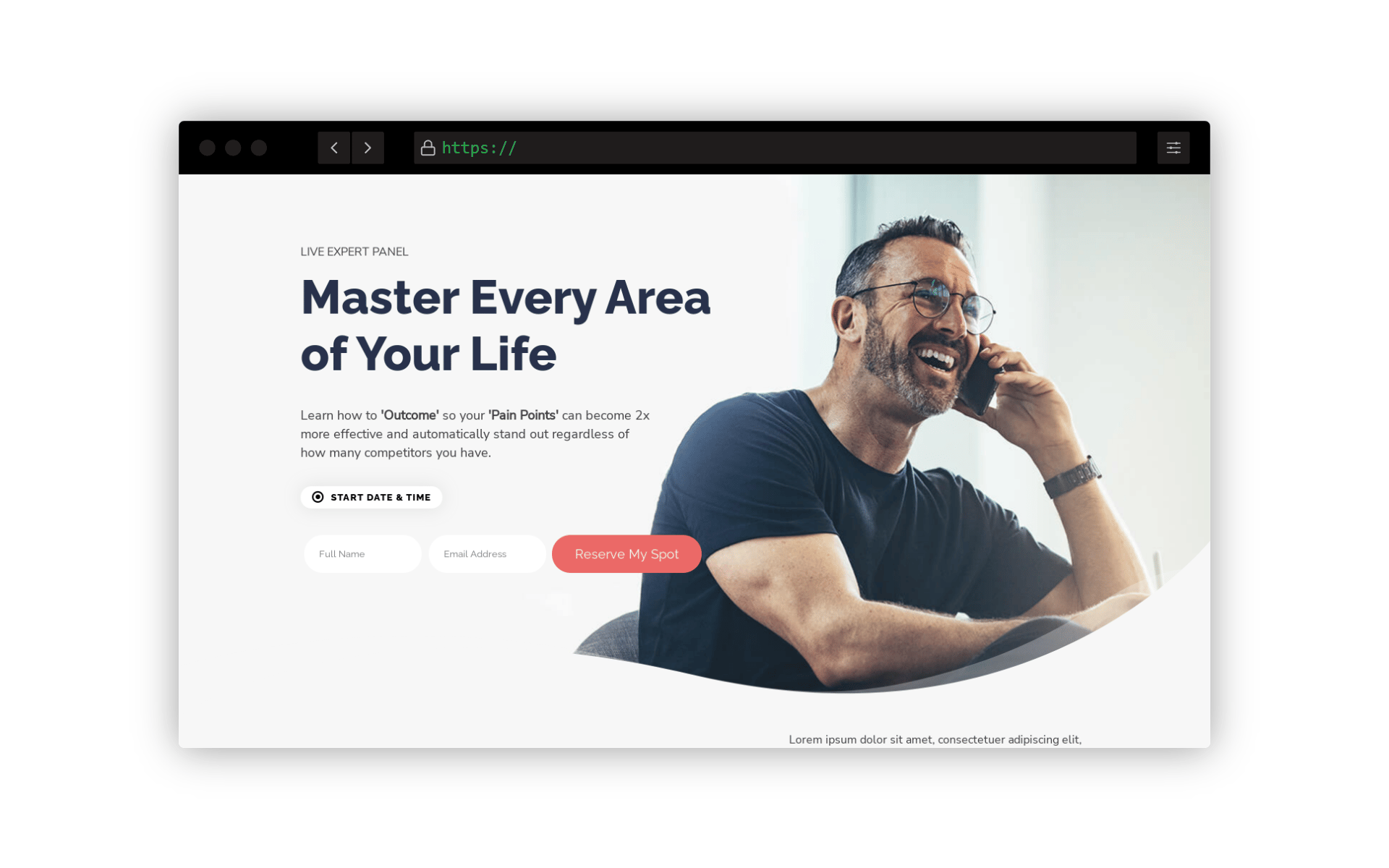
Online course funnel

Membership funnel
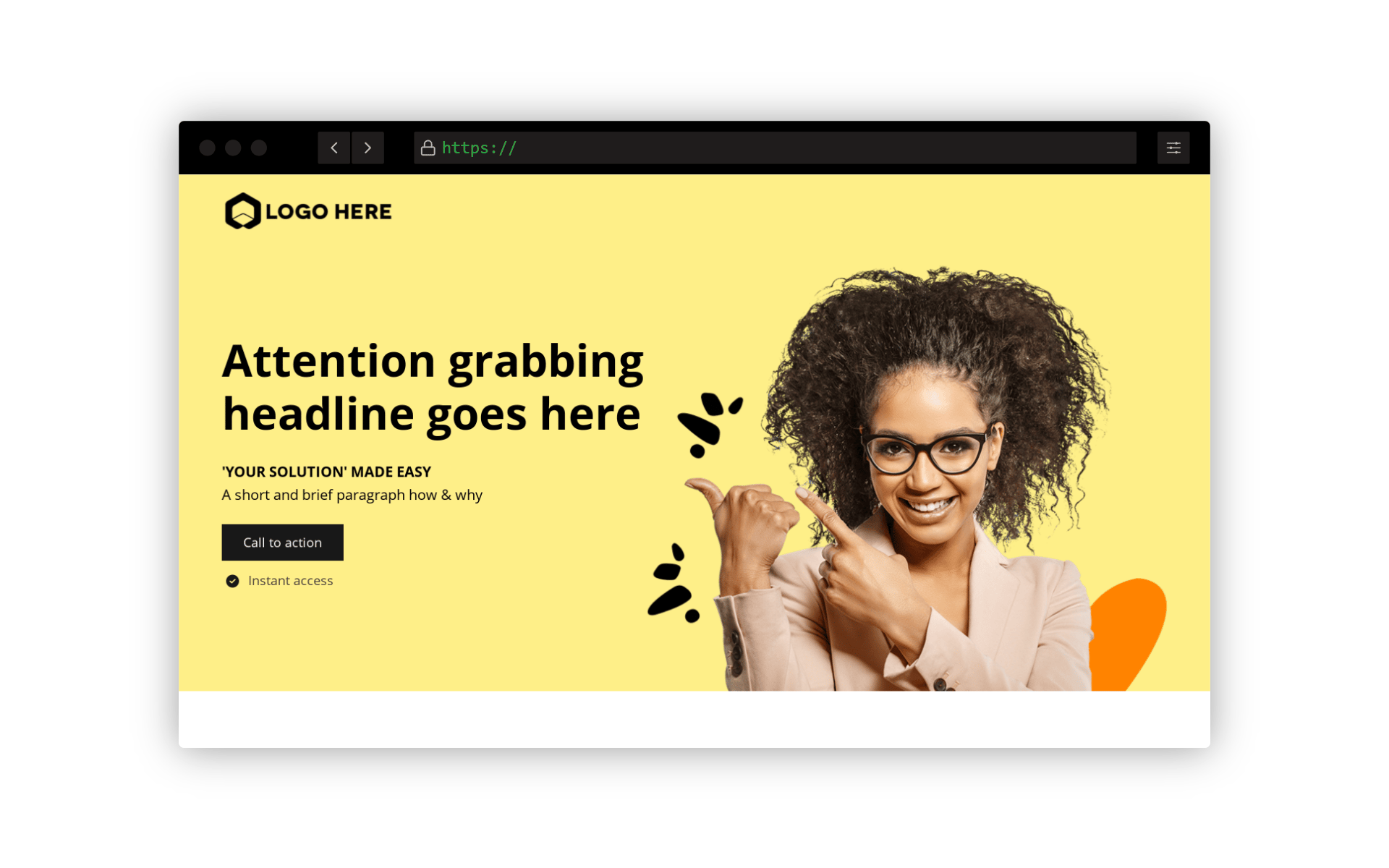
Opt-in funnel
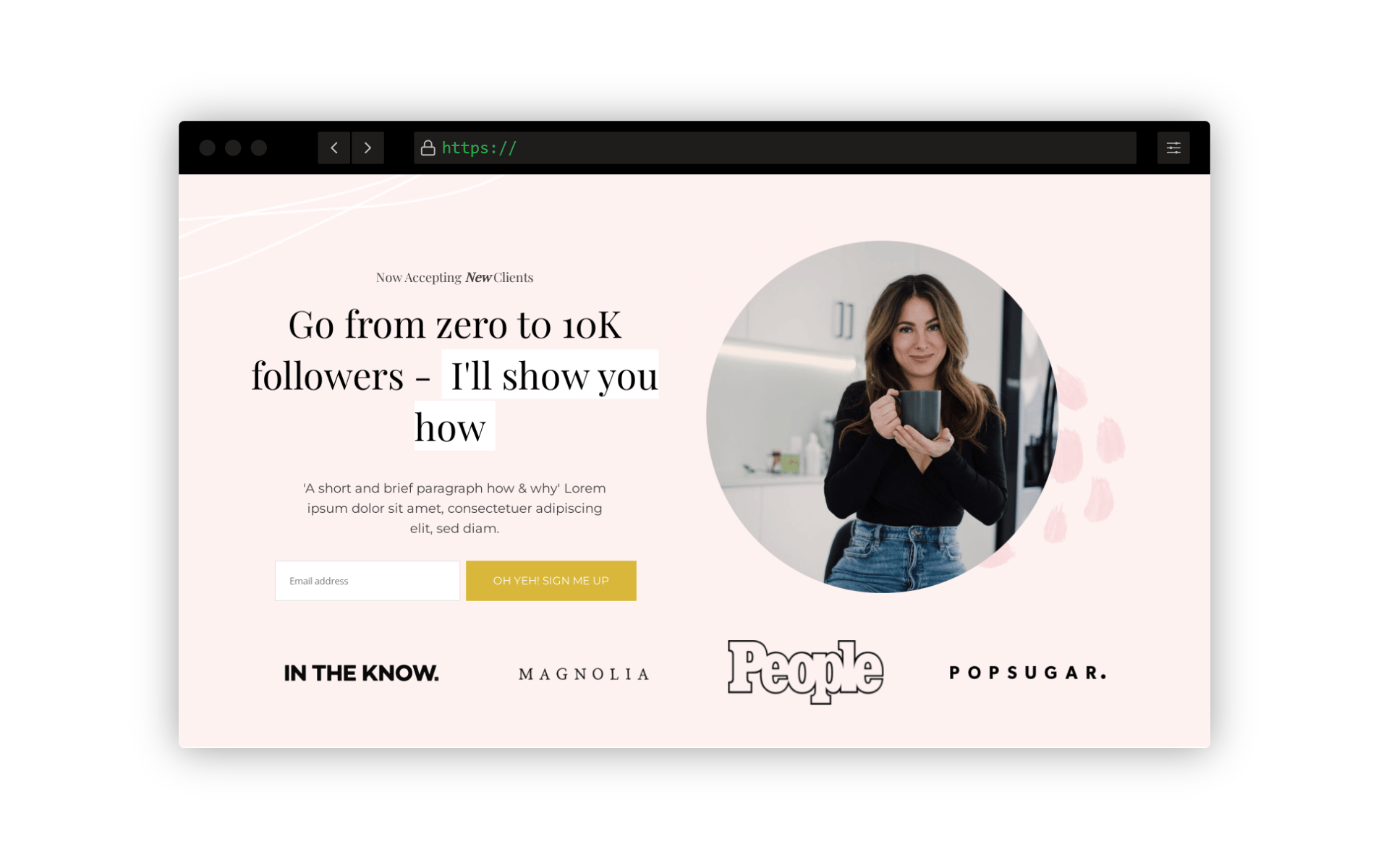
Onboarding funnel

Hero funnel
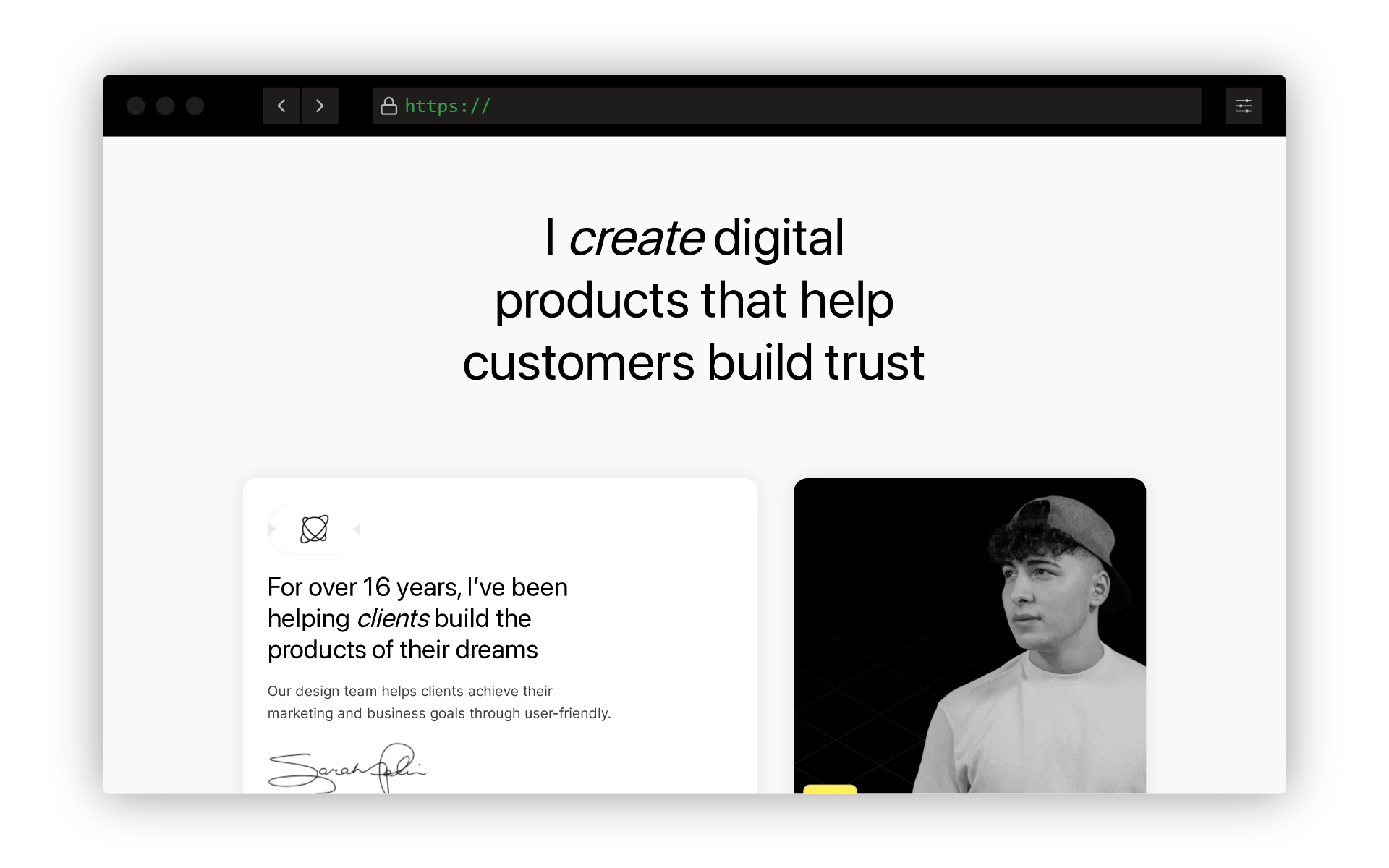
Booking funnel

Where to find your funnels
There are two places where you can view all your funnels within or even outside of your project. To view all your projects ‘website and funnel’ navigate to the My sites & Funnels tab located at the top of the builder dashboard. Once selected, a slide out containing all data will be displayed as shown below: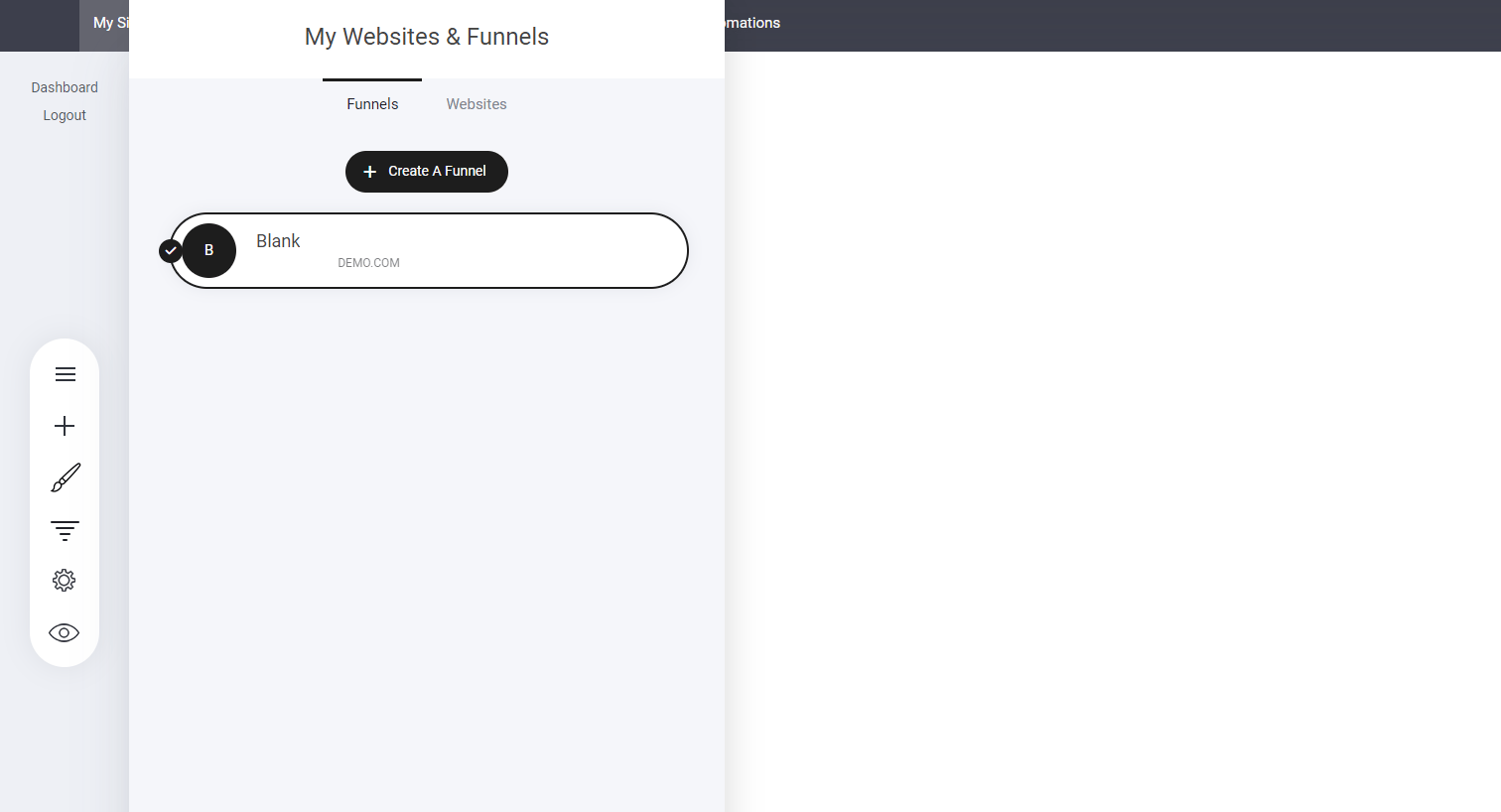
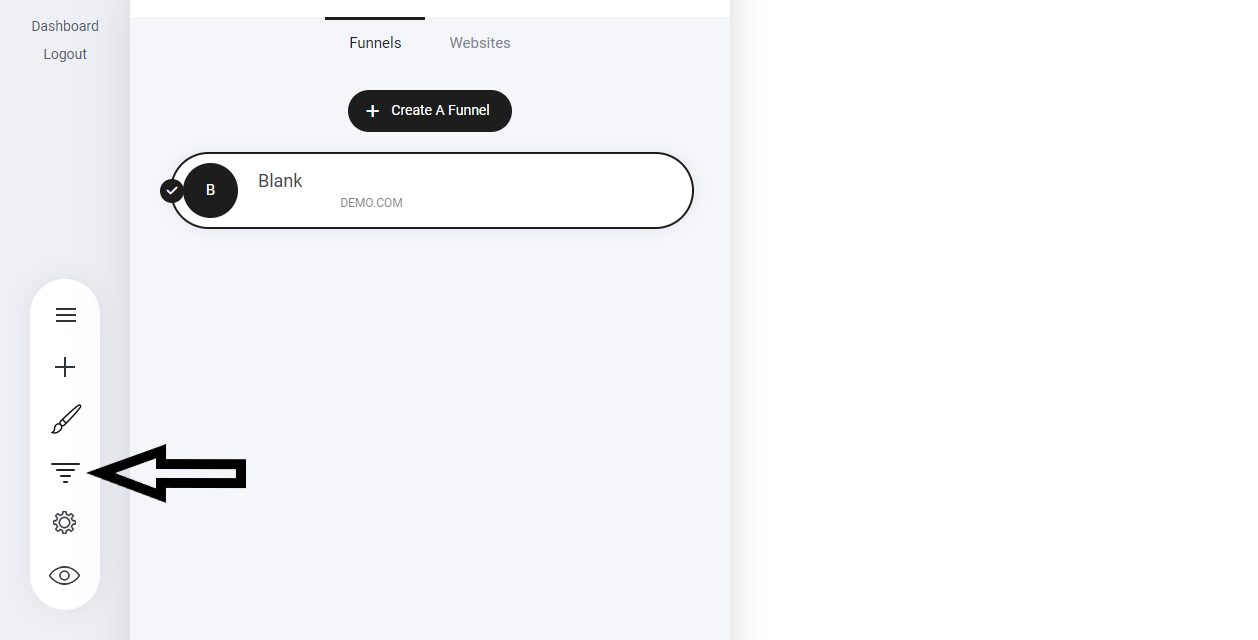
Add / Create new funnel
To create a new funnel select the ‘Create New Funnel’ Button as show in the image above. From here it will open the funnel template library for you to choose one of our pre-designed themes. Select the one you like, give it a name then hit save. Your new funnel has now been added: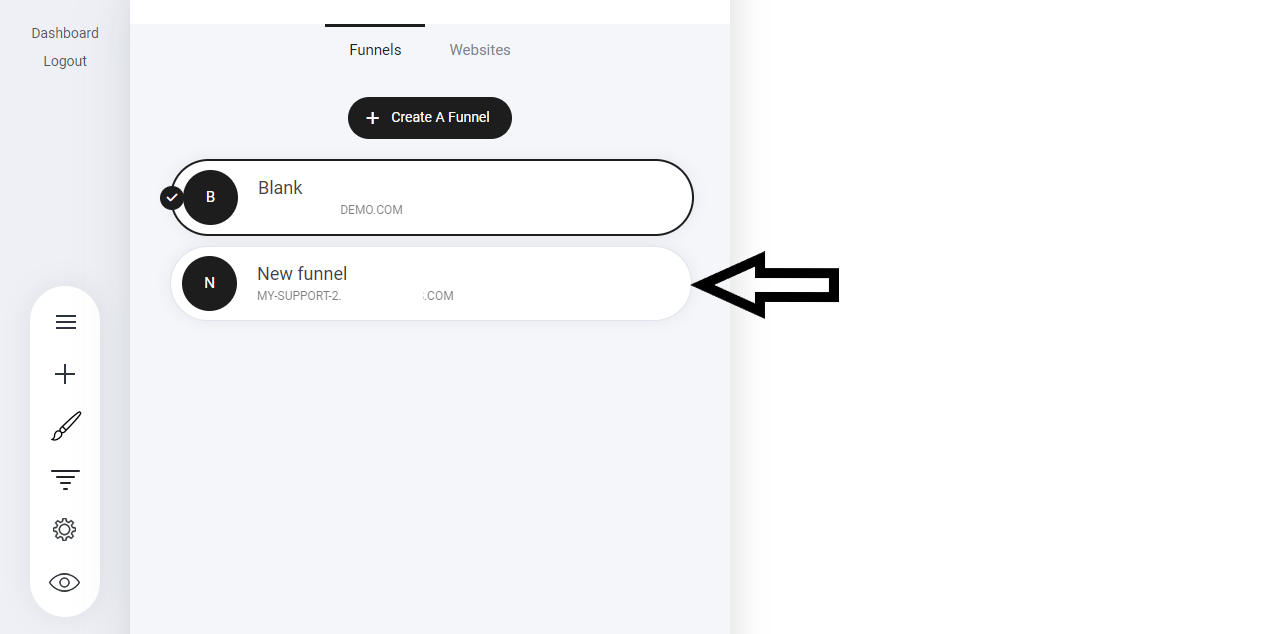
Managing your funnels
This is where the power and flexibility really comes in to play! Depending on your selected plan, each plan comes with a different amount of funnels. But the following context applies to any plan. You have already seen how to create a new funnel and the same goes when creating a new website. There are some additional options to help you get the most from using Funnels for your own projects or even setting up funnels for your own clients. For example: When you create an account with it is classed as a Project. Within your project you can create a website and numerous funnels. You can also Move the funnel outside of the website so you can have it separate from your main Project URL or move the funnel to another project.Add funnel to website
Let’s take for example that I have a website, and I want to add a funnel to my website. Select the funnel you want to move > click the cog icon and this window will display.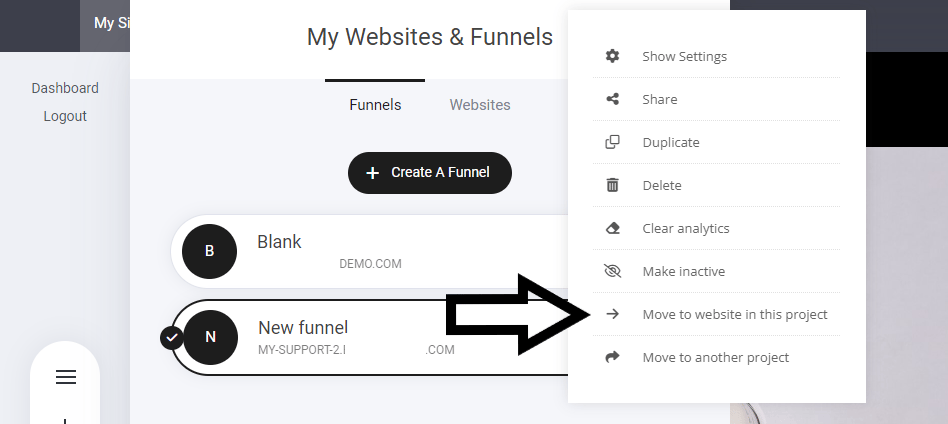
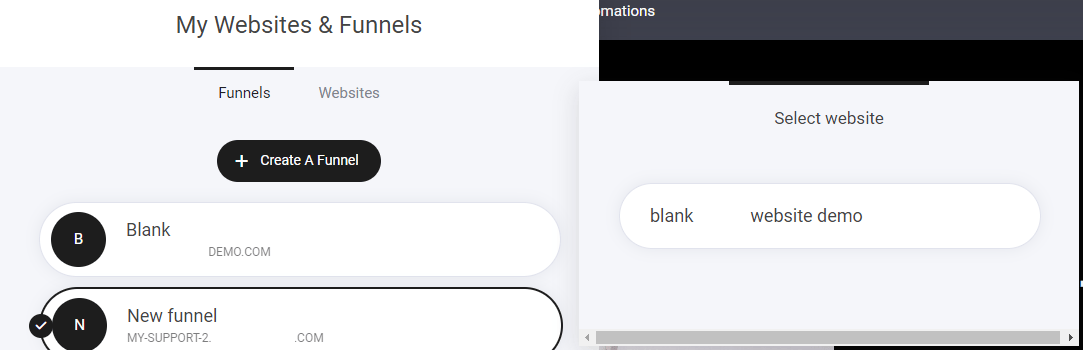
Store Products, Orders, Members, Contacts and Messages will NOT BE MOVED.
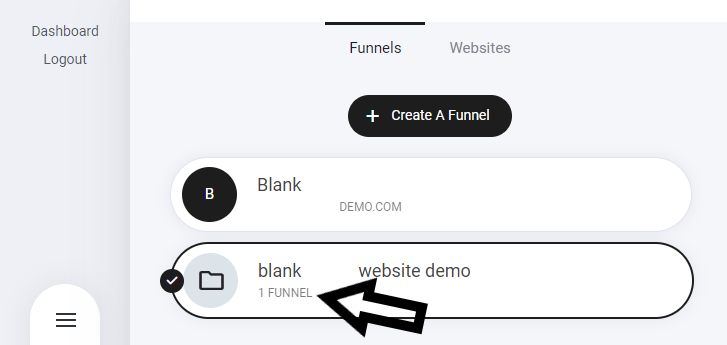
Remove funnel from website
If you want to remove a funnel from a specific website/project - Navigate to the funnel you want to move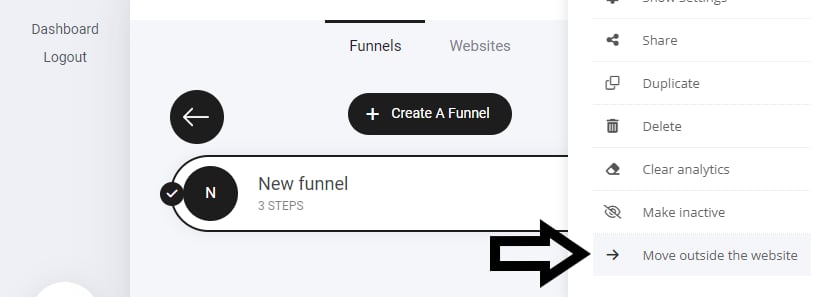
Note: this does not delete the funnel. It just moves it. You will see this warning notice display also:Are you sure you want to make this funnel independent of the website? Existing Store Products, Orders, Members, Contacts and Messages will not be moved and will stay on the website.
Share Funnel
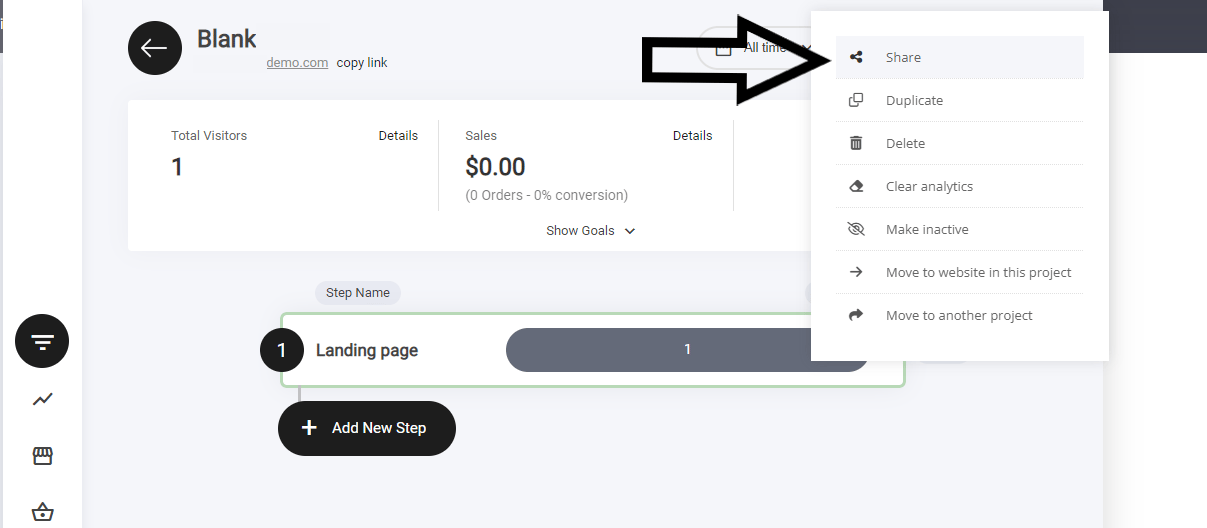
Sharing you funnel enables you to share your entire funnel to another person. So for example if you have a friend who loves your killer sales funnel and you want to sell it or just share for free you can. Simply navigate to the funnel options tab and select share. It will give you a custom link that you can share or if selling add to an email or use as a redirect page.