

Walls & Forums: Your New Community Hub
This interactive space is where members can connect, post, and engage freely. Walls & Forums is the perfect Facebook Group alternative designed for seamless discussions, dynamic interactions, and real-time engagement. Key Features: Make Posts – Share updates, thoughts, or media-rich content. Comment & Reply – Keep conversations flowing with structured discussions. Upvote & Downvote – Members can express approval or provide constructive feedback. Like & Heart Reactions – Engage with posts in a meaningful way. Poll Integration – Create interactive polls directly within posts. Image Uploads – Enhance posts with visual elements. Customization & Control – Set permissions, adjust layouts, and fine-tune moderation options. Whether you’re building a tight-knit community or leading open discussions, Walls & Forums keeps engagement effortless while offering full control over content and interactions, without the constraints of traditional social platforms.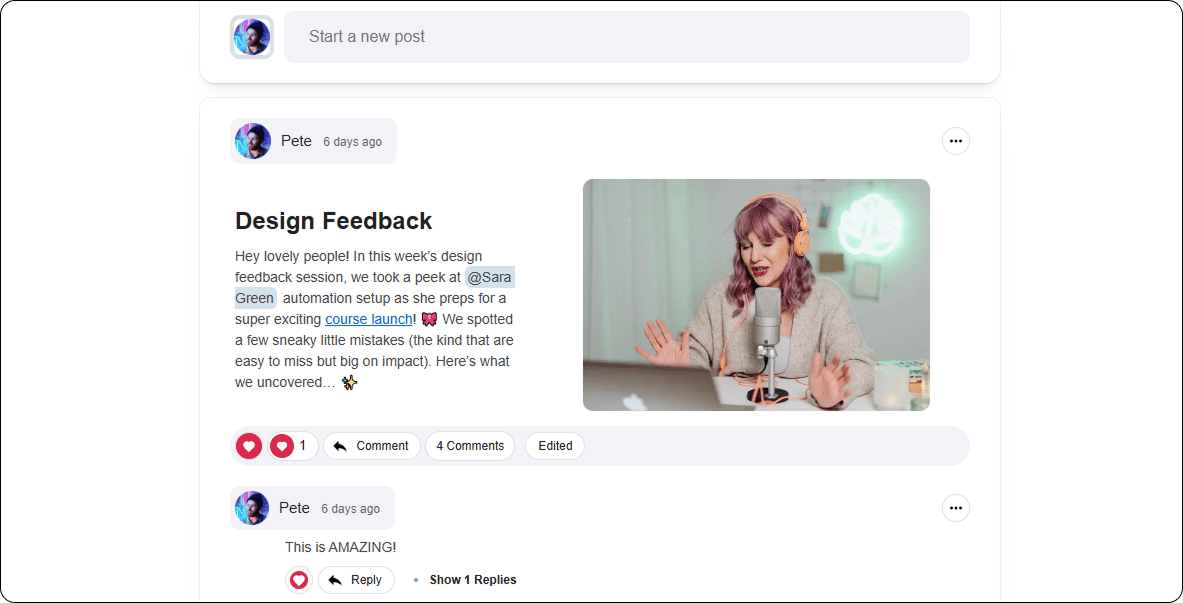
Main Settings & Display Options for Walls & Forums
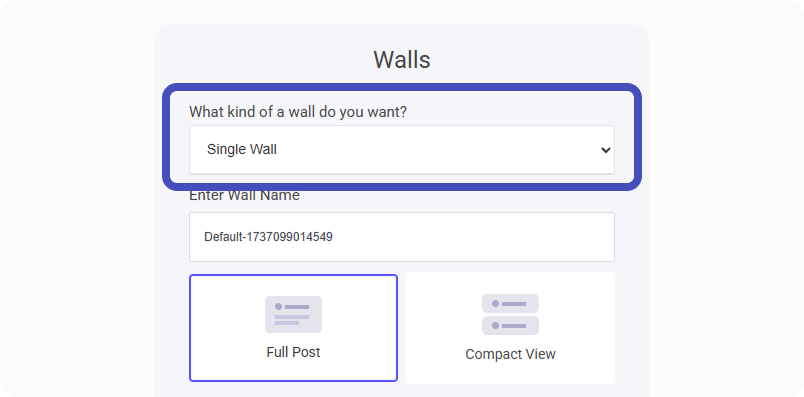
To ensure your Walls & Forums stay on brand, start by configuring the main settings and display options that best fit your community’s structure. Wall Configuration Options:- Single Wall – A unified space where all posts, discussions, and interactions take place in one central feed.
- Multiple Walls – Organize content into separate walls, allowing different categories, topics, or member groups to have their own dedicated spaces.
Naming Your Wall
Before adding content, you’ll need to name your wall to ensure easy identification and consistency across your website projects. Options for Naming:- Create a New Name – Define a fresh title that fits the purpose of your wall.
- Update an Existing Name – Modify previously created wall names to align with updates.
- Reuse a Name – Select a name you’ve already used in other projects for branding consistency.
Post Layout
You can customize how Wall Posts appear by selecting one of these two display options:- Full Post – Displays the entire post feed, including all text, images, and interactions at a glance for a more immersive experience.
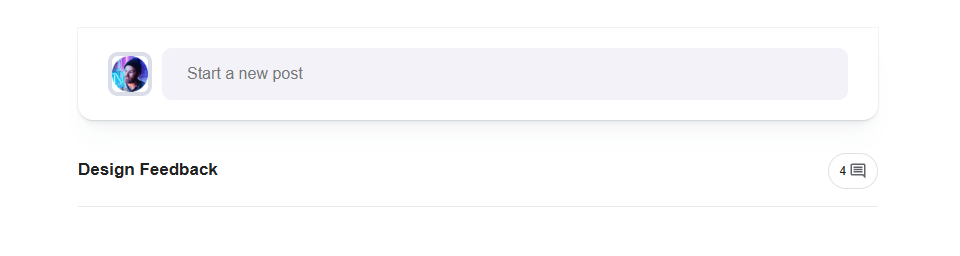
- Compact View – Shows a preview version of the post, allowing users to quickly scan multiple posts without overwhelming the screen, and when they want to engage a neat pop out will be displayed for a more focused experience.
Full Post Display:
Compact View:
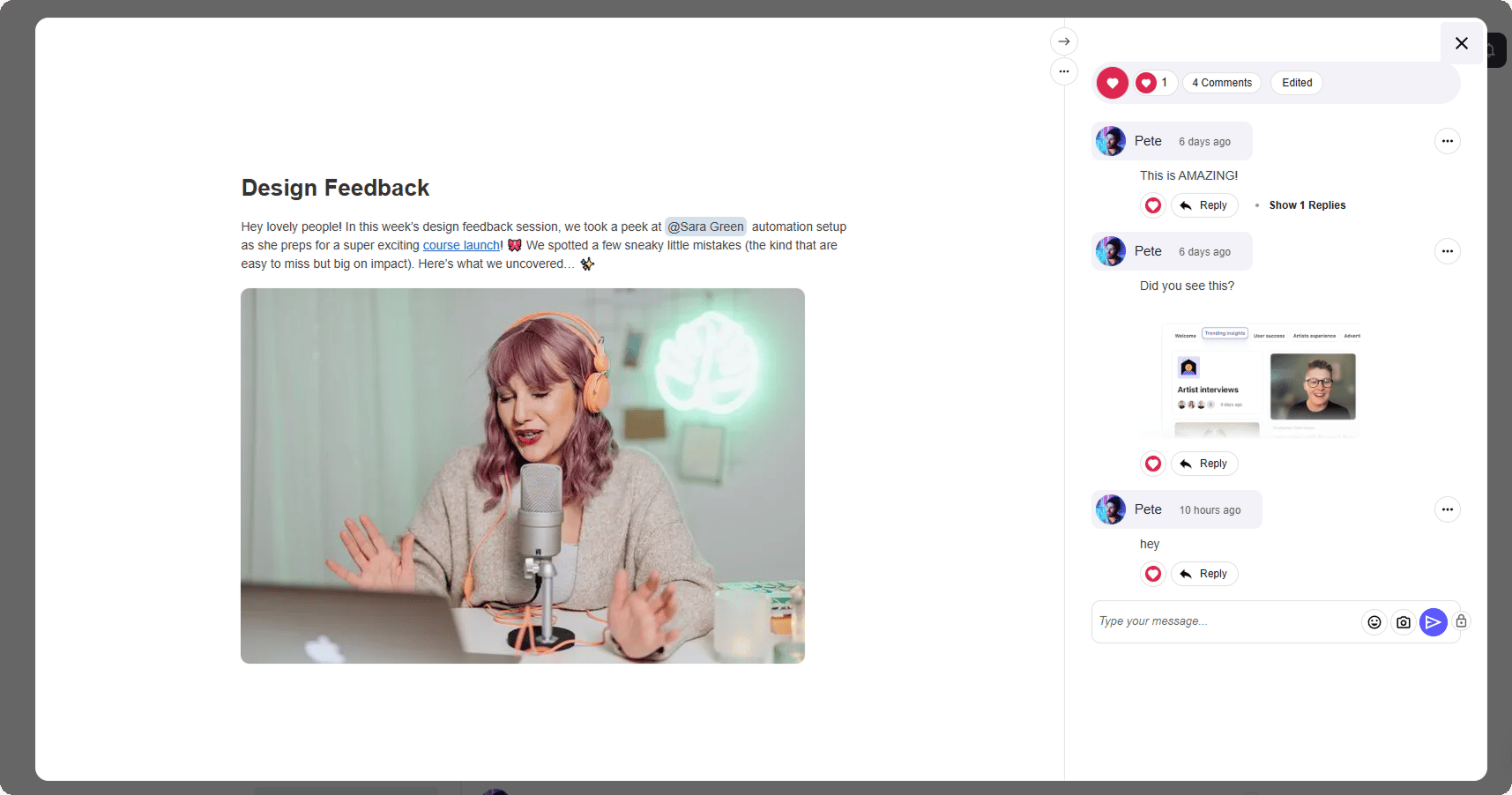
Compact view opened
If you prefer comments to appear directly beneath the post, you can adjust the display settings:- Navigate to the Post Display Options section.
- Locate the setting “Post will show in a popup on click.”
- Switch the option to “With Comments Below.”
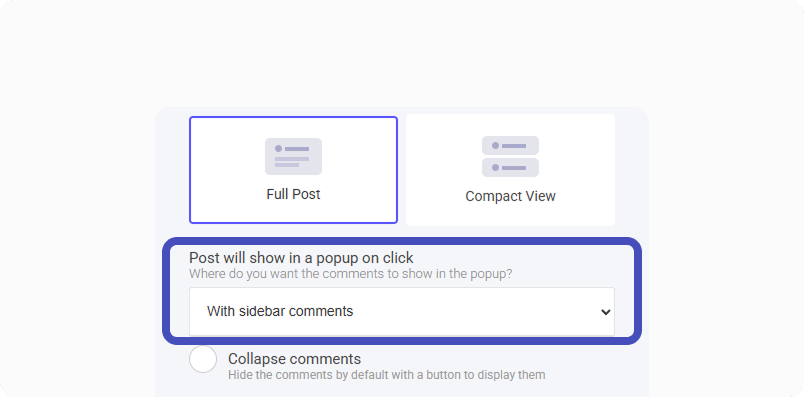
- Select the “Collapse Comments” option in the post display settings.
- When enabled, viewers will have the choice to expand comments either in the sidebar or below the post.
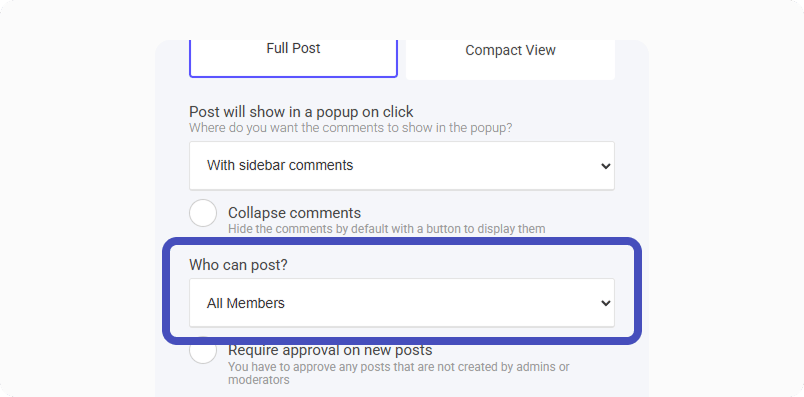
Who Can Post
You can add posting permissions simply by selecting one of the options:- All Members: Logged in members
- Only Admins
- Admins and Moderators
Post Approval
You have full control over post approvals, allowing you to turn approval on or off as needed.- When approval is required, post will be held for review.
- You can approve them in the moderation area, ensuring only appropriate content is published.
- Once approved, the comment will be published, becoming visible to all users.
Post Comments
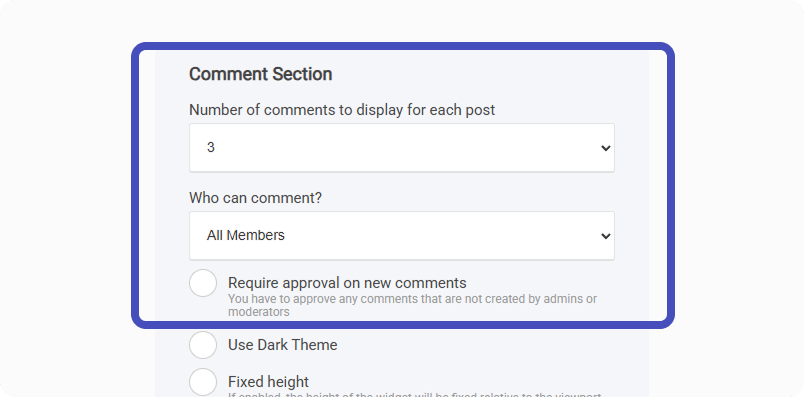
Initial Number of Comments to Display
This straightforward setting allows you to control how many comments are visible by default before members need to load more.- Choose to display 3, 5, 10, or even 20 comments initially.
- Ensures a clean and organized comment section layout.
Approve Comments
To review and approve comments before they’re published, follow these steps:- Navigate to the Community tab and select Moderation.
- Within the moderation section, click Awaiting Approval.
- Here, you will see all comments that are awaiting approval or deletion.
- Approve the comment to publish it, or choose to delete it if necessary.
Use Dark Theme
Enabling the dark theme for post allows you to maintain a consistent brand aesthetic by switching from a lighter theme to a darker one.- This option ensures visual harmony with your existing background color.
- Helps enhance readability while aligning with your design preferences.
- Allows for a seamless user experience, making posts and comments feel integrated with your overall layout.