
Assigning Community Roles: Managing Access & Permissions
Roles within your Circle community help define access levels, responsibilities, and engagement capabilities. Whether assigning standard Members, Community Moderators, or Community Admins, these roles ensure structured participation while maintaining control over interactions. Available Roles:- Member – Grants access to an existing member within one or multiple Circles.
- Community Moderator – Comes with a Moderator badge, allowing assigned users to help oversee content and engagement.
- Community Admin – Assigned an Admin badge, providing full control over settings, content, and community management.
- Post creation and comment replies to control discussion access.
- Exclusive admin-to-admin posts and chats, ensuring private communication channels.
- Admin and moderator-only interactions, limiting conversations to key community leaders.
Member Portal
When inside a member’s CRM, you can assign the required role by simply clicking the circle with three dots, as shown below. Once opened, you can select the role you want to assign.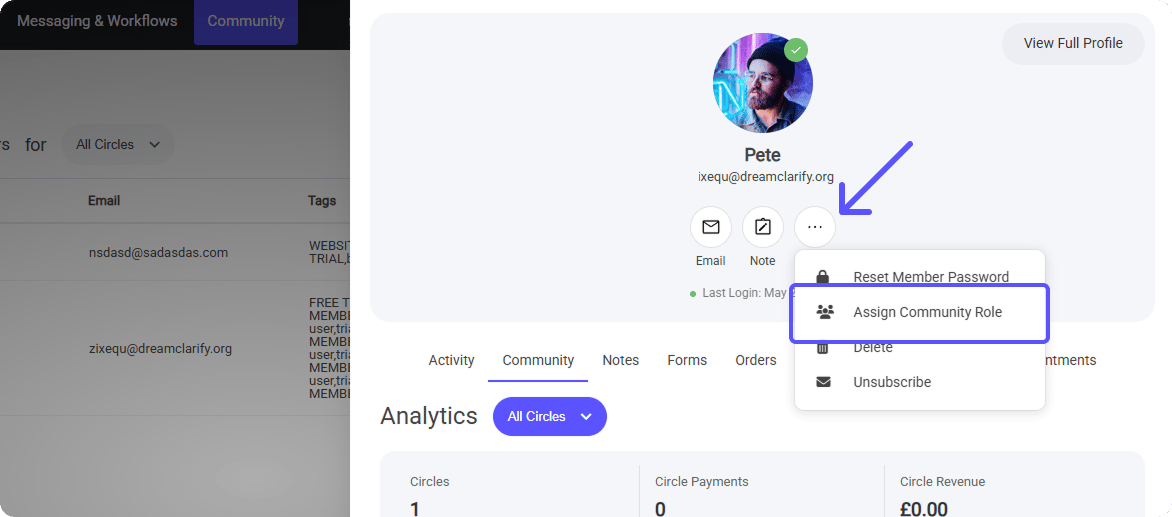
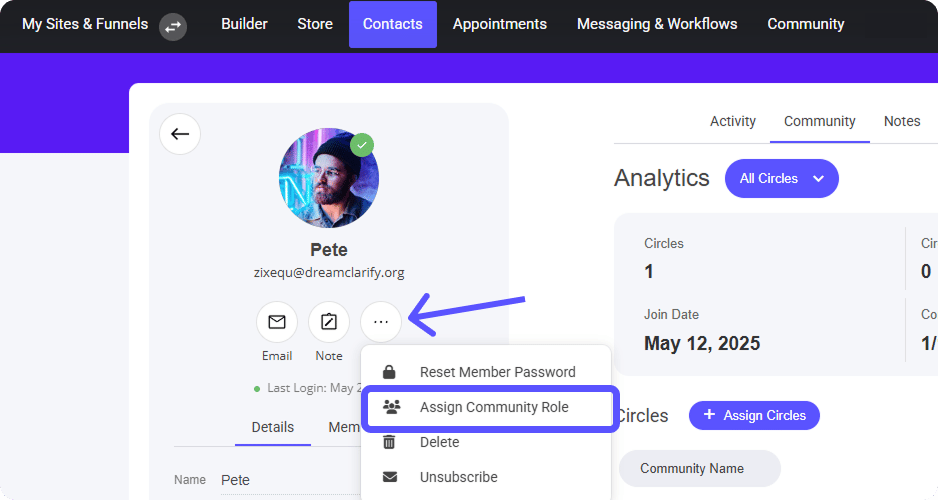
Contact CRM
Another area where you can assign community roles is within the Contacts Tab in the top Task bar. The same process applies when allocating the role to that contact.Note: You can only apply a community role to an active member