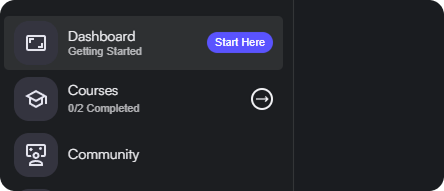

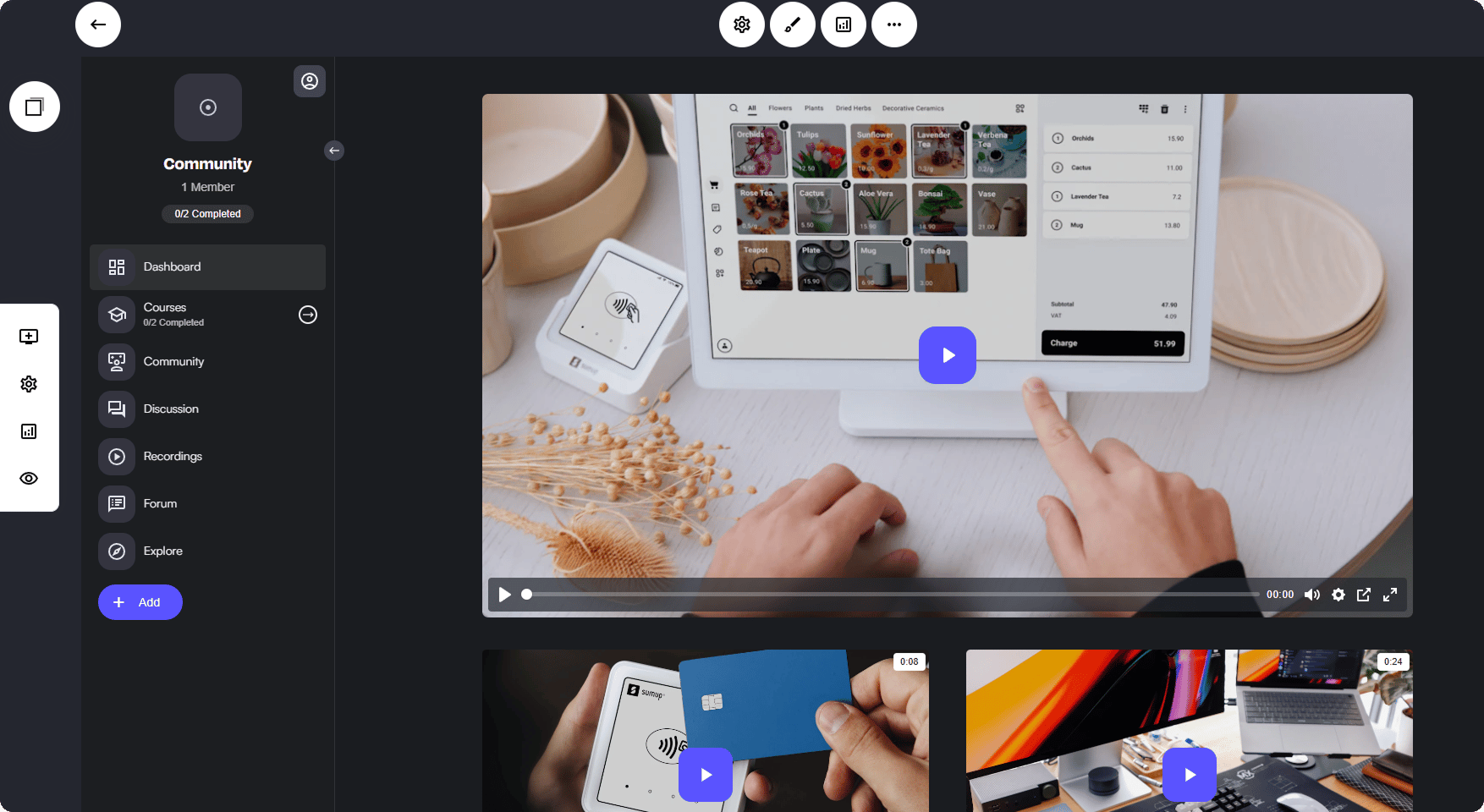
Circle Canvas
Let’s start with the basic elements located to the left side of the screen.Page Level Editing
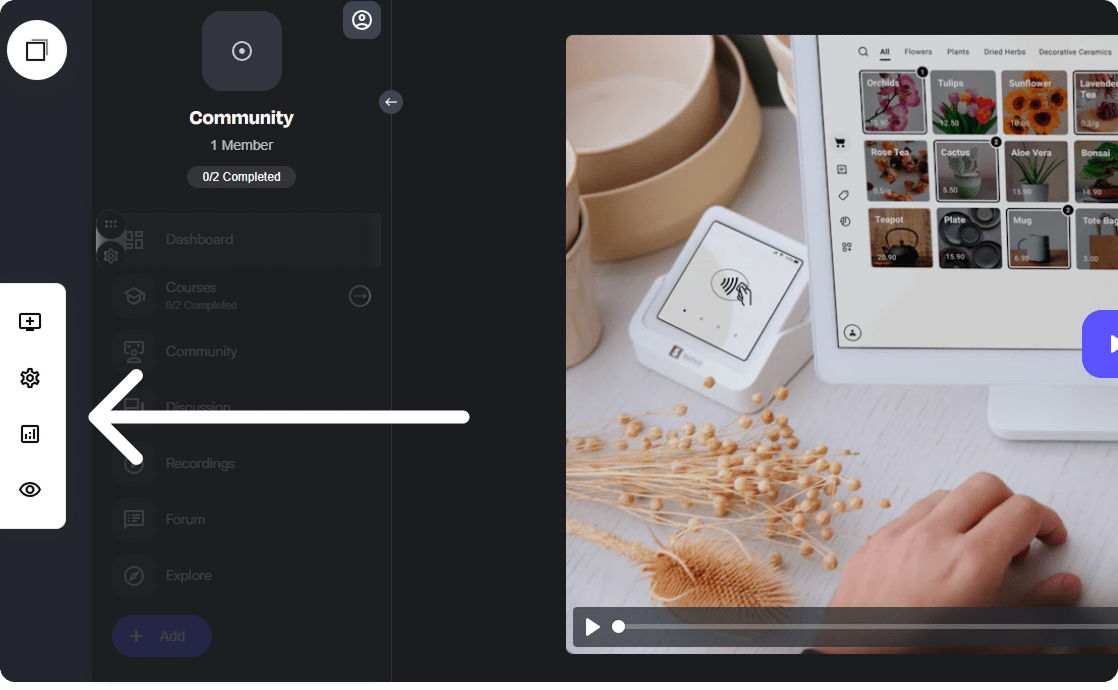
Adding Widgets to your Circle Content
Just like our main page builder, you’ll be able to add any element/widget directly into your Circle pages, making it fully customized to you. To add any widget simply select the Screen option: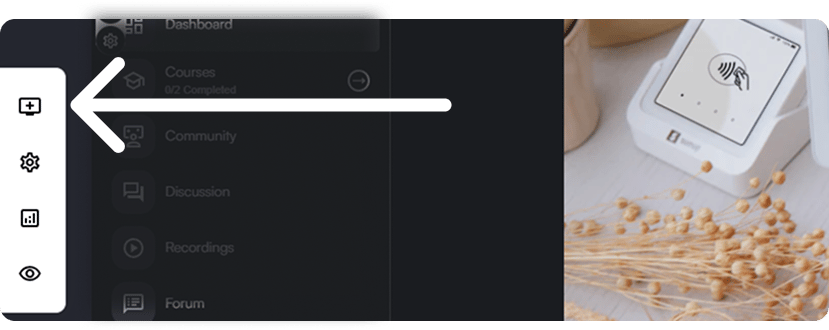
Adding Widgets to Circle Pages/Content
Page Level Settings
Page level settings enable you to quickly edit things like, access levels, Content availability and more. To access the page level settings, simply select the gear icon to the left: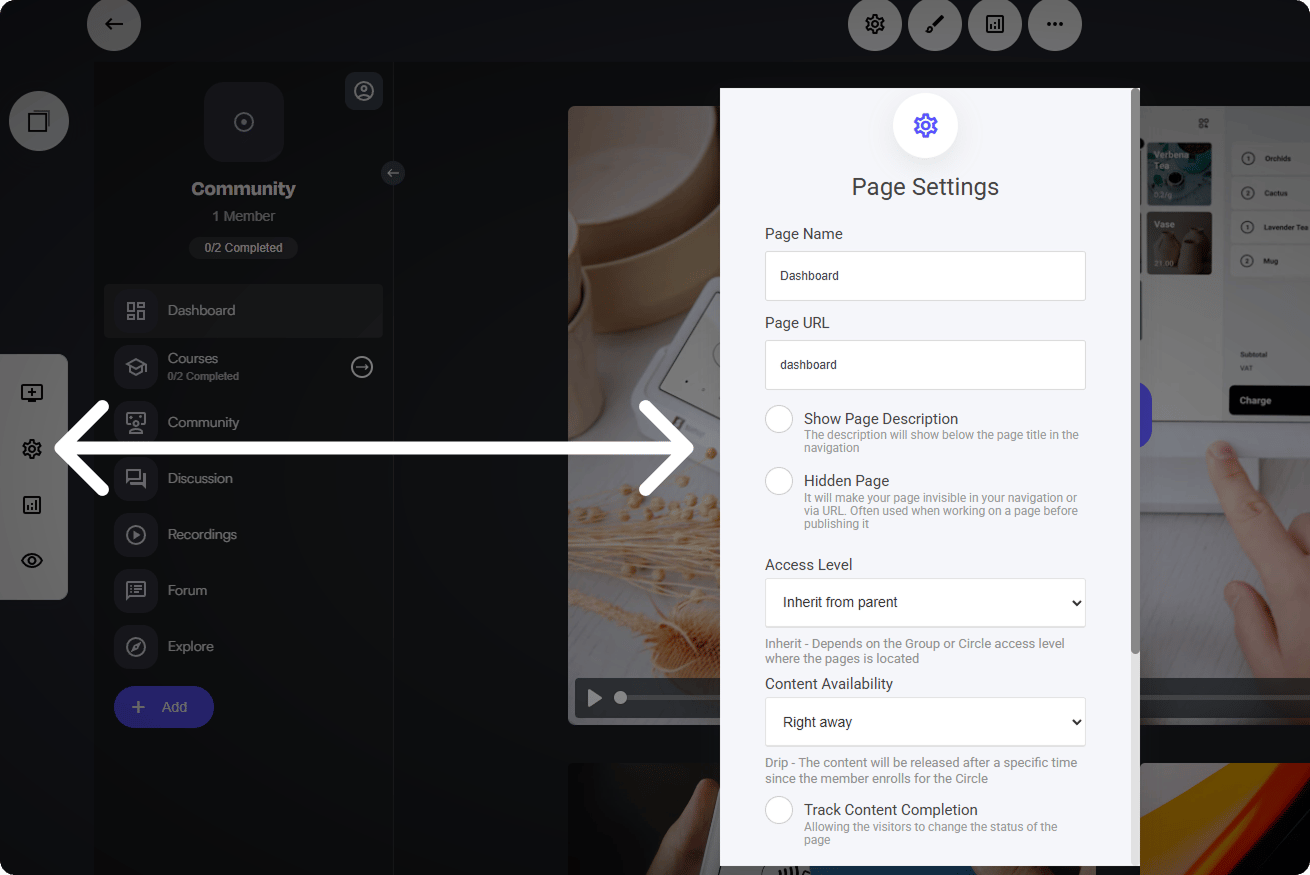
- Page Name: A title added to the specific page tab.
- Page URL: A dedicated URL for a specific page.
- Show Page Description: Small text below the Page Name
- Hidden Page: This will make your page invisible from your circle members ‘Often used when editing or updating page content’
- Access Level: Each page can have its own access level - click here to read more
- Content Availability: Have full control when content is viewable to members - Read more
- Track Content Completion: Enables the member to edit and view the status of the page content.
- Layout in the Navigation Bar: Change the prefix of the page name with a icon, image, text etc.
- Adding a Badge: Add a badge next to the page/group name. Example: If you have some new content, you can add a colour branded badge next to the title.