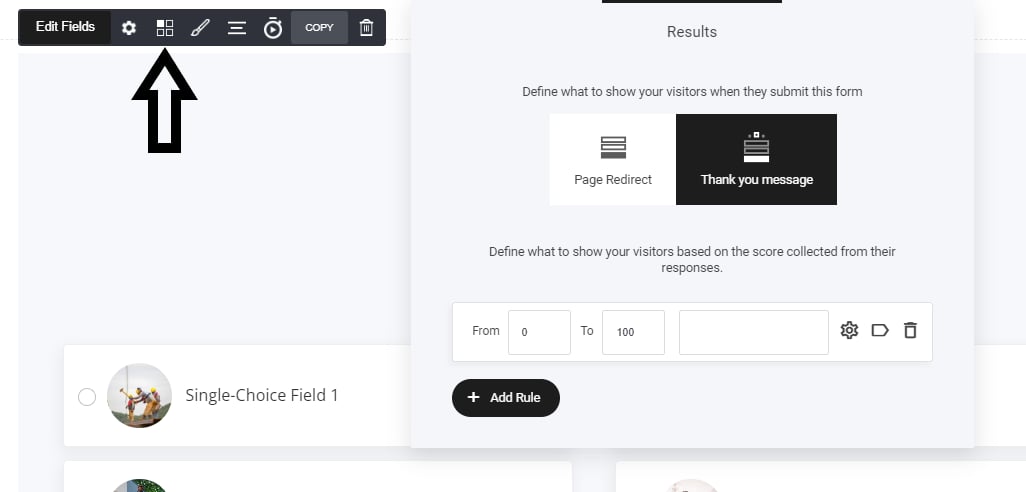

- Navigate to the Elements Section – Locate the Quizzes Widget in your website builder.
- Select the Quizzes Widget – Drag and drop it into your desired location.
- Customize Your Quiz – Adjust questions, design, and outcomes to align with your goals.
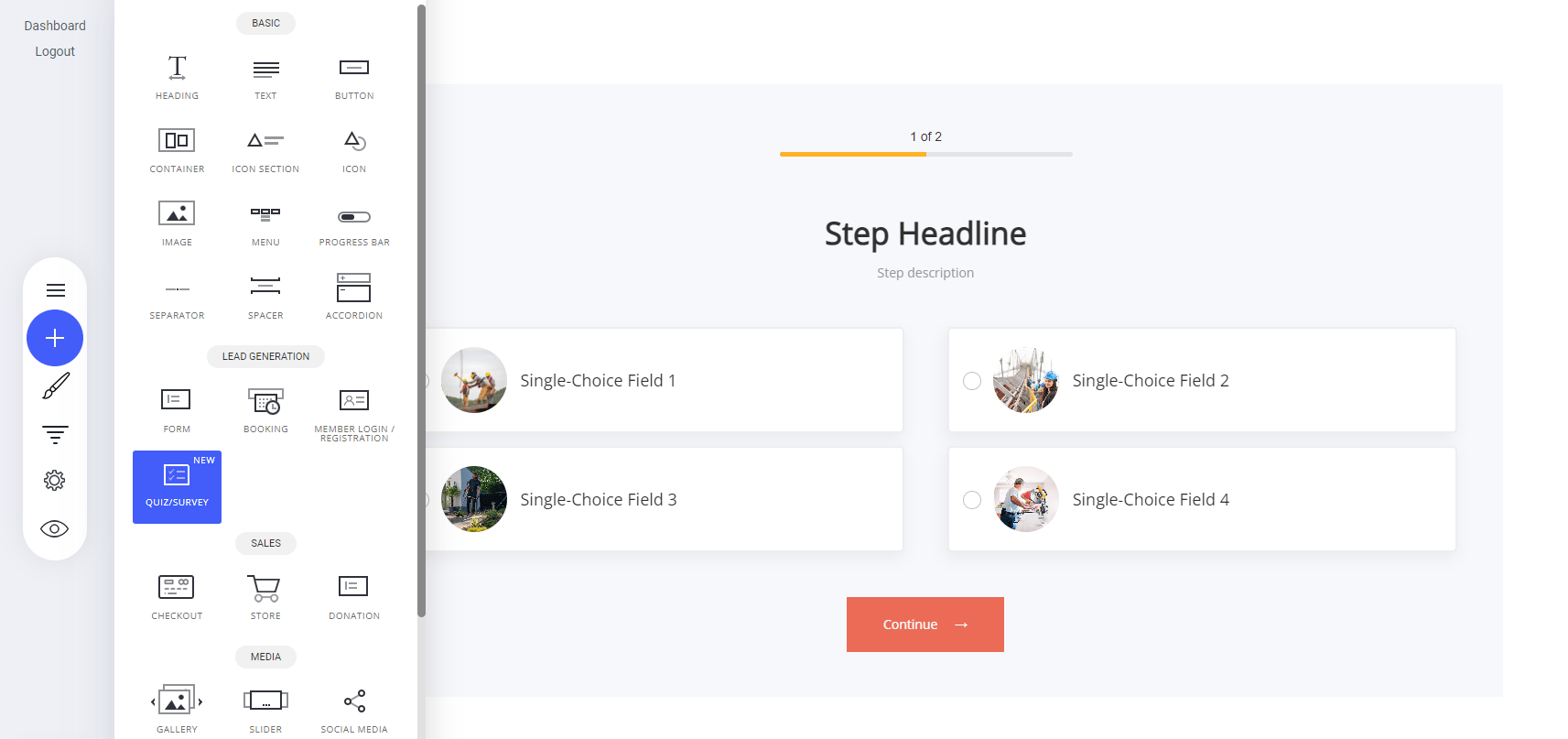
Styling
Before we get into the mechanics of how to build a quiz, let’s take a look at the various styling elements. As with any of the element widgets all of the styling is pretty much the same in design. from selecting colours to fonts. Just how you would style a regular form.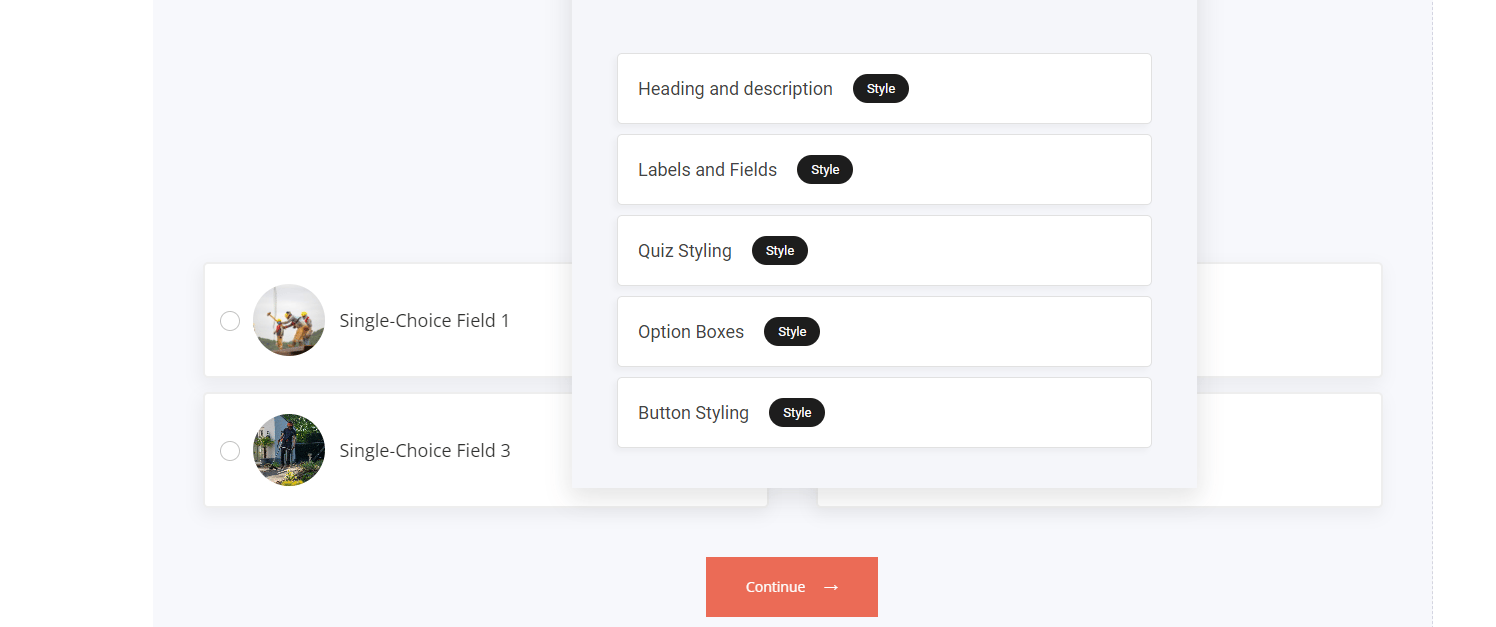
Settings
Within the settings tab the feature are almost the same as setting up a regular form. The only differences are that you can:- Auto Advance
- Show progress bars and tabs
- Show back button
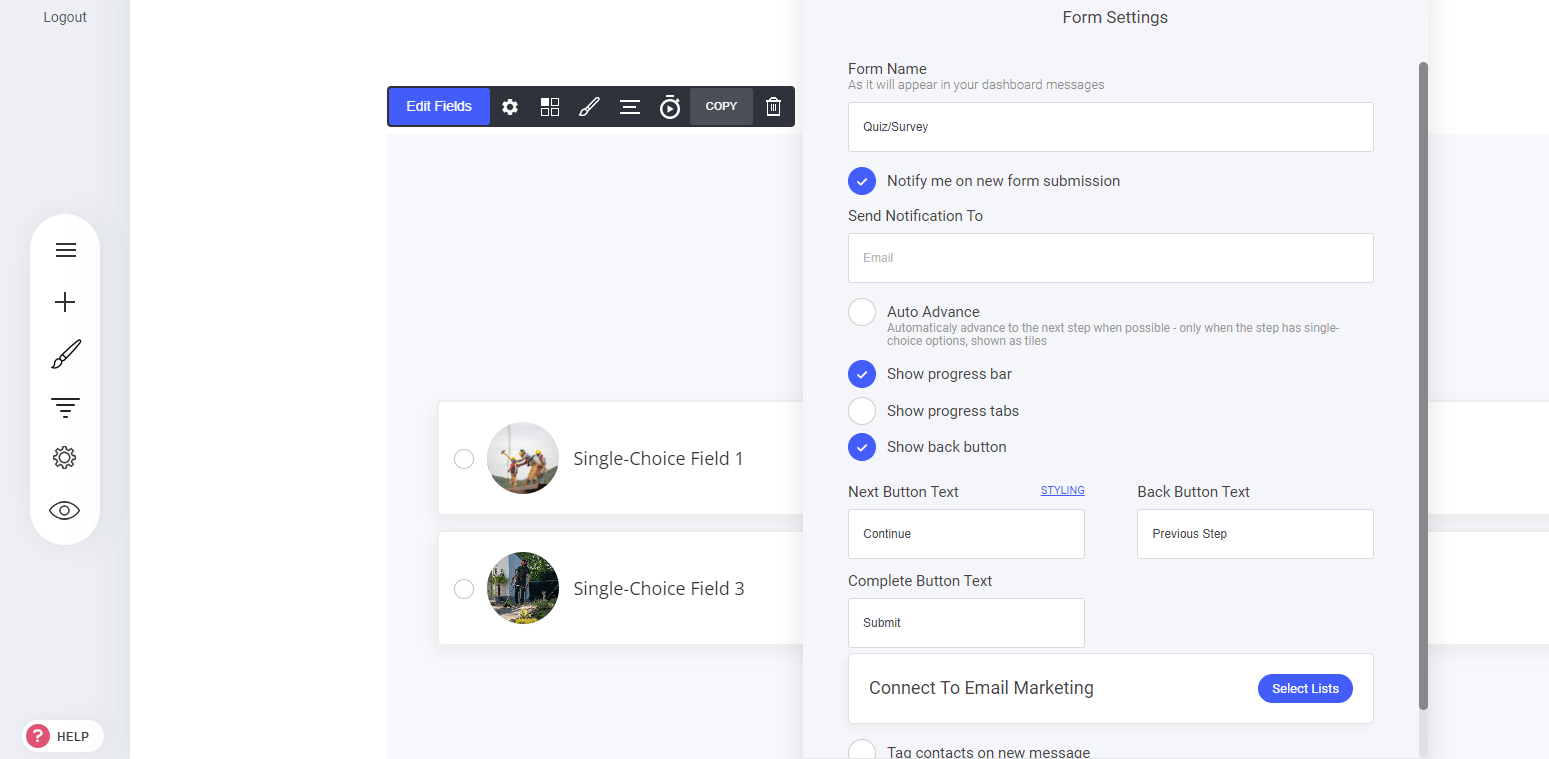
Auto Advance
The auto advance option enables the user to advance to the next step within your quiz flow. For example: If you have multiple questions/options that are being displayed, if the user select an option they will auto advance to the next given step in your quiz flow.Progress bars and tabs
The progress bars and tabs are optional. They display a visual element to the user to show the quiz progress and what step they are at.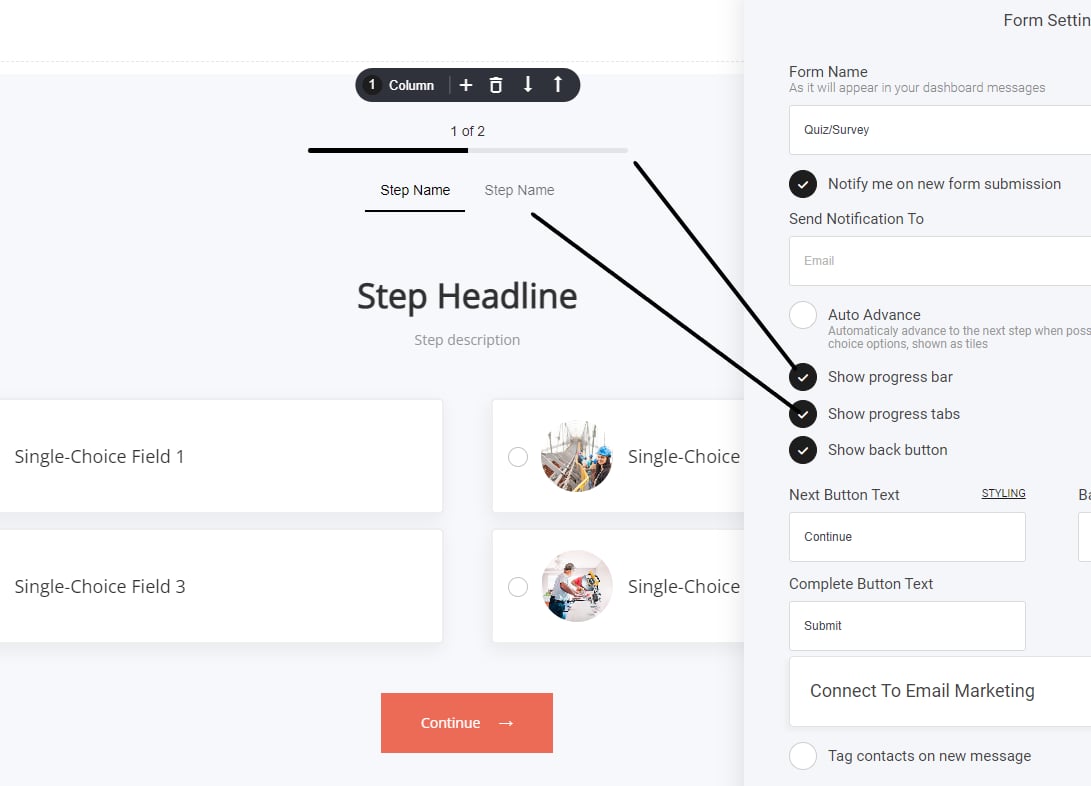
Quiz fields
Quiz fields is the place where you add all of your quiz information, from questions to images and more.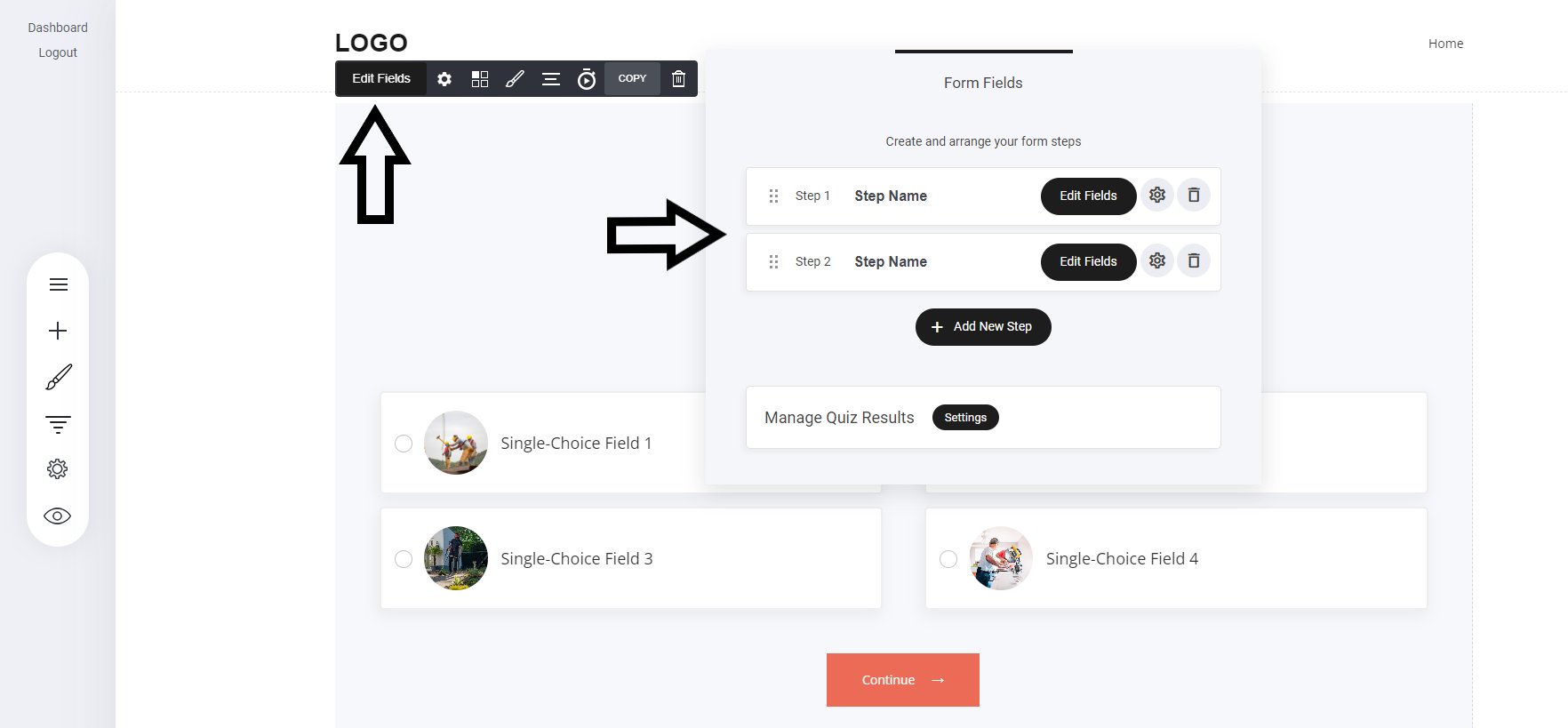
Editing quiz fields
The quiz field settings cog as highlighted below enables you to edit the step headline and description, including styling font and colour.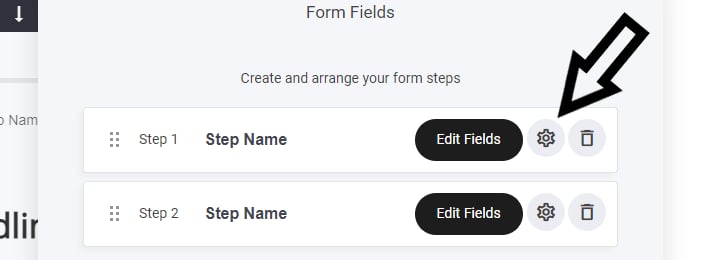
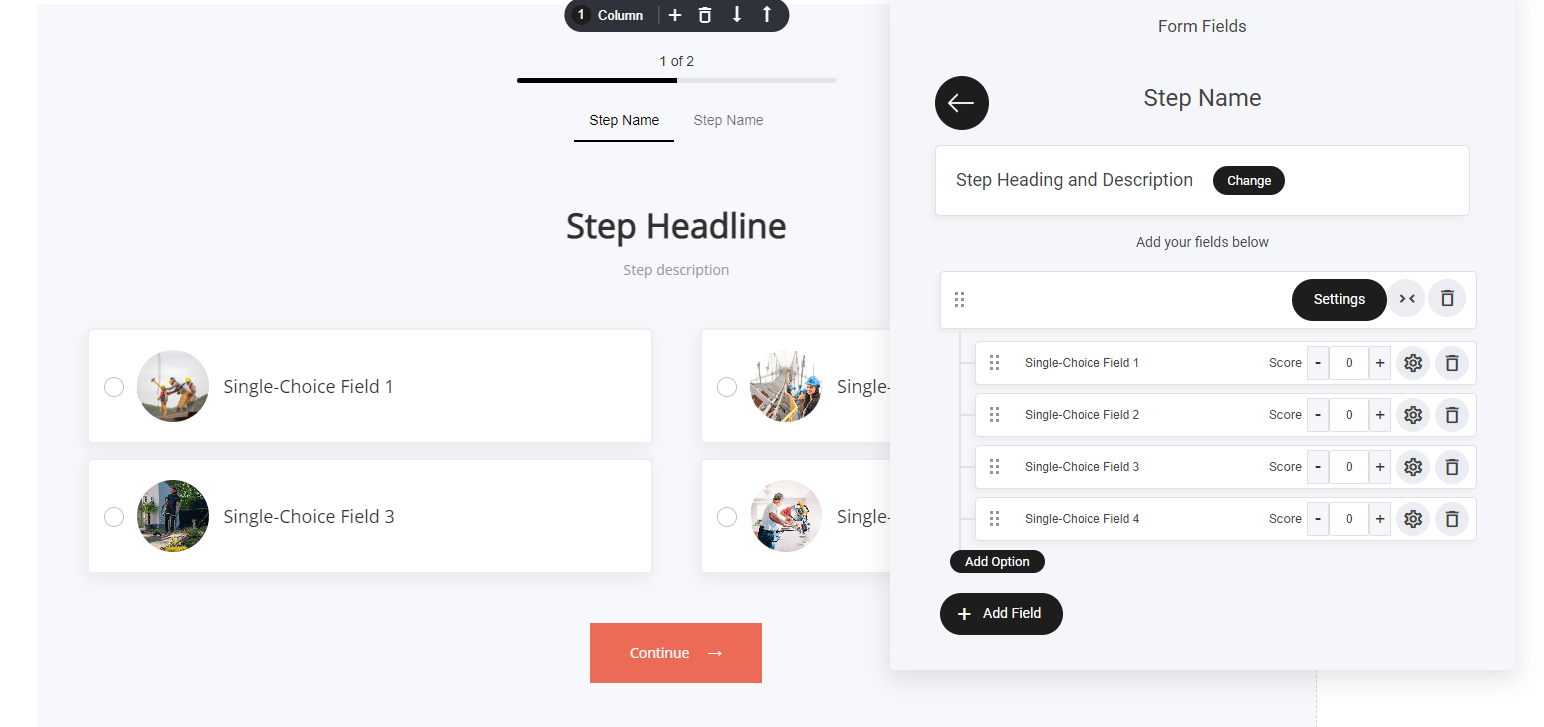
Quizzes are made up of Steps and within those steps are fields. You are not limited to the amount of steps you want to create for your quiz!
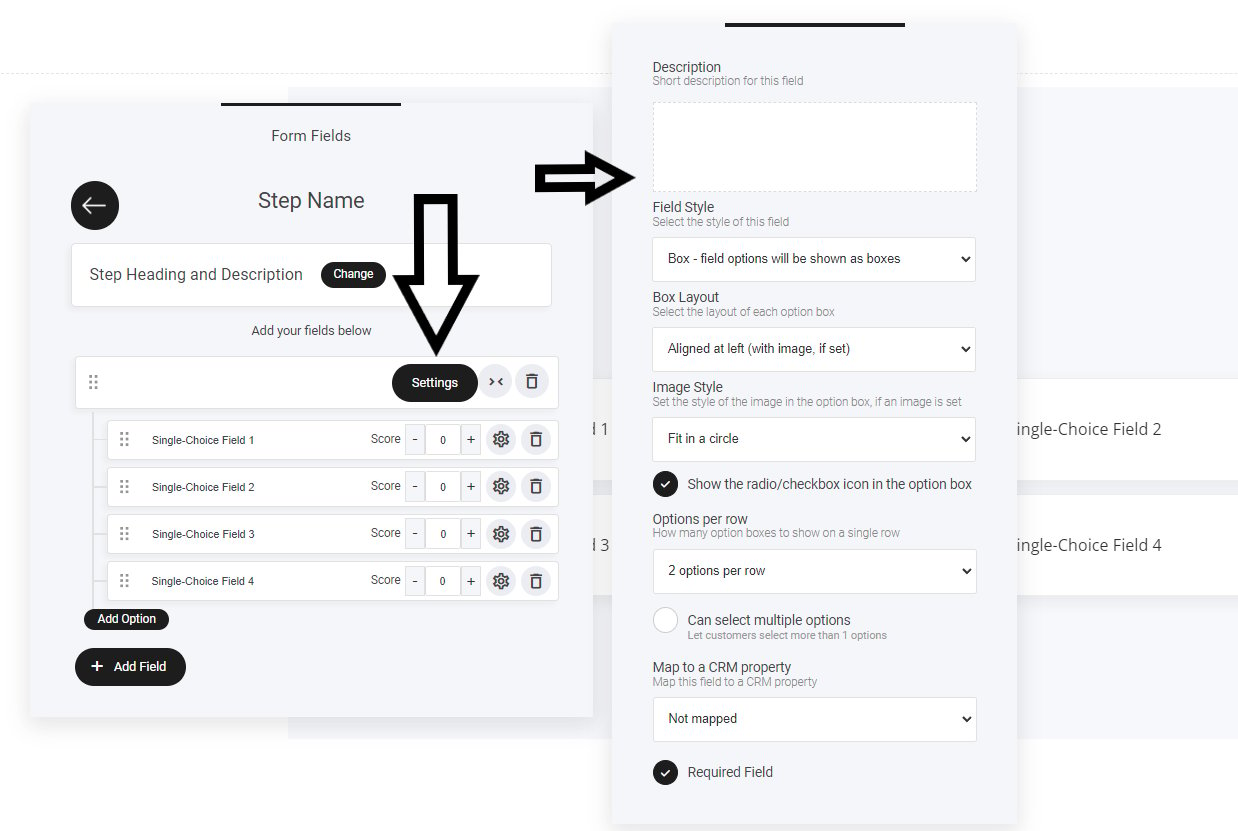
- Can select multiple options
- Map to crm property
- Required field
If the property does not exist, you can simply create one specifically for that quiz question.
Quiz questions
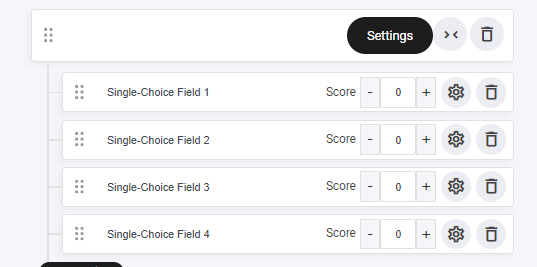
Within your quiz step you can create multiple questions per step and each question has a valued based answer, which will we cover shortly. Let’s take a look at the quiz question settings first. Next to each question there is a little cog ‘settings’ as shown below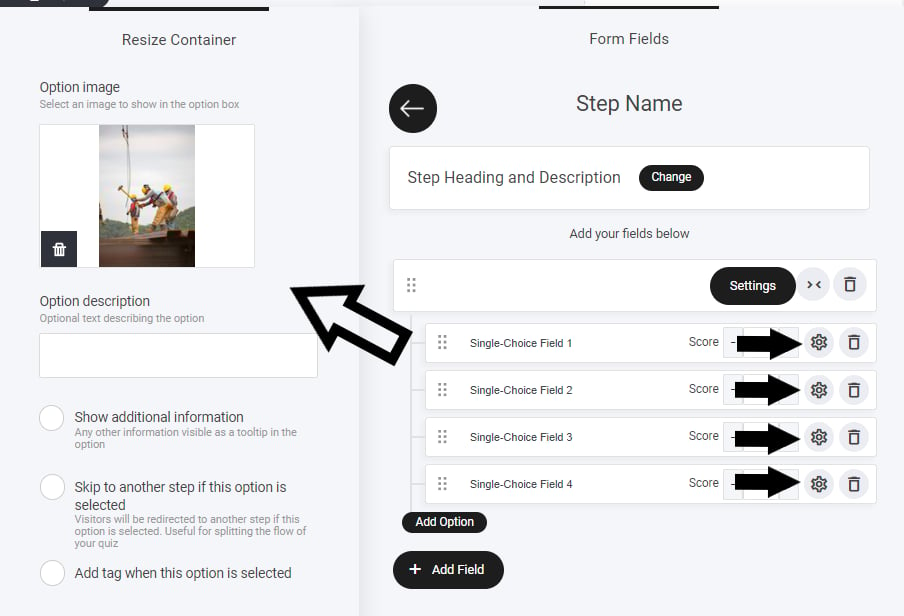
- Add an image
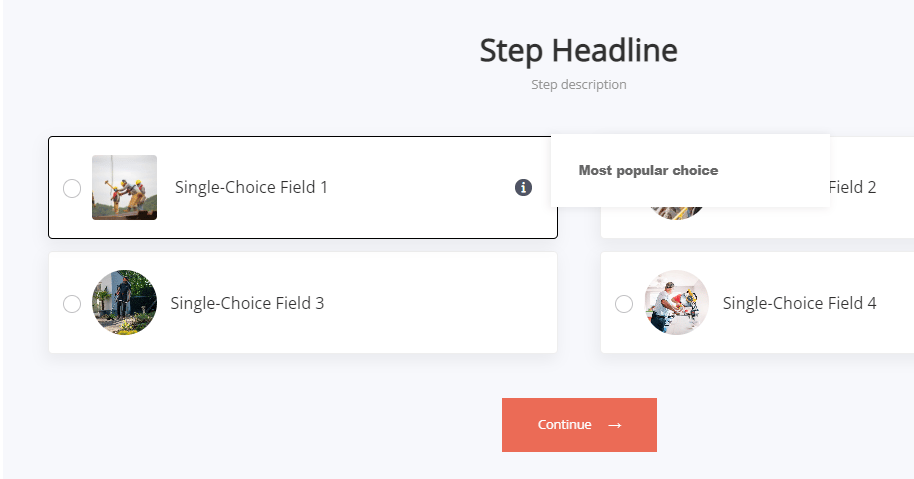
- Show additional information
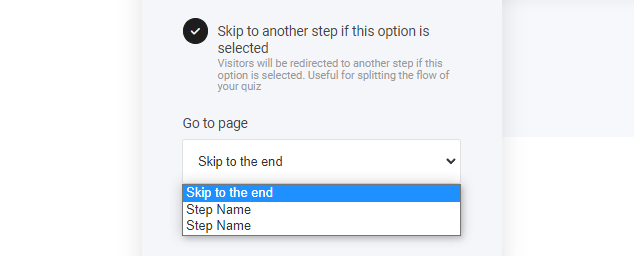
- Skip to another step
- Add a tag
Quiz scoring
Quizzes are designed to help you generate leads and drive users to things like recommend products and more. With the scoring element within the quiz, this will help you give the right outcome to the user.Each question can have it’s own score allocated. But do note; not all questions require a score and can be left at 0 ‘zero’ if required.
Quiz management
So once you have your scoring strategy mapped out, now is the time to manage where you want to take them once the quiz is complete.