

Displaying Videos on Your Website
You have two options when adding videos to your site, depending on how you want them hosted and displayed: 1. Hosted Video- Fully native and built-in to your platform.
- Gives you full control over playback, settings, captions, and chapters.
- Best for branded content or exclusive videos that you want to keep internal.
- Use external sources like YouTube, Vimeo, Loom, and more.
- No need to upload—simply paste the link and configure display settings.
- Ideal for public-facing videos that are hosted elsewhere.
Video Link
If you want to add a video from an external source like YouTube, Vimeo, Loom, or others, follow these steps:- Navigate to the left-side taskbar.
- Select the “Widget” tab.
- Choose the “Video” widget.
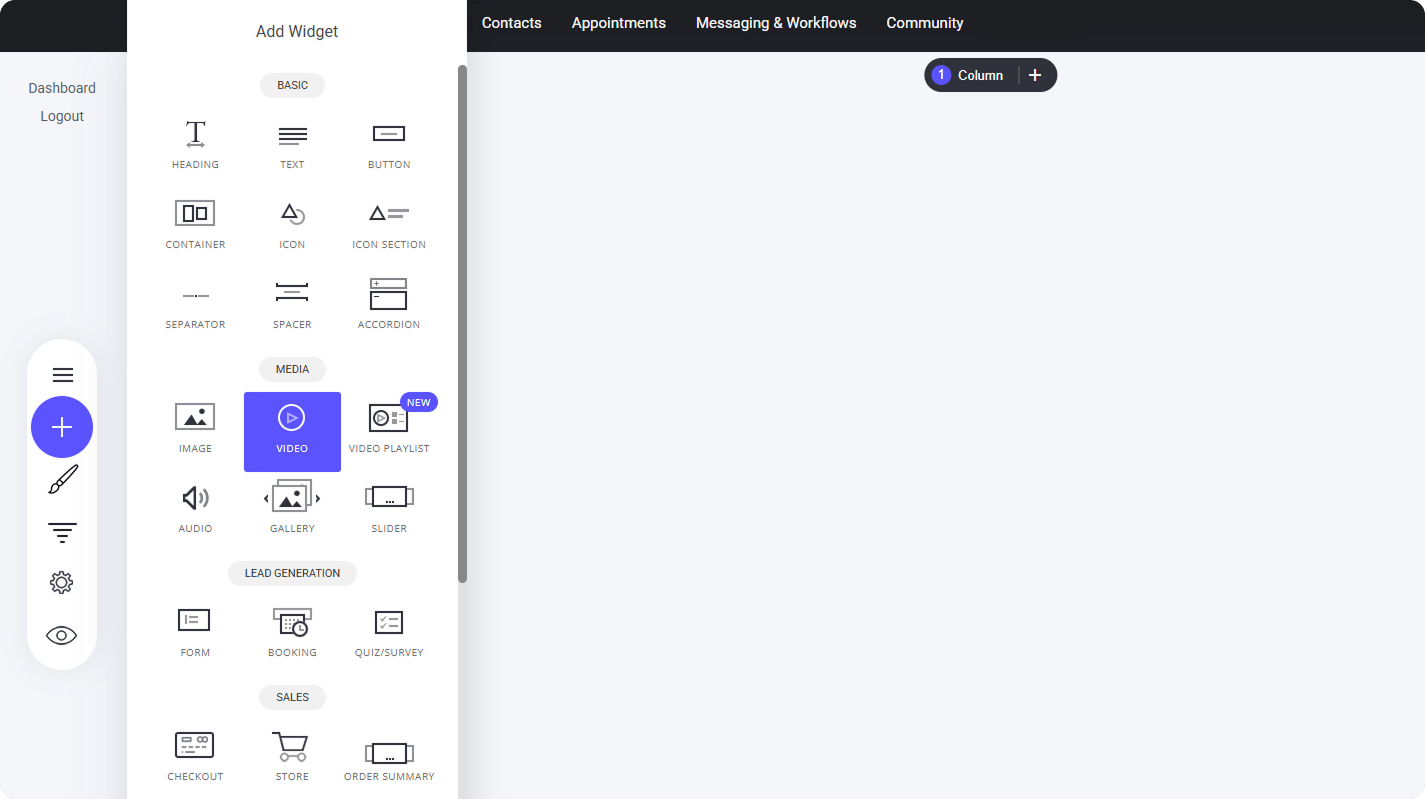
Video Widget
Editing Your Video Widget
Once you’ve placed the video widget, a sidebar window will appear, giving you the option to:- Upload a video – Select from your hosted videos for full native integration.
- Use the link option – Quickly embed external videos from sources like YouTube, Vimeo, or Loom.
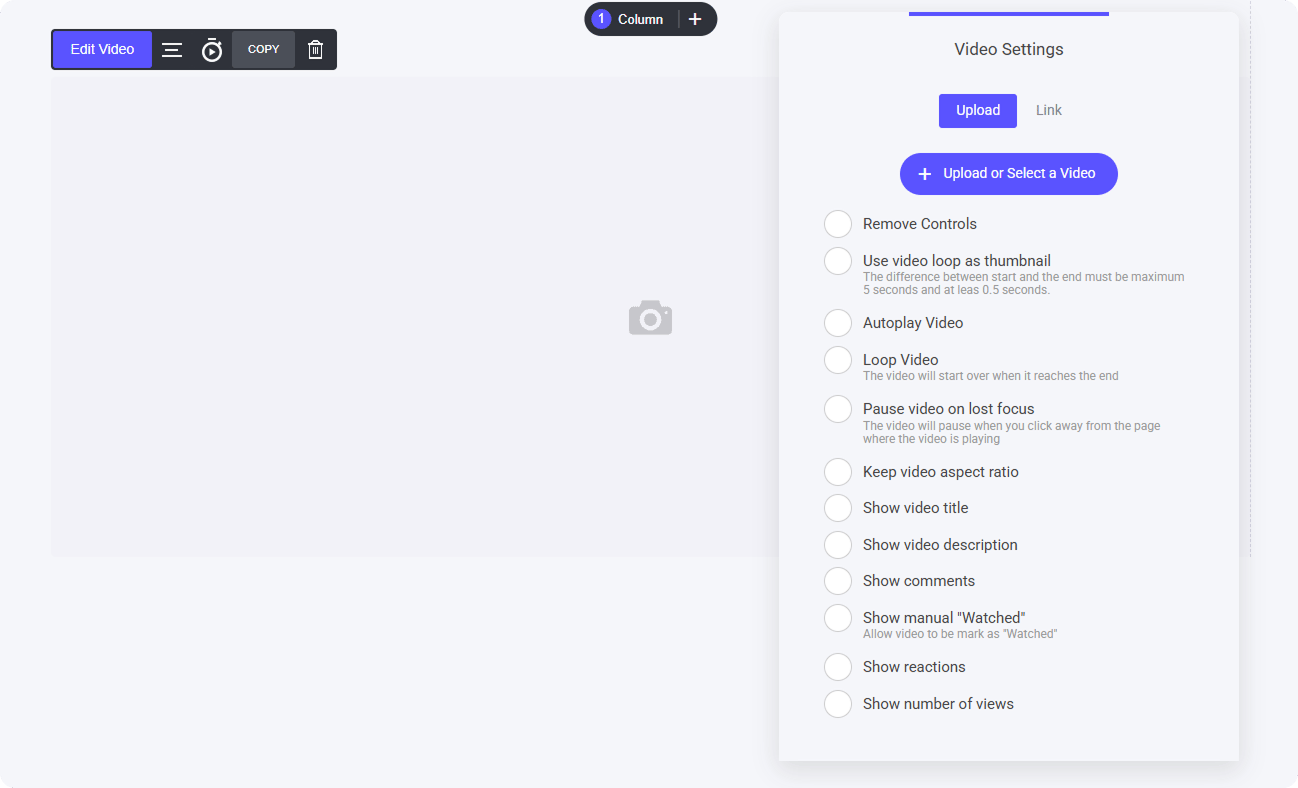
- Custom Thumbnail – Instead of using the default thumbnail from platforms like YouTube, you can upload your own from the File Manager to better match your branding.
- Custom Video Player – Applies your branding colors to the video and modifies the toolbar for a more native and cohesive look within your platform.
- Shadow Effect – If desired, you can add a shadow around your video to enhance its visual depth and complement your design style.
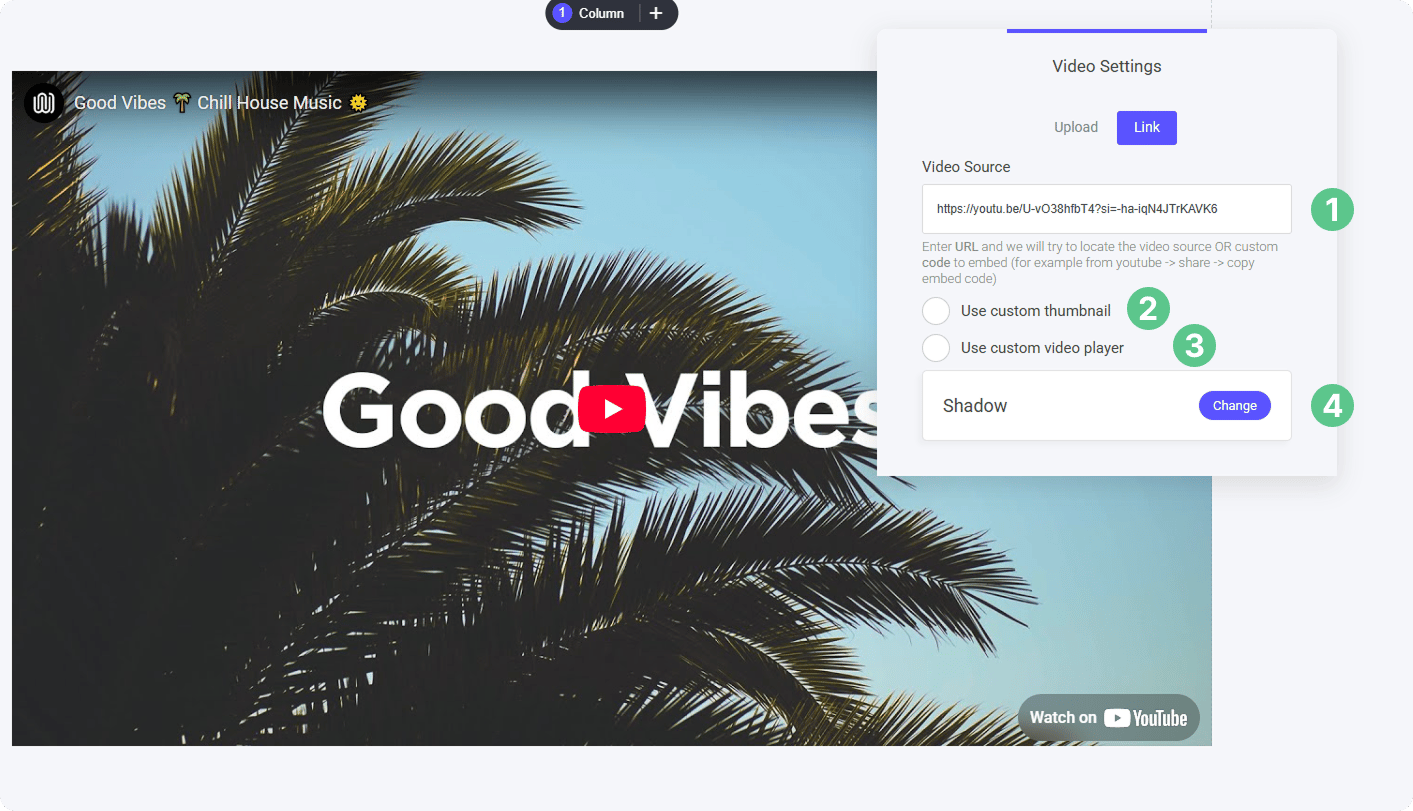
- Without Custom Player
- With Custom Player


Hosted Video
Using built-in hosted videos gives you far greater flexibility over display settings, playback behavior, and engagement features. Key Advantages:- Customizable Display – Adjust how videos appear, including thumbnails, player design, and shadows.
- Playback Control – Define autoplay preferences, looping, and visibility options.
- Engagement Features – Enable comment sections, allowing users to interact, discuss, and provide feedback directly within the platform.
- Navigate to the left-side taskbar.
- Select the “Widget” tab.
- Choose the “Video” widget.
- Select a hosted video if you’ve already uploaded content.
- Upload a new video directly from this menu.
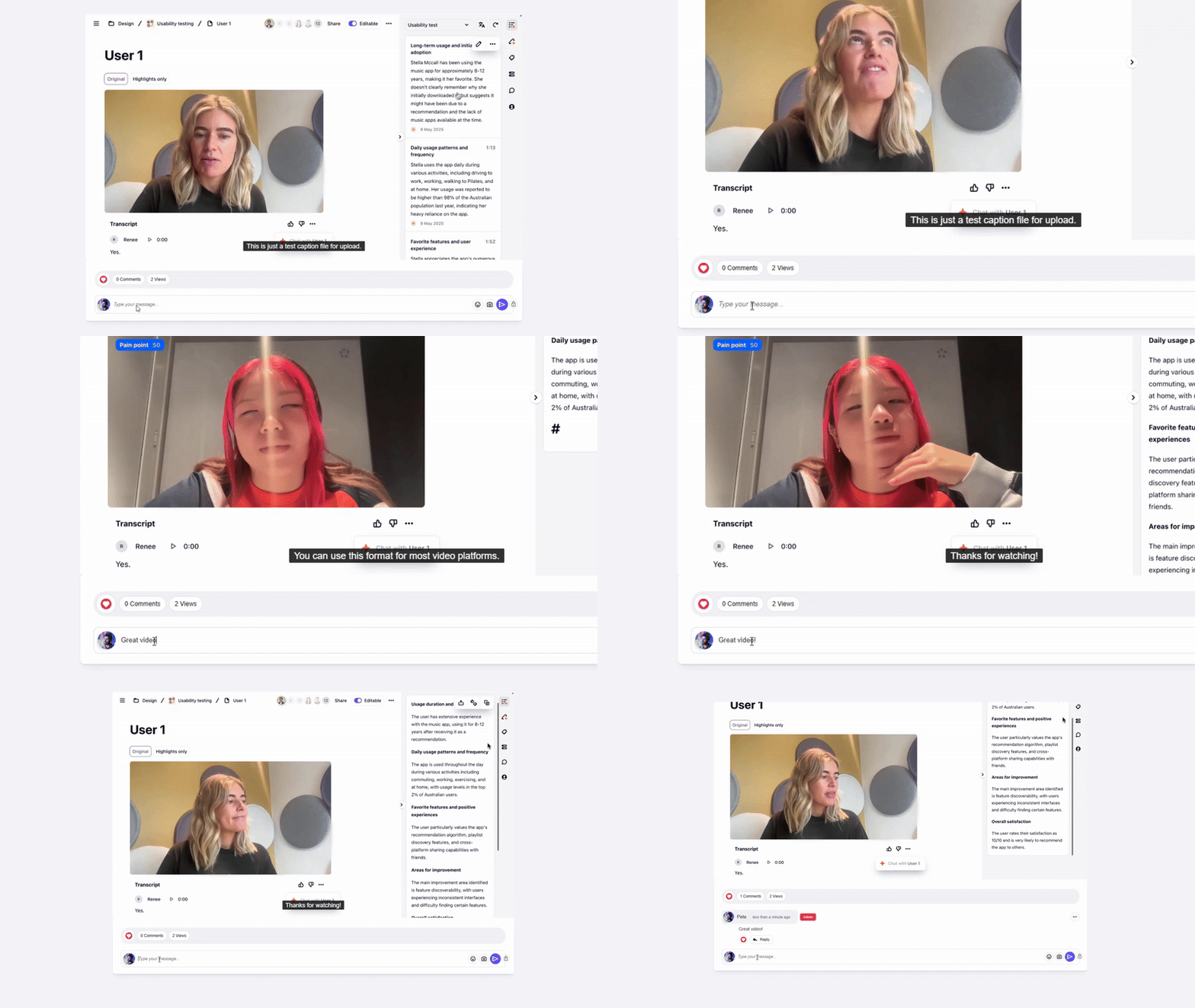
- Comments – Viewers can engage and discuss directly on the video page.
- Reactions – Users can express feedback with quick emoji responses.
- Views Counter – Displays the total number of times the video has been watched.
- Autoplay – The video starts playing automatically when loaded.