
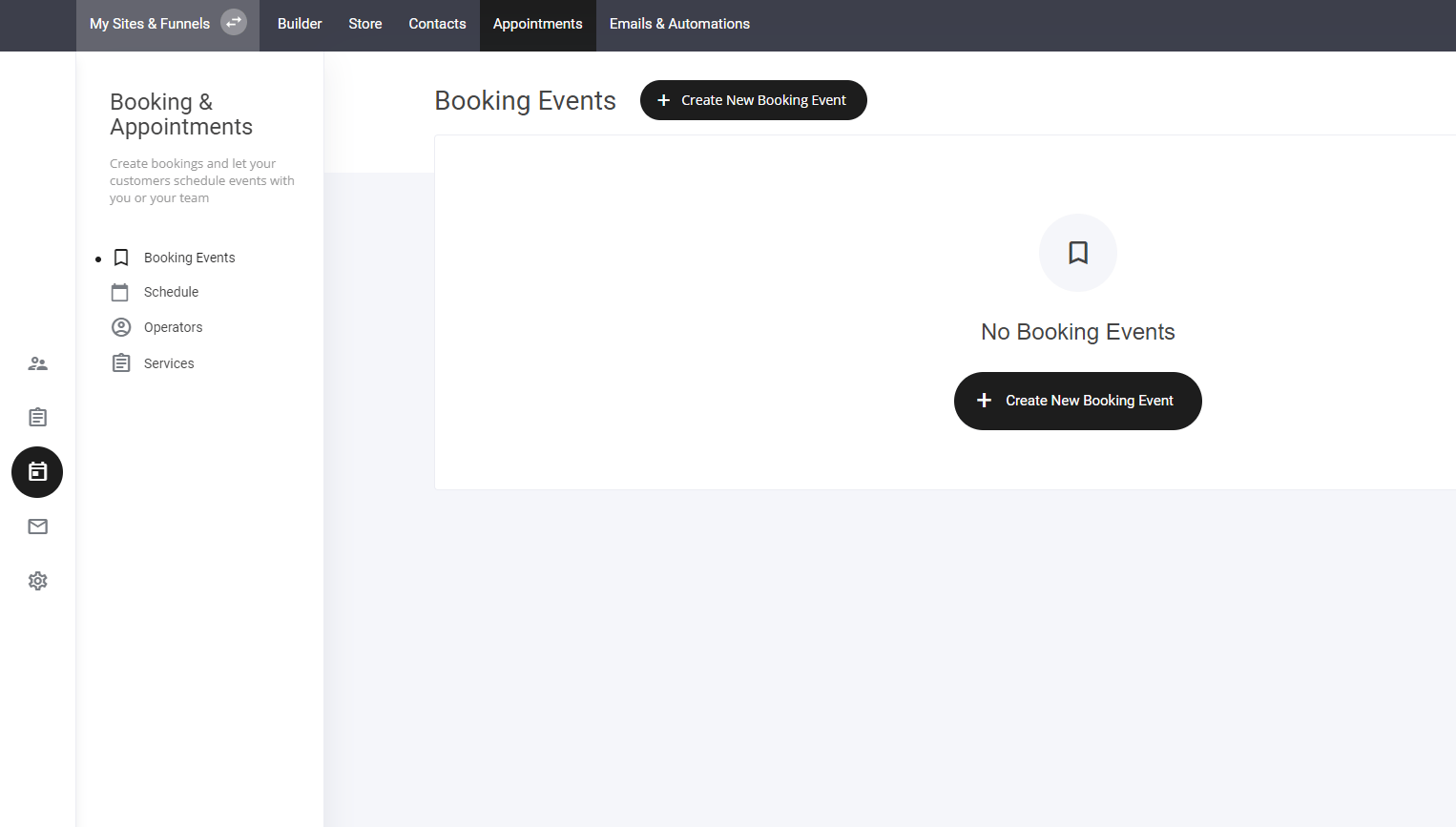
- Navigate to the Appointments Tab – Located at the top of your dashboard.
- Select “Create New Booking” – Begin setting up your event.
- Allocate Services – Assign relevant offerings to the booking event.
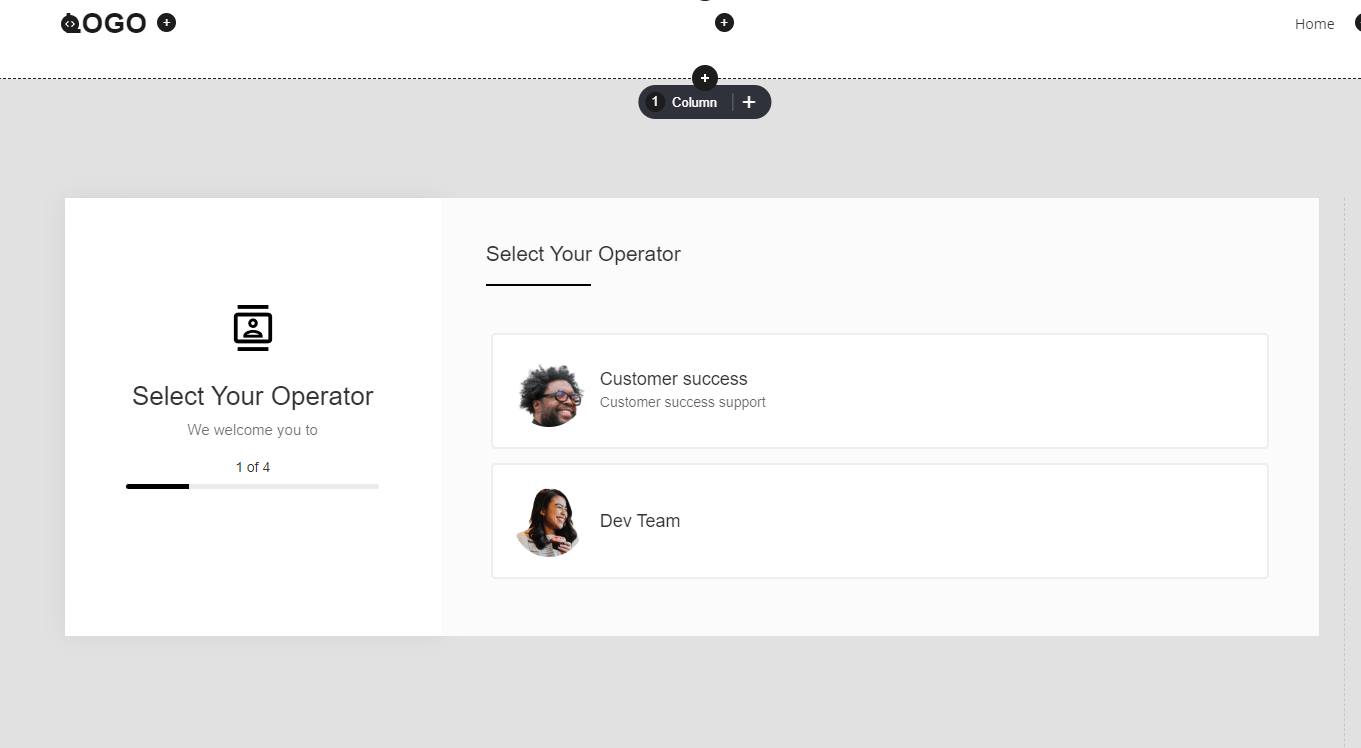
- Assign Operators – Ensure the right personnel or resources are linked to the event.
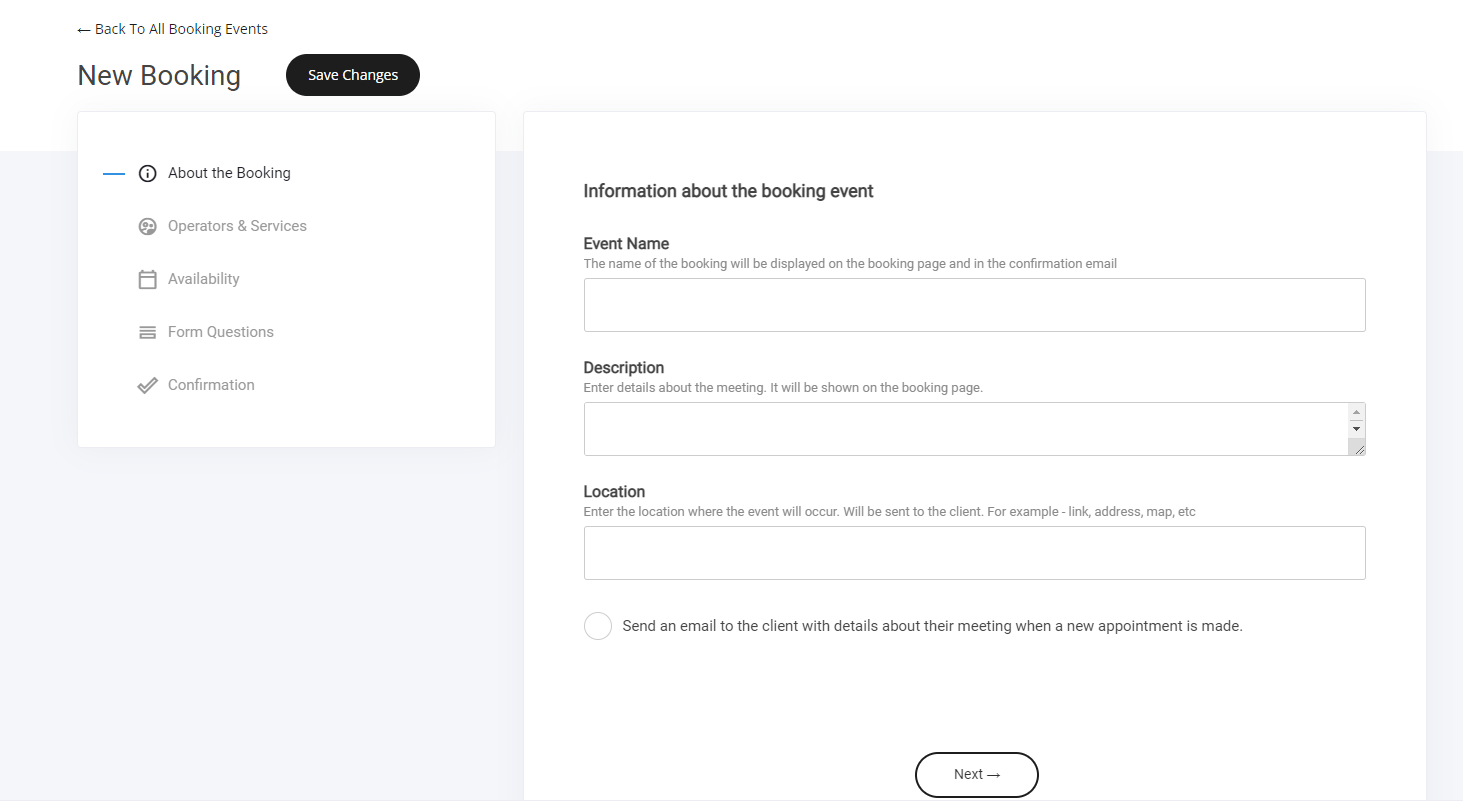
About the booking
Now name the event, fill in the required sections as shown below.- Event name
- Event description
- Event location
- Send email to the user
Meeting reminder ‘new’
You can send out timely meeting reminders via email. Simply select the reminder time frame and it’s ready to go.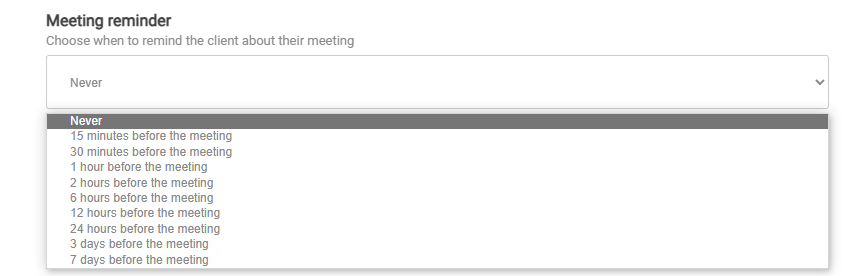
Operator and Services
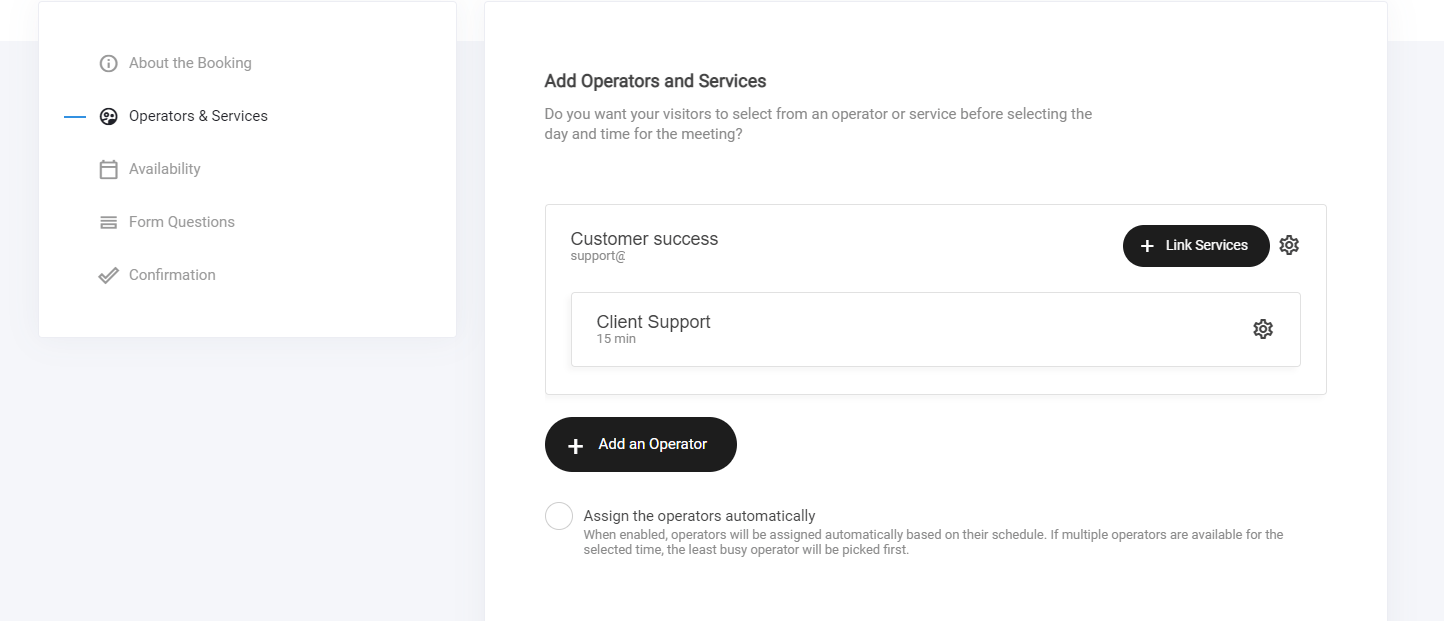
An operator is a person who will be conducting the meeting/event. Note: you can add multiple operators if required. Services are optional. For example a service would be different types of meetings or booking type like 2 booking services could be: 15 minute video call and in person meeting.How to add an operator
Select the add an operator button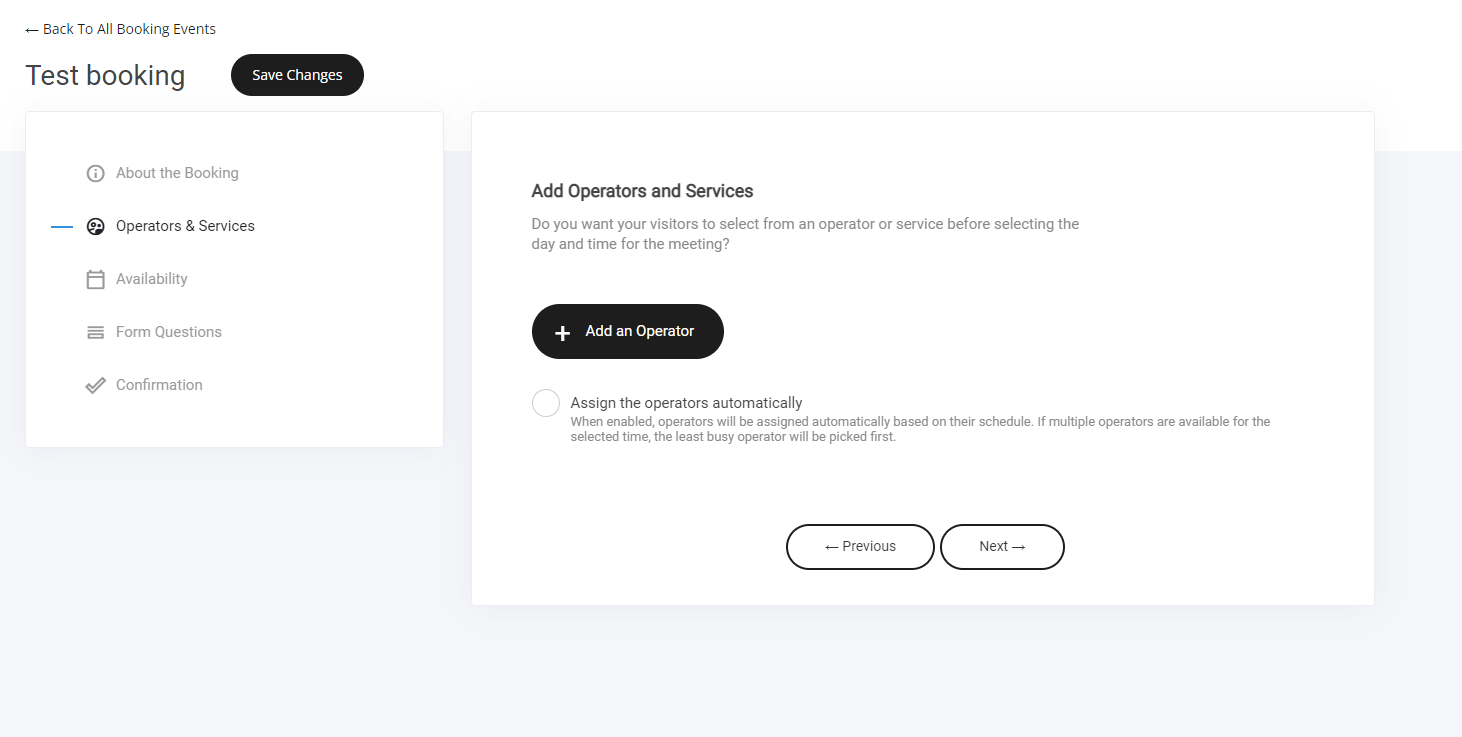
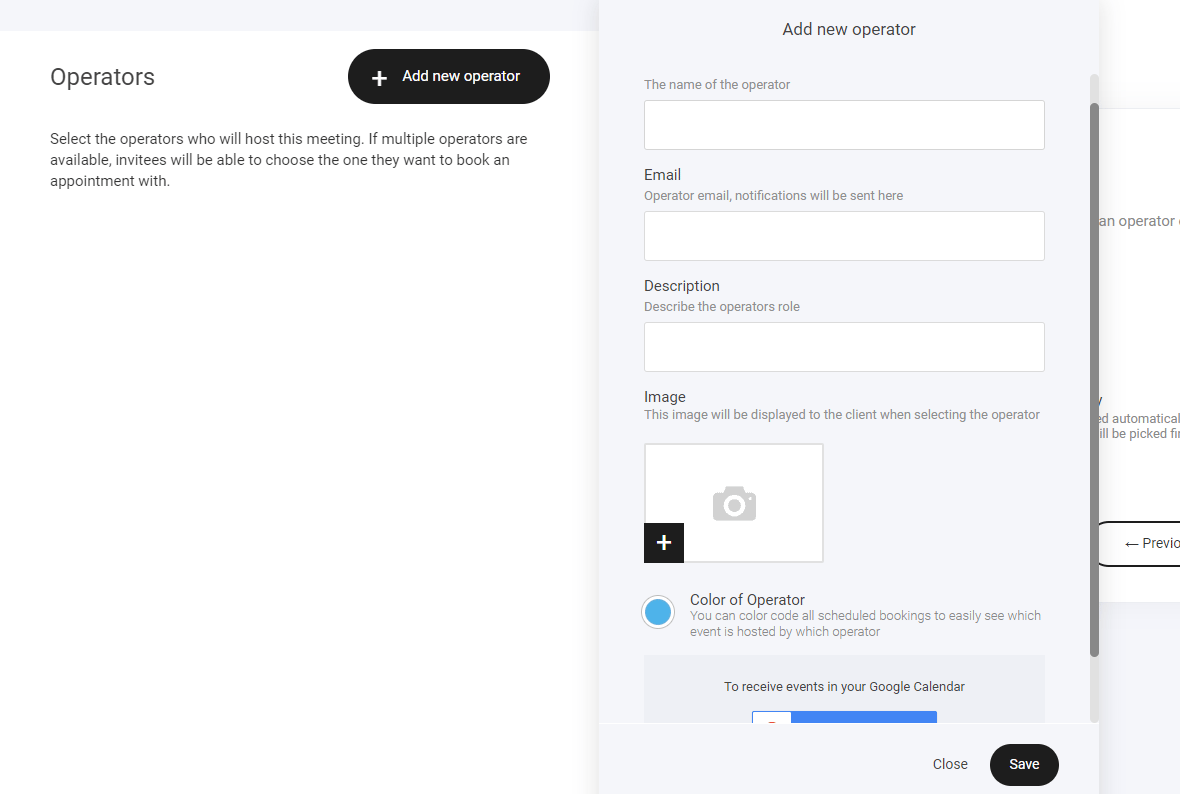
Linking services
Now that you have created your operator, select the ‘Link services’ button to create your service.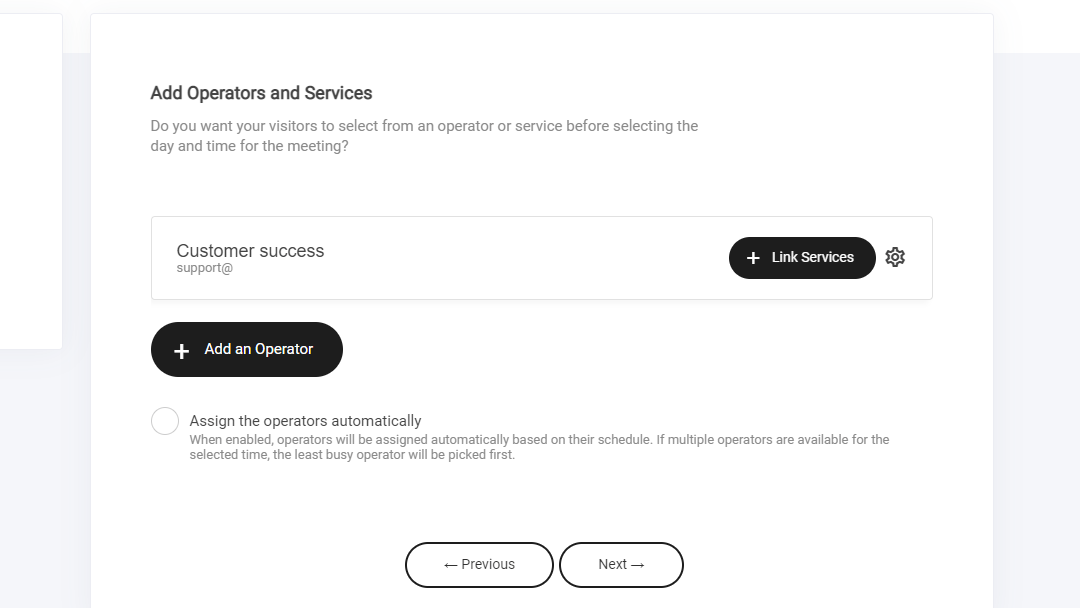
Add new service
Fill out the required fields in the ‘add new service popup’ Also select if you want a one to one meeting or multiple people for example you are running an online webinar with only 50 spots available. Set your duration and you’re done. Additionally you can add a tag to the people who schedule a booking for segmentation and tracking purposes.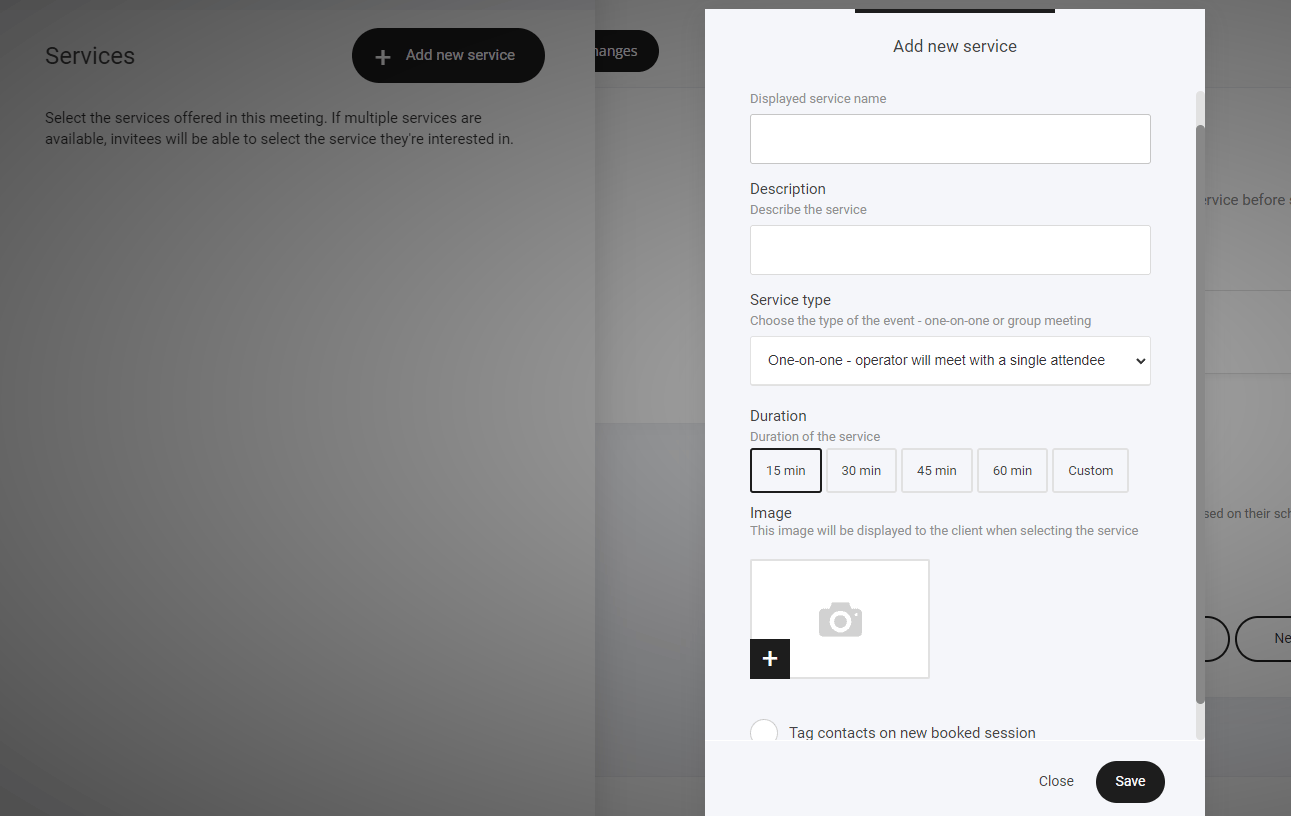
Setting Availability
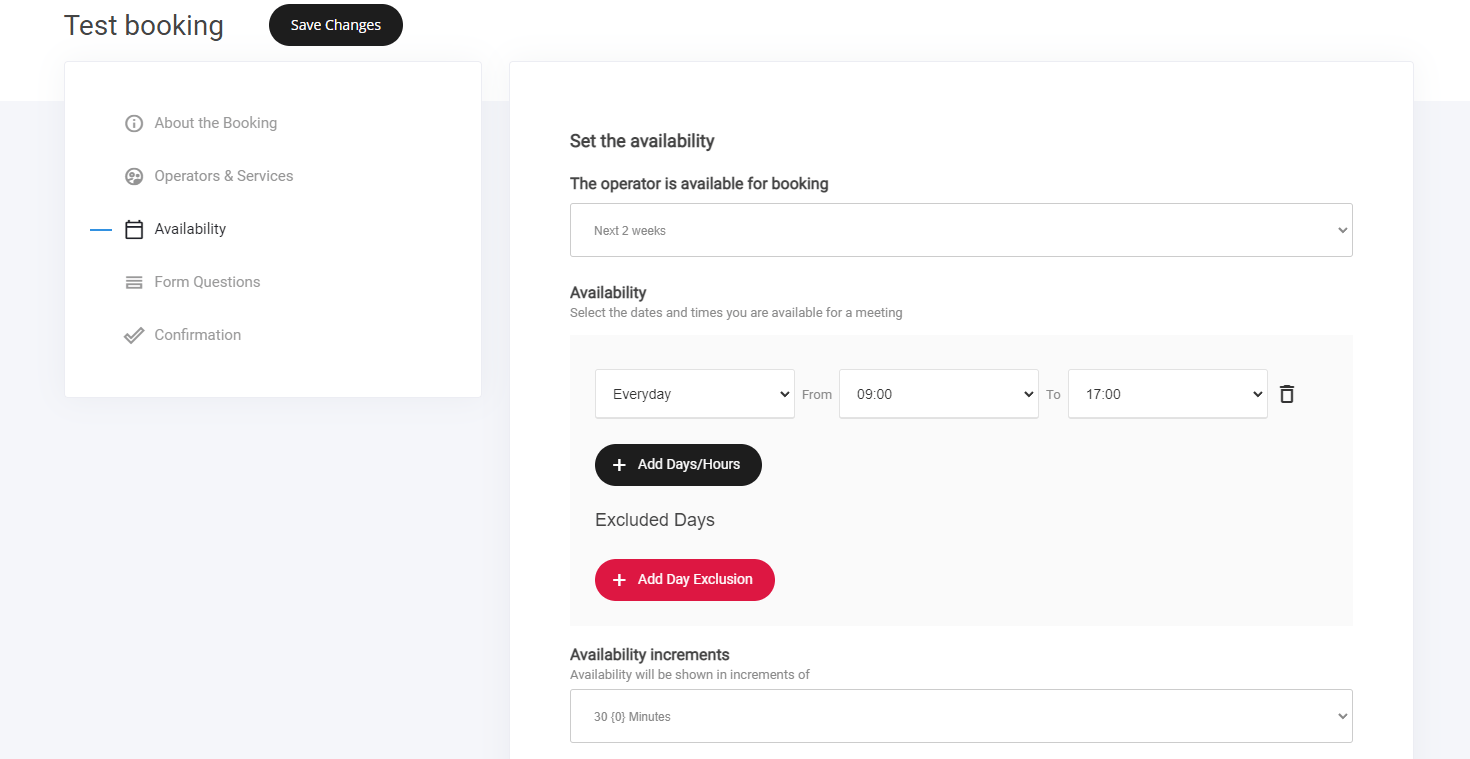
The next step is creating the availability.- Operator availability
- Availability Increments
- Scheduling notice
- Meeting buffer time
Form questions
Additional details to ask for before making the reservation. For example - customer name, email, details required to make the appointment, etc. You can also add any custom fields or even create your own.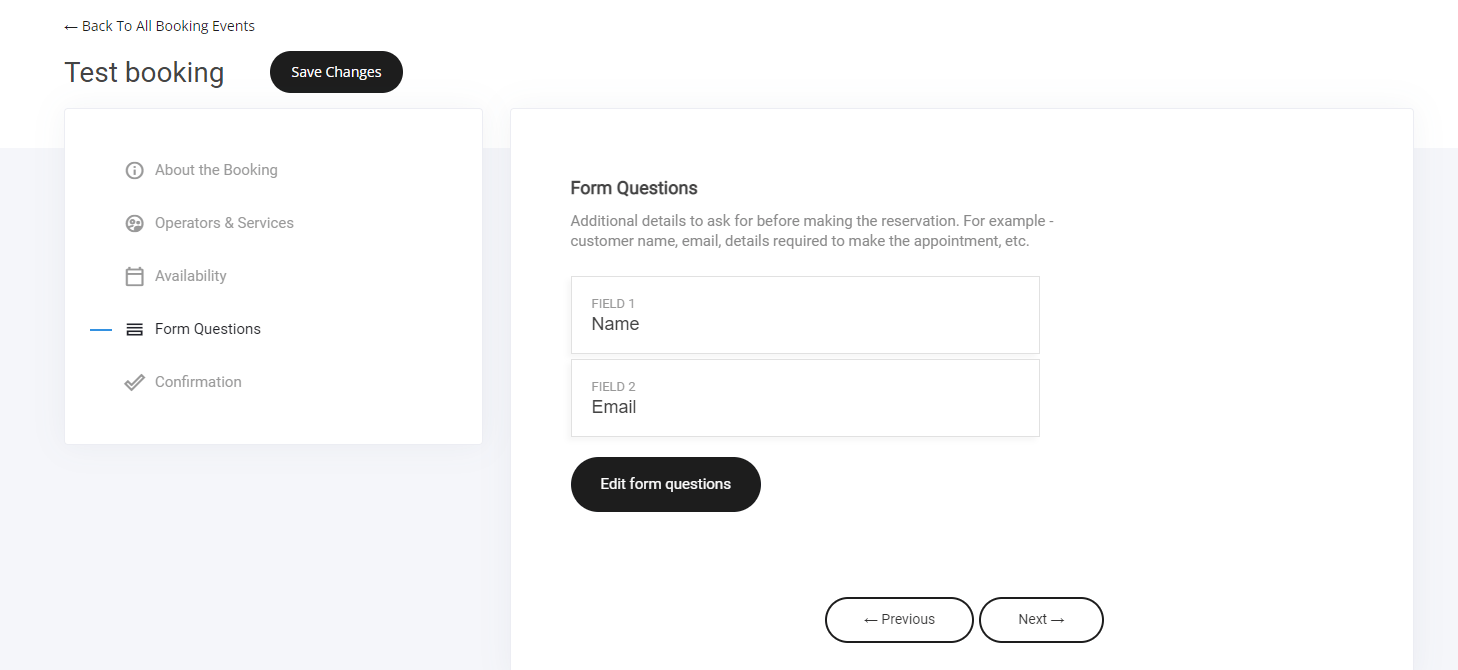
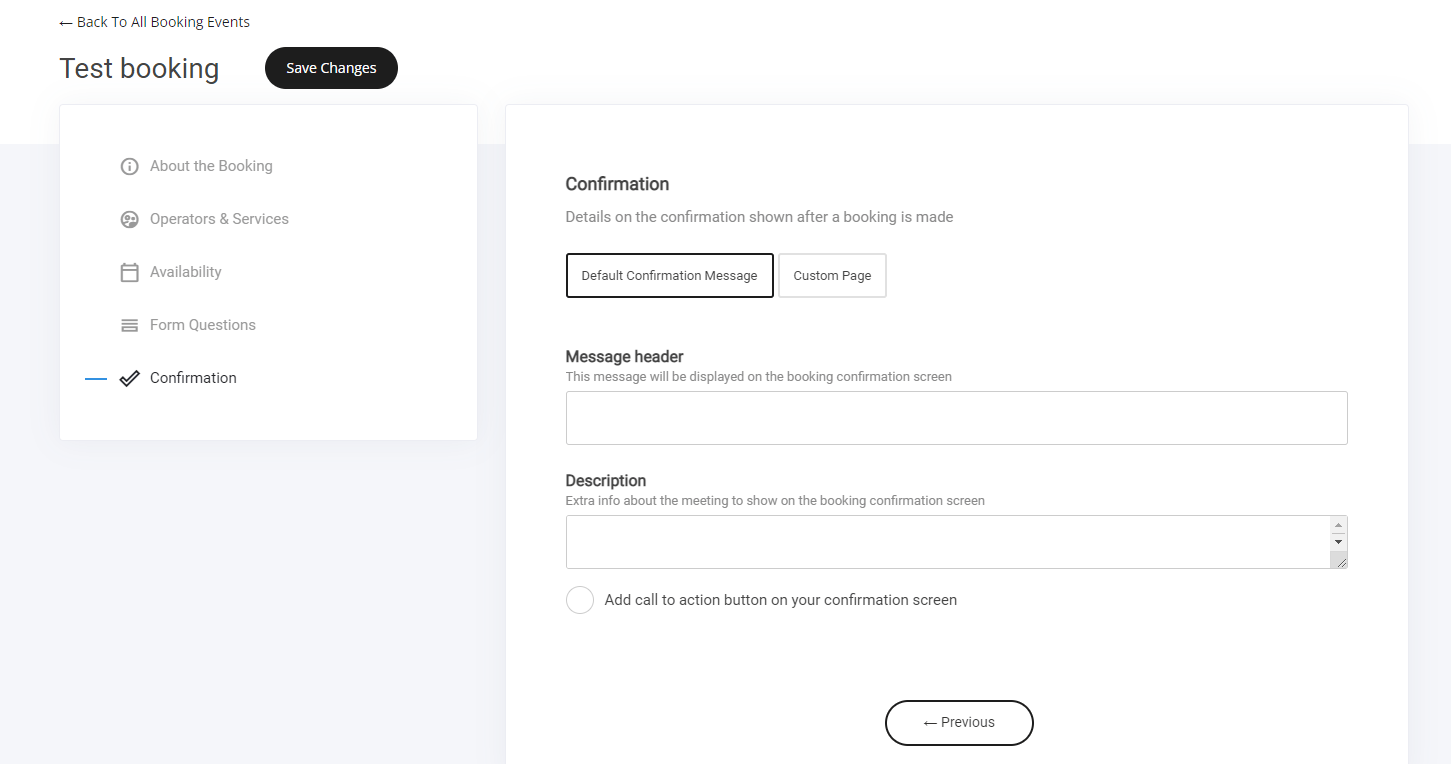
Booking confirmation
And lastly setting up the confirmation once the user has booked a meeting with you. Thank you page re-direct. You can either send the user to a custom page or create a thank you message that displays after the booking is made.If you are using booking appointments within your funnels it will by-pass these pages automatically, keeping your visitors on track and remaining inside your funnel.
How to get bookings
There are multiple ways you can get people to book with you, the best way is to add the booking widget on any page or funnel step you like as shown below.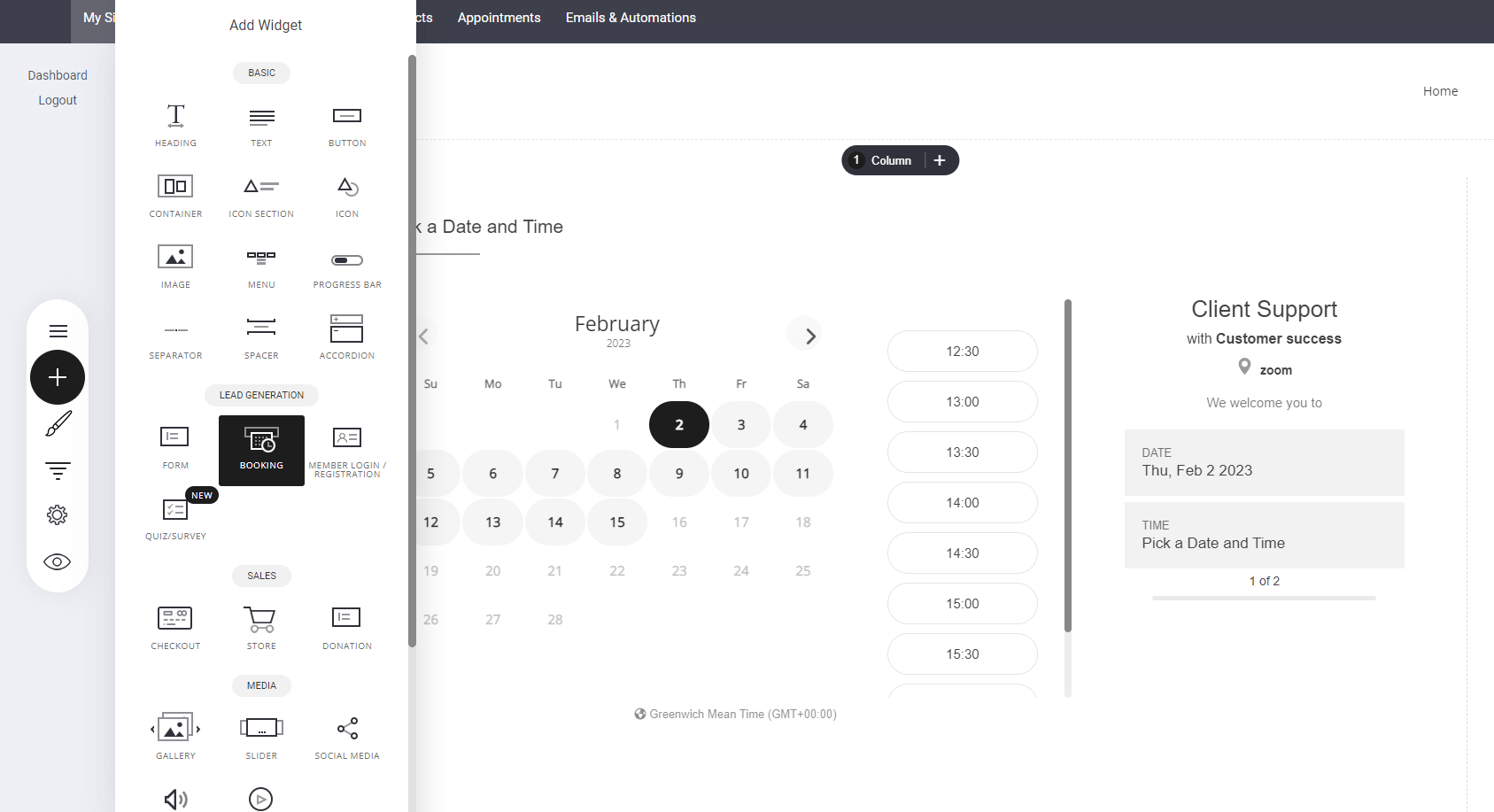
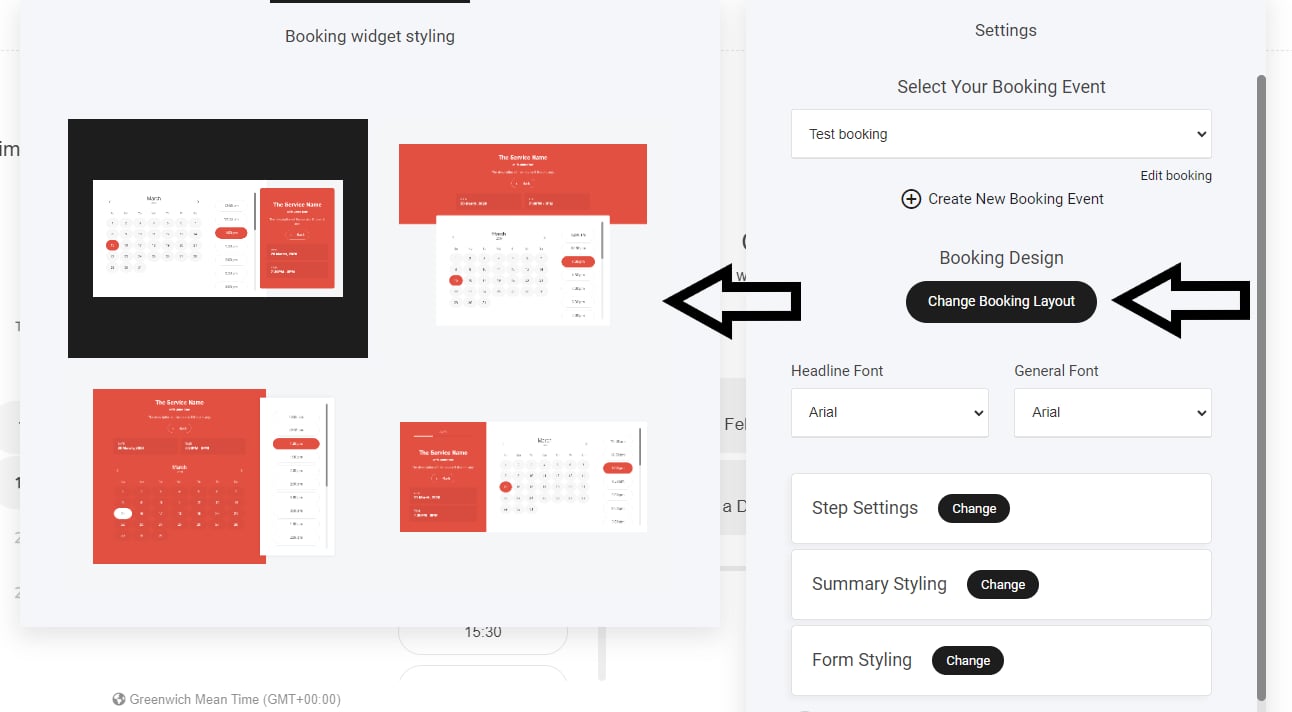
Display layout options
Multiple services
If you have more than one service your visitors will be able to select which service they wish to select as shown below.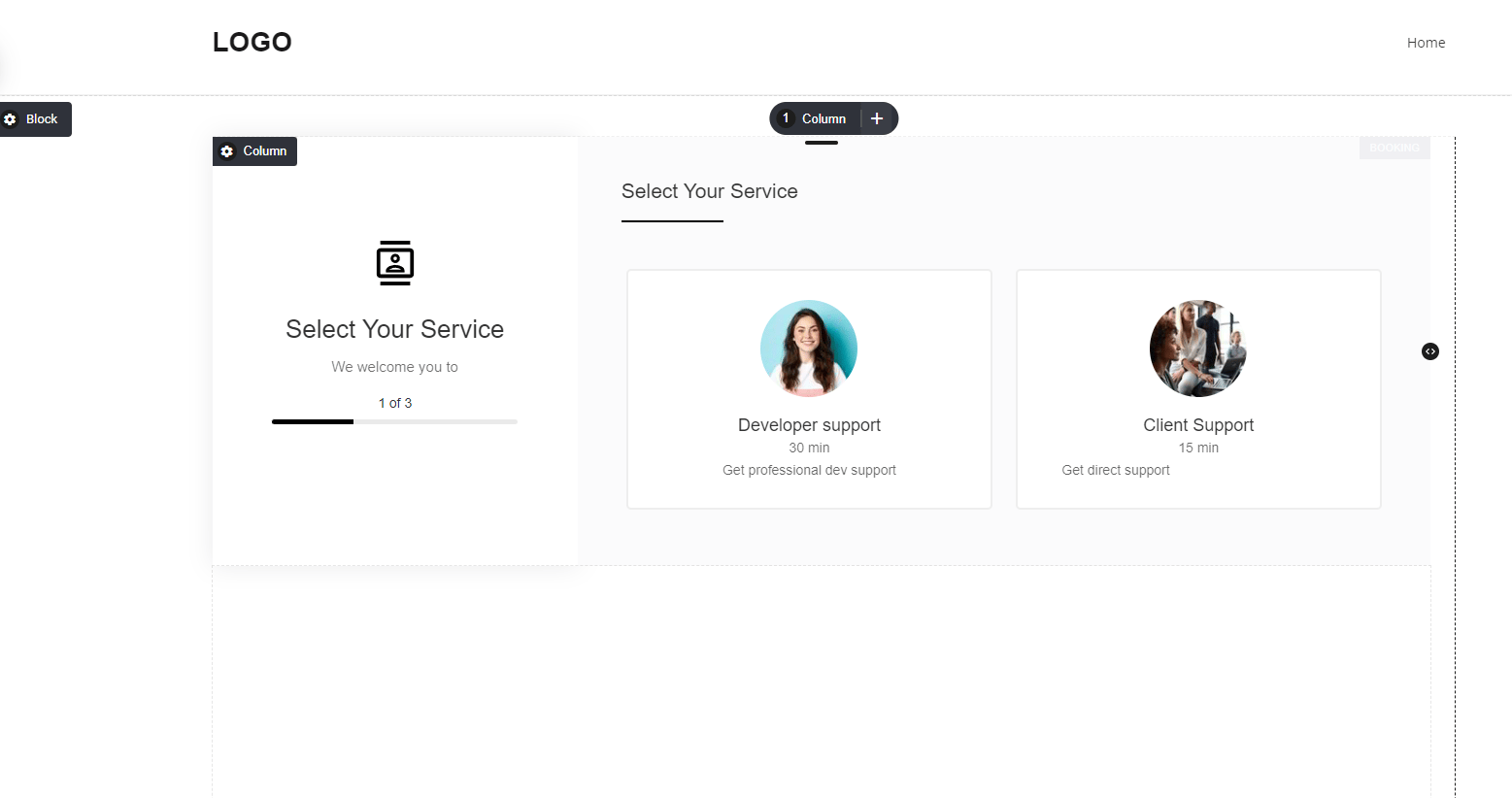
Multiple operators
Additionally, if you have multiple operators your visitors will be able to select which operator the require. The combinations are endless depending on your own requirements.- Single service
- Multiple services and one operator
- Multiple services and multiple operators
- Multiple operators offer different services
- and more…