
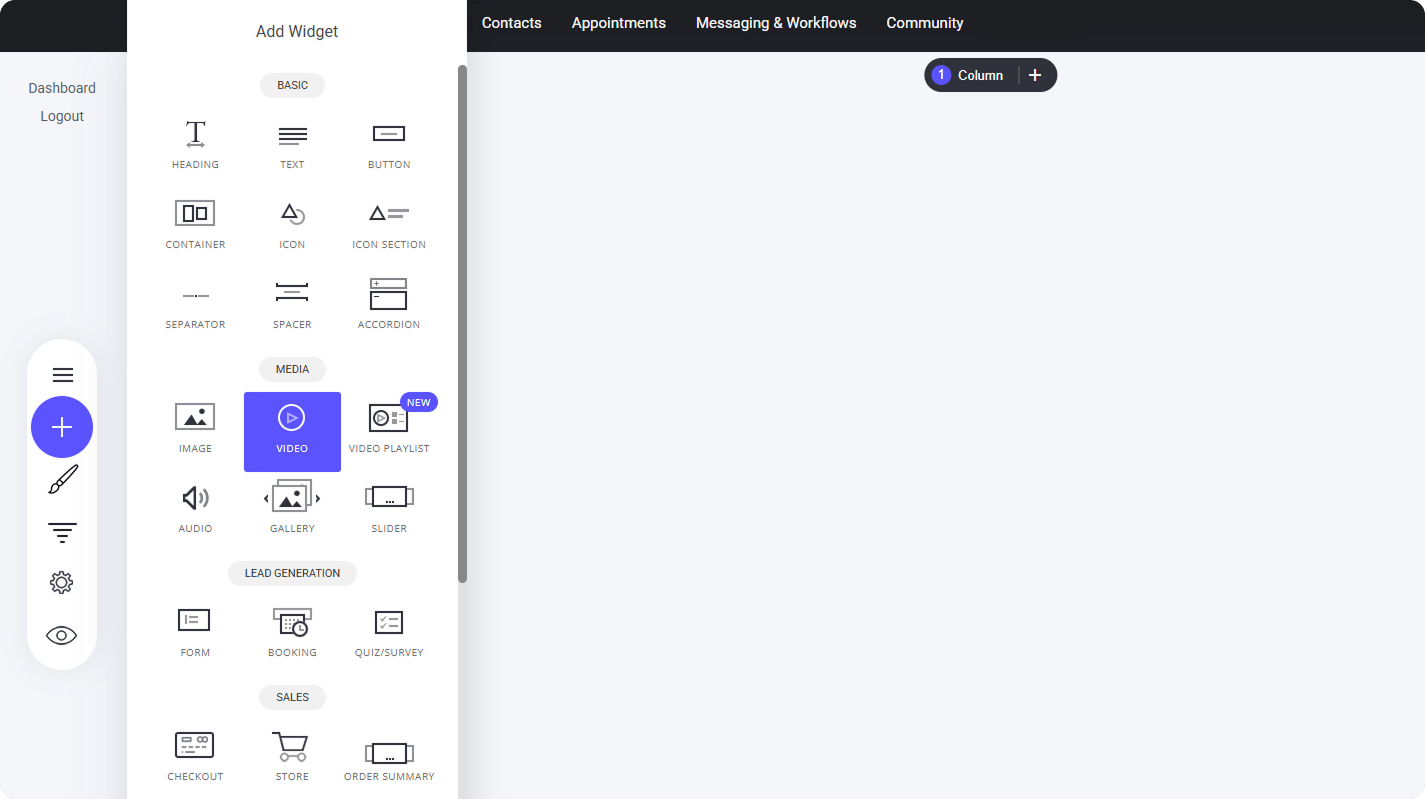
Video Widget
### **Editing Your Video Widget** Once you’ve placed the **video widget**, a **sidebar window** will appear, giving you the option to: * **Upload a video** – Select from your hosted videos for full native integration. * **Use the link option** – Quickly embed external videos from sources like YouTube, Vimeo, or Loom. Let’s proceed by **choosing the link option**, allowing you to **add videos via URL**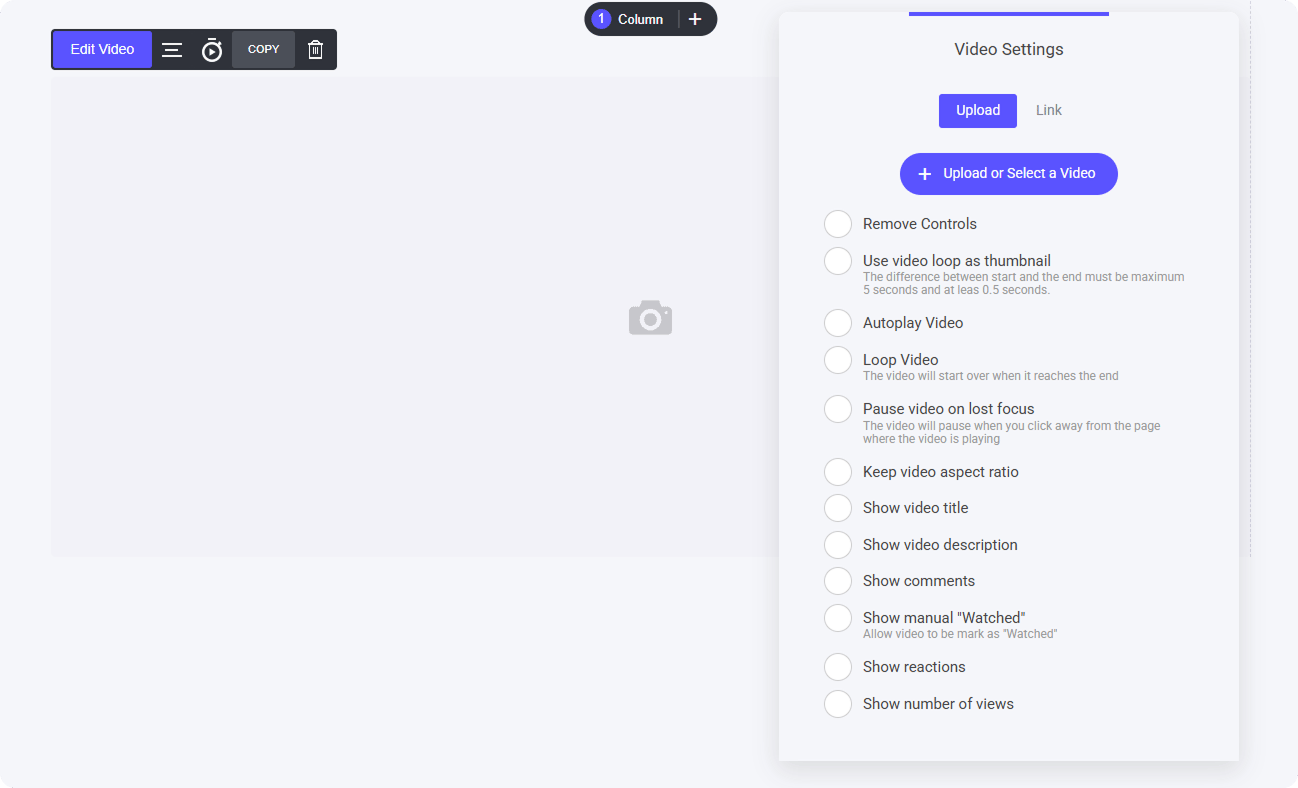 Once you’ve added your **video URL**, you can refine how it appears using the following options:
* **Custom Thumbnail** – Instead of using the default thumbnail from platforms like YouTube, you can **upload your own** from the **File Manager** to better match your branding.
* **Custom Video Player** – Applies your **branding colors** to the video and modifies the **toolbar** for a more **native** and cohesive look within your platform.
* **Shadow Effect** – If desired, you can **add a shadow** around your video to enhance its **visual depth** and complement your design style.
These options give you greater **control over presentation**, making embedded videos feel **seamlessly integrated** with your site.
Once you’ve added your **video URL**, you can refine how it appears using the following options:
* **Custom Thumbnail** – Instead of using the default thumbnail from platforms like YouTube, you can **upload your own** from the **File Manager** to better match your branding.
* **Custom Video Player** – Applies your **branding colors** to the video and modifies the **toolbar** for a more **native** and cohesive look within your platform.
* **Shadow Effect** – If desired, you can **add a shadow** around your video to enhance its **visual depth** and complement your design style.
These options give you greater **control over presentation**, making embedded videos feel **seamlessly integrated** with your site.
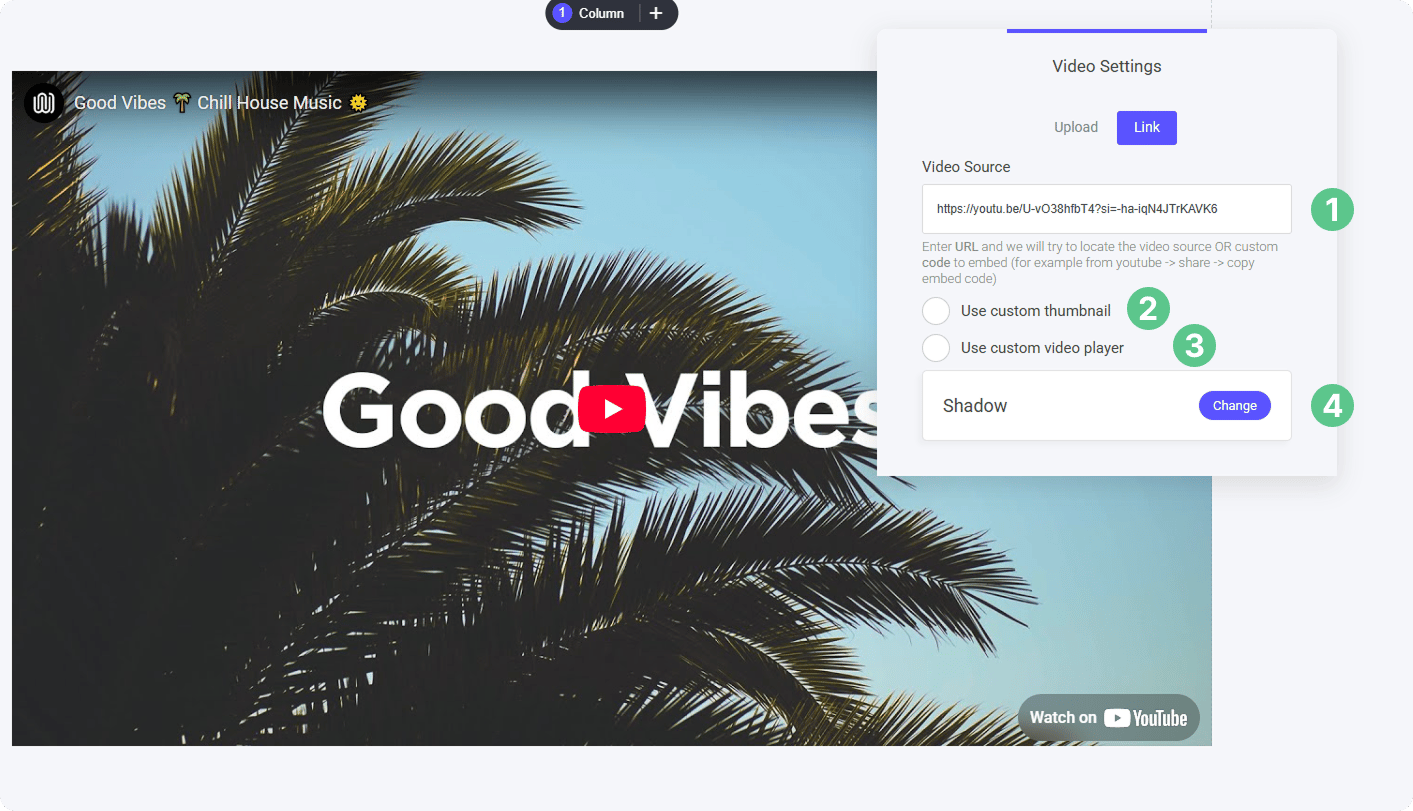 At this step, you can either:
* **Select a hosted video** if you’ve already uploaded content.
* **Upload a new video** directly from this menu.
If you’re new to video hosting or want to explore all **available features**, check out the guide below for a deeper dive into **uploading, customizing, and optimizing** your videos.
[Video Manager](/builder/video/getting-started/video-manager)
**Customizing Your Video Display** Once you've uploaded your video, you can fine-tune how it appears with several built-in options. Adjust playback controls, visibility settings, and engagement features to match your needs.
For a full breakdown of each setting, including autoplay,, captions, and reactions, check out the detailed guide:
[Video Manager](/builder/video/getting-started/video-manager)
At this step, you can either:
* **Select a hosted video** if you’ve already uploaded content.
* **Upload a new video** directly from this menu.
If you’re new to video hosting or want to explore all **available features**, check out the guide below for a deeper dive into **uploading, customizing, and optimizing** your videos.
[Video Manager](/builder/video/getting-started/video-manager)
**Customizing Your Video Display** Once you've uploaded your video, you can fine-tune how it appears with several built-in options. Adjust playback controls, visibility settings, and engagement features to match your needs.
For a full breakdown of each setting, including autoplay,, captions, and reactions, check out the detailed guide:
[Video Manager](/builder/video/getting-started/video-manager)
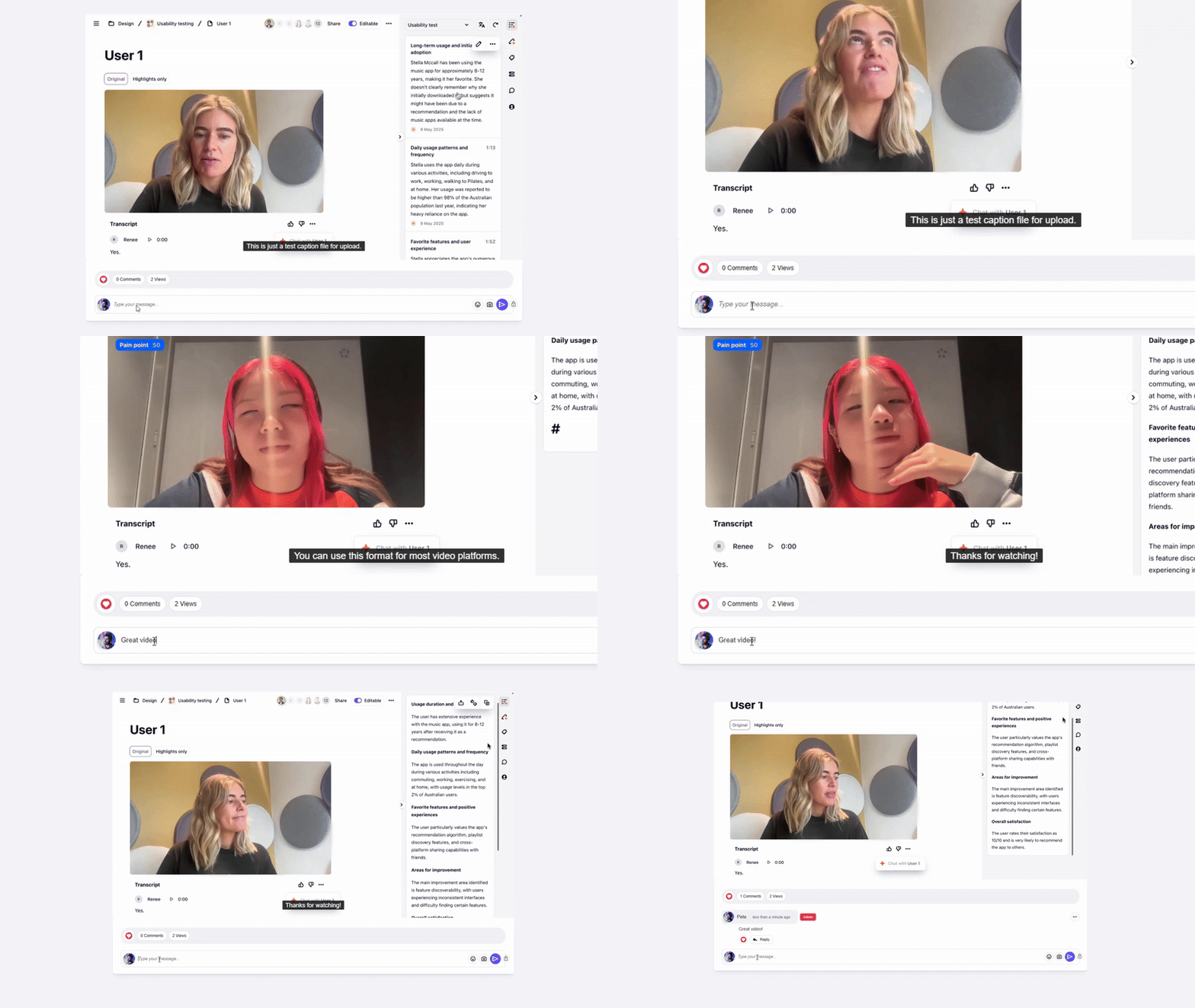 Here's how your video can look with multiple interactive features enabled:
* **Comments** – Viewers can engage and discuss directly on the video page.
* **Reactions** – Users can express feedback with quick emoji responses.
* **Views Counter** – Displays the total number of times the video has been watched.
* **Autoplay** – The video starts playing automatically when loaded.
These options help create a **more dynamic, engaging experience**, encouraging user interaction while keeping content seamlessly accessible.
Here's how your video can look with multiple interactive features enabled:
* **Comments** – Viewers can engage and discuss directly on the video page.
* **Reactions** – Users can express feedback with quick emoji responses.
* **Views Counter** – Displays the total number of times the video has been watched.
* **Autoplay** – The video starts playing automatically when loaded.
These options help create a **more dynamic, engaging experience**, encouraging user interaction while keeping content seamlessly accessible.