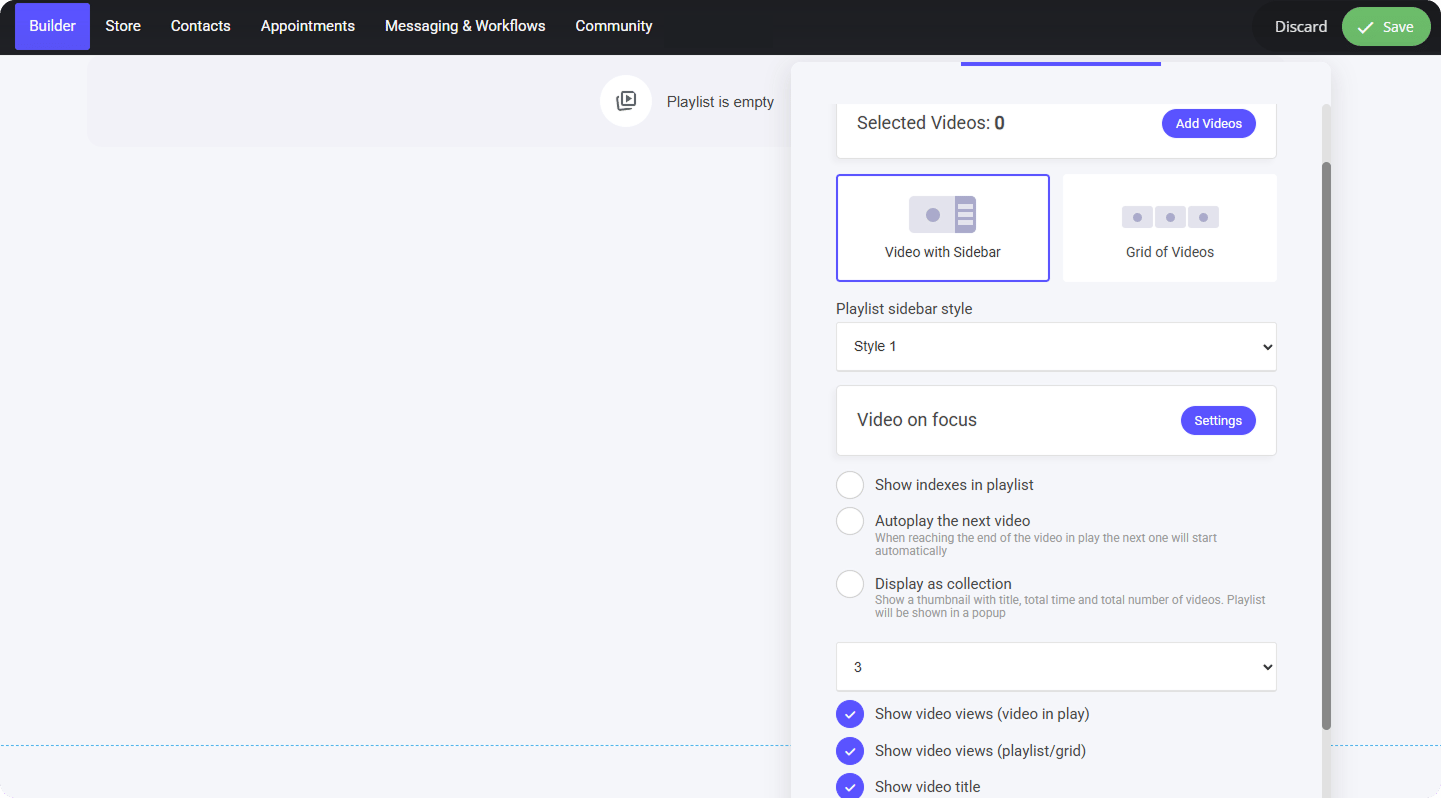
Playlist Widget Settings
### Add Videos to Playlist To populate your playlist with videos, follow these steps: 1. **Click the "Add Videos" button** at the top of the playlist editor. 2. **Open the Video Manager**, where you can: * **Upload new videos** directly. * **Edit existing videos** to refine their details. * **Select multiple videos** to organize them within the playlist.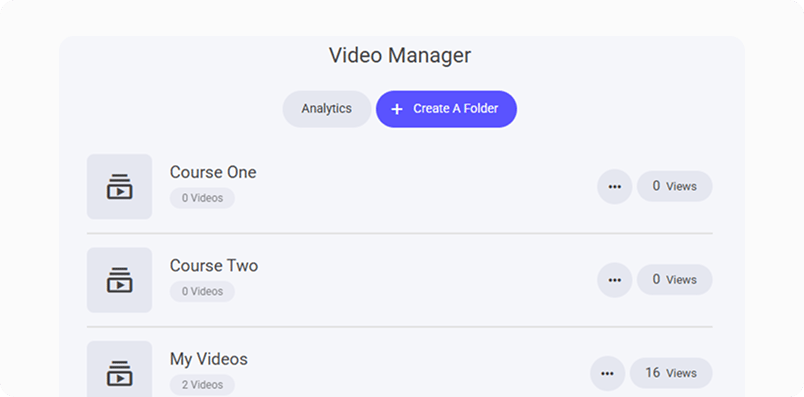
Video Manager Folders
To add videos to your playlist efficiently, follow these steps: * **Select an entire folder** – Hover over the folder and click the **"Select" button** to add all videos at once. * **Choose individual videos** – Click the **folder title** to open it, then manually select specific videos to add.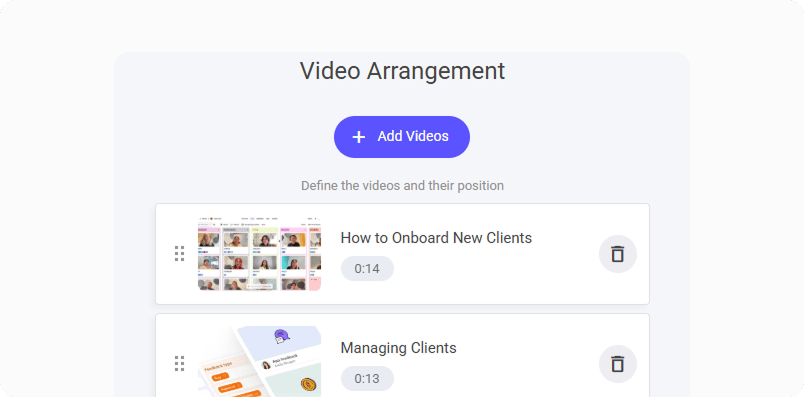
Video Playlist Arrangement
After selecting your videos, they will appear in your **Video Arrangement folder**, where you can: * **Sort the order** – Rearrange videos to match your preferred sequence. * **Adjust playlist flow** – Ensure a logical viewing experience for your audience. ### Playlist Display Your playlist can be displayed in two main formats: 1. **Video with Sidebar** – This layout features a **primary video** with a sidebar listing the rest of the playlist, making it easy for viewers to navigate through the content. 2. **Grid of Videos** – This format showcases all videos in a structured grid, ideal for **visual browsing** and quick selection. Let's start by setting up the **Video with Sidebar** layout!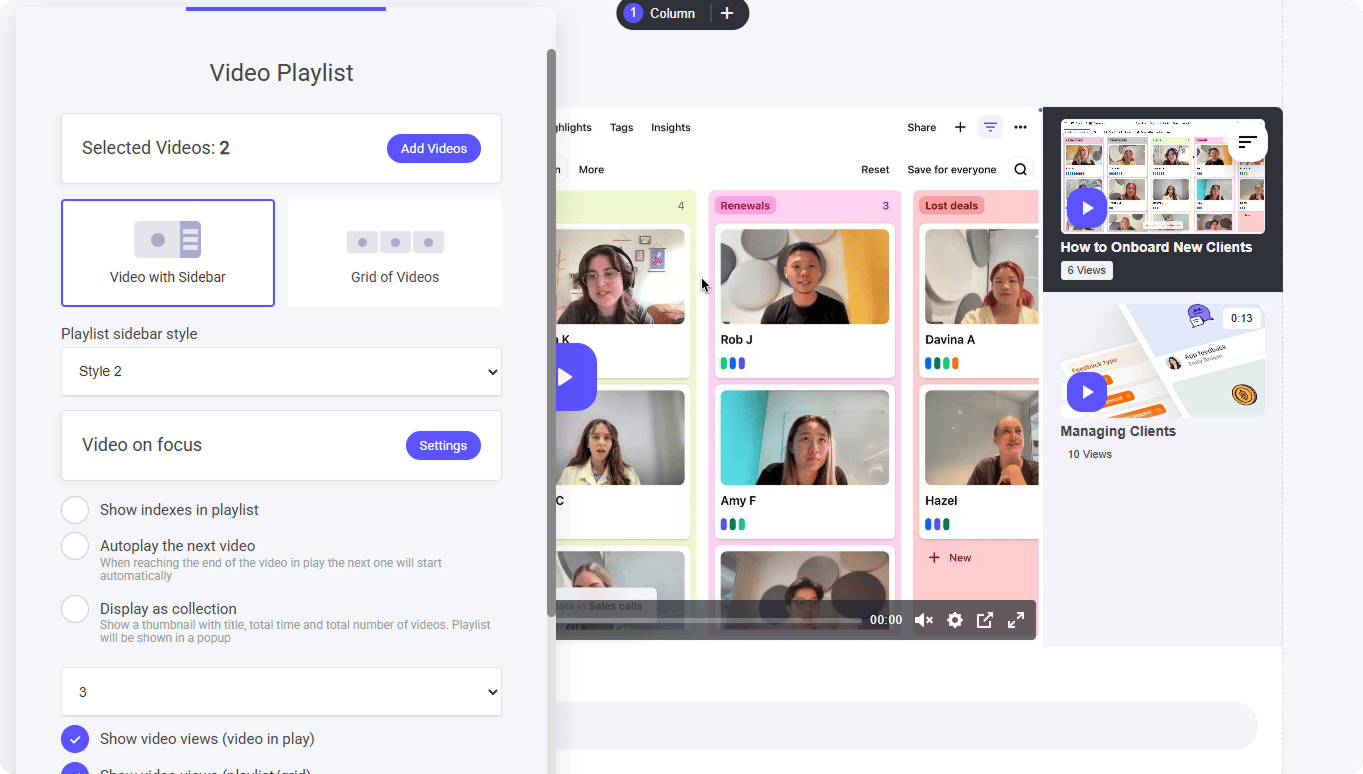 ## Video With Sidebar
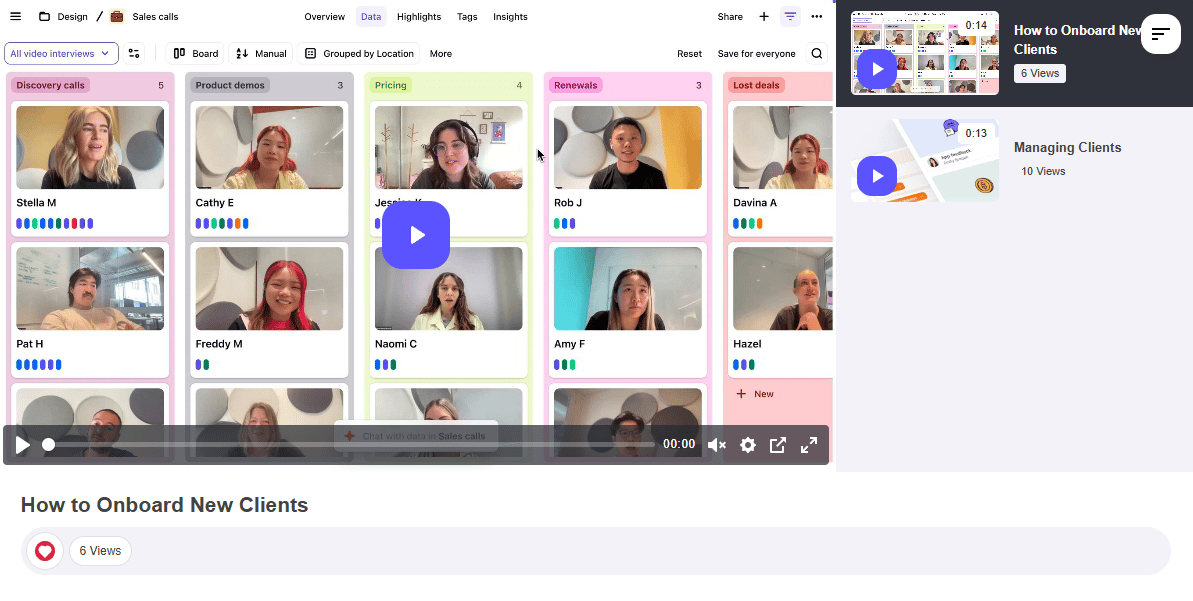
When displaying your **video with a sidebar**, you can choose from **three different styling options** to match your design preference:
1. **Compact Thumbnail** – Shows **small video thumbnails** for each entry, making it easier for viewers to identify content visually.
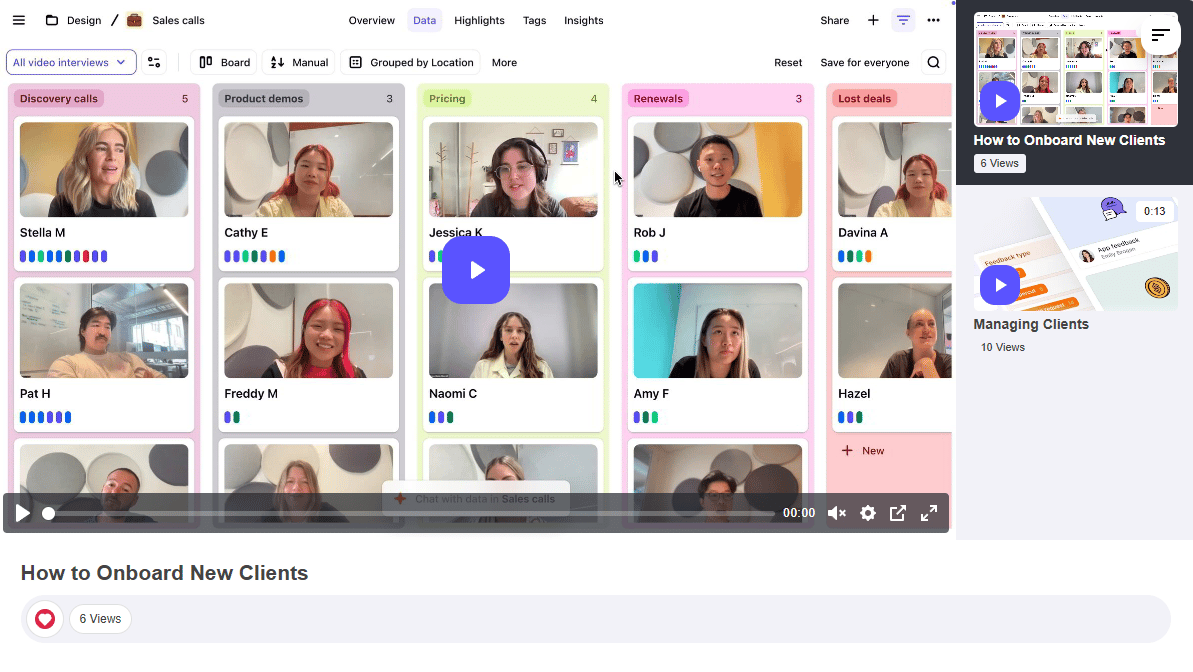
2. **Scaled Thumbnail** – Shows slightly **larger thumbnail previews** for each entry, making it easier for viewers to identify content visually.
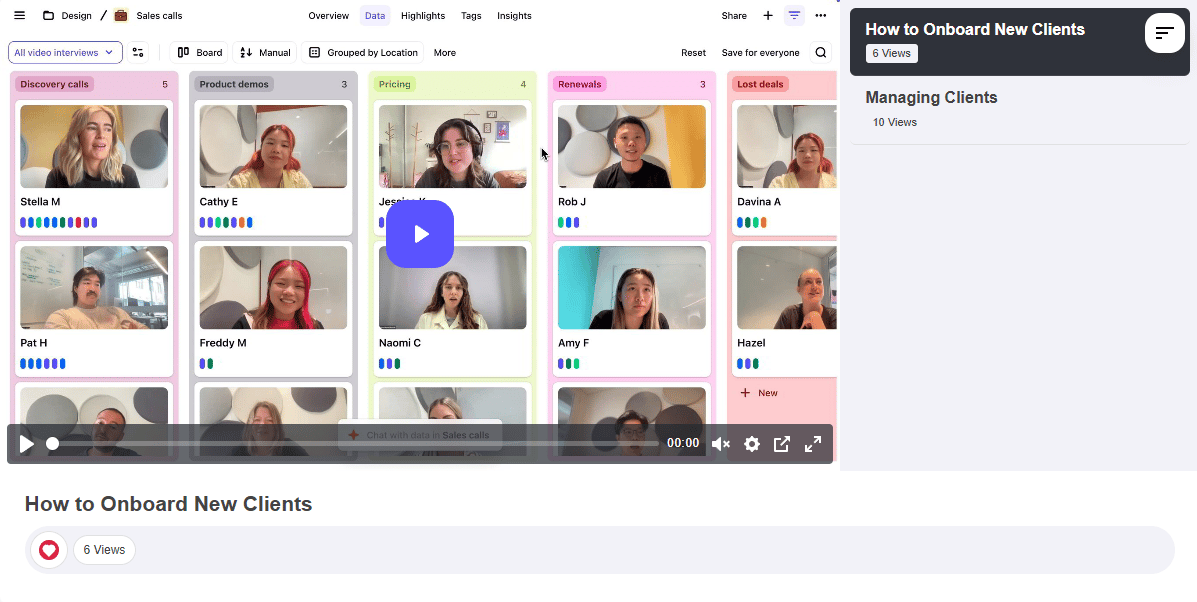
3. **Detailed View** – Displays a **streamlined list** of videos beside the main player, keeping the layout clean and minimal.
This flexibility allows you to **tailor the playlist interface** to suit the user experience you want to deliver.
## Video With Sidebar
When displaying your **video with a sidebar**, you can choose from **three different styling options** to match your design preference:
1. **Compact Thumbnail** – Shows **small video thumbnails** for each entry, making it easier for viewers to identify content visually.
2. **Scaled Thumbnail** – Shows slightly **larger thumbnail previews** for each entry, making it easier for viewers to identify content visually.
3. **Detailed View** – Displays a **streamlined list** of videos beside the main player, keeping the layout clean and minimal.
This flexibility allows you to **tailor the playlist interface** to suit the user experience you want to deliver.
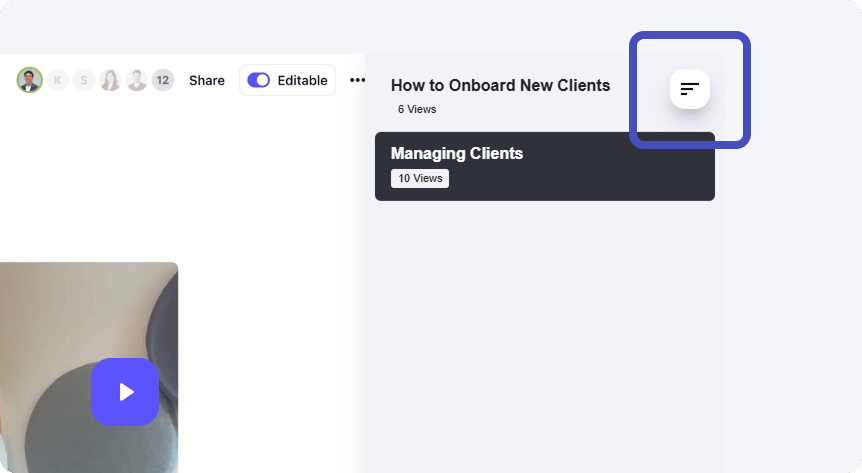 ### Video on Focus
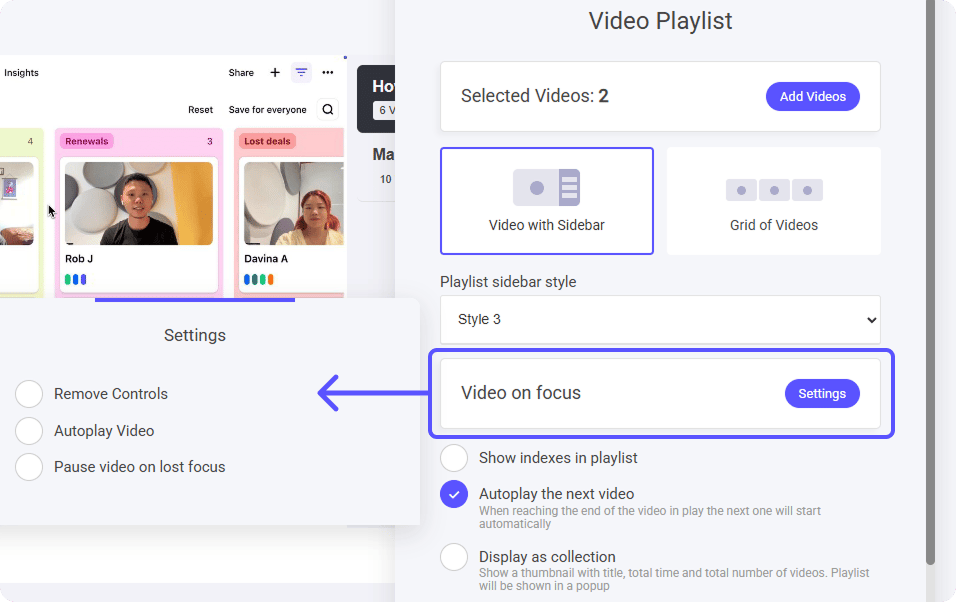
When a video is selected within a playlist, it becomes the **primary focus**, ensuring an immersive viewing experience. The sidebar remains accessible for easy navigation, but viewers can:
* **Remove Controls** – Removes the play bar controls from the video.
* **Autoplay Video** – Each video will autoplay upon open.
* **Pause on Lost Focus** – The video automatically pauses when switching away.
This feature enhances usability, making video consumption **fluid, engaging, and distraction-free**
### Video on Focus
When a video is selected within a playlist, it becomes the **primary focus**, ensuring an immersive viewing experience. The sidebar remains accessible for easy navigation, but viewers can:
* **Remove Controls** – Removes the play bar controls from the video.
* **Autoplay Video** – Each video will autoplay upon open.
* **Pause on Lost Focus** – The video automatically pauses when switching away.
This feature enhances usability, making video consumption **fluid, engaging, and distraction-free**
 ### Show Indexes in Playlist
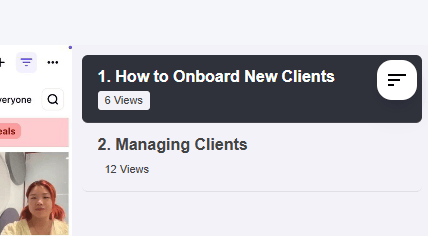
With **indexed playlists**, each video is assigned a **sequential number**, making it easier for viewers to track and navigate the content.
**How It Works:**
* If your playlist has **four videos**, they will be labeled as **1-4** in order.
* This numbering ensures **clear progression**, helping users follow structured series or lessons effortlessly.
* Works perfectly for **educational content, episodic videos, or organized presentations**.
### Show Indexes in Playlist
With **indexed playlists**, each video is assigned a **sequential number**, making it easier for viewers to track and navigate the content.
**How It Works:**
* If your playlist has **four videos**, they will be labeled as **1-4** in order.
* This numbering ensures **clear progression**, helping users follow structured series or lessons effortlessly.
* Works perfectly for **educational content, episodic videos, or organized presentations**.
 ### Autoplay the Next Video
With **Autoplay enabled**, the next video in your playlist will start **automatically** once the current one finishes.
**Key Benefits:**
* **Seamless Viewing** – No need for manual selection, keeping the experience smooth.
* **Continuous Playback** – Ideal for binge-watching, courses, or guided learning.
### Display as Collection
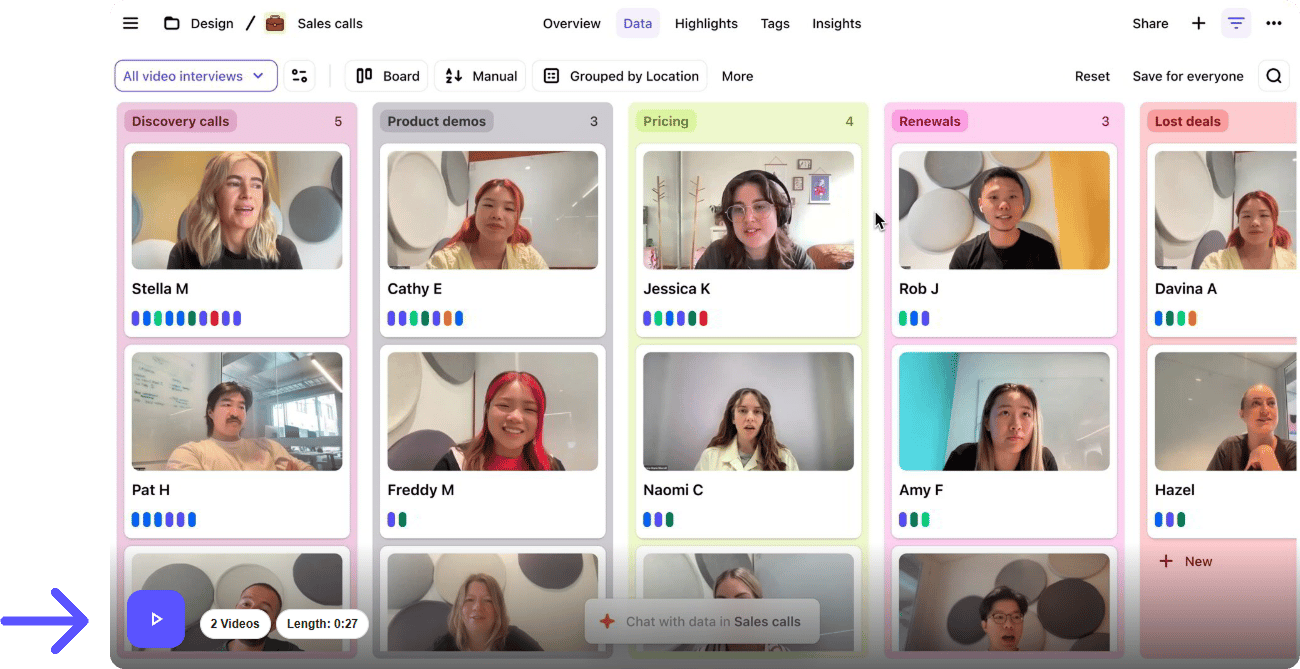
In **Collection View**, all playlist videos are grouped under **one primary video display**. Instead of showing multiple thumbnails, the playlist is presented as a **single entry**.
**How It Works:**
* **Main Video Display** – The entire playlist appears under one featured video.
* **Click to Open Playlist** – When users select the main video, it expands to reveal the full list of videos.
* **Streamlined Navigation** – Keeps your layout clean while still allowing access to all playlist content.
This setup is great for **organized, minimalistic presentation**
### Autoplay the Next Video
With **Autoplay enabled**, the next video in your playlist will start **automatically** once the current one finishes.
**Key Benefits:**
* **Seamless Viewing** – No need for manual selection, keeping the experience smooth.
* **Continuous Playback** – Ideal for binge-watching, courses, or guided learning.
### Display as Collection
In **Collection View**, all playlist videos are grouped under **one primary video display**. Instead of showing multiple thumbnails, the playlist is presented as a **single entry**.
**How It Works:**
* **Main Video Display** – The entire playlist appears under one featured video.
* **Click to Open Playlist** – When users select the main video, it expands to reveal the full list of videos.
* **Streamlined Navigation** – Keeps your layout clean while still allowing access to all playlist content.
This setup is great for **organized, minimalistic presentation**
 Additional Display Settings
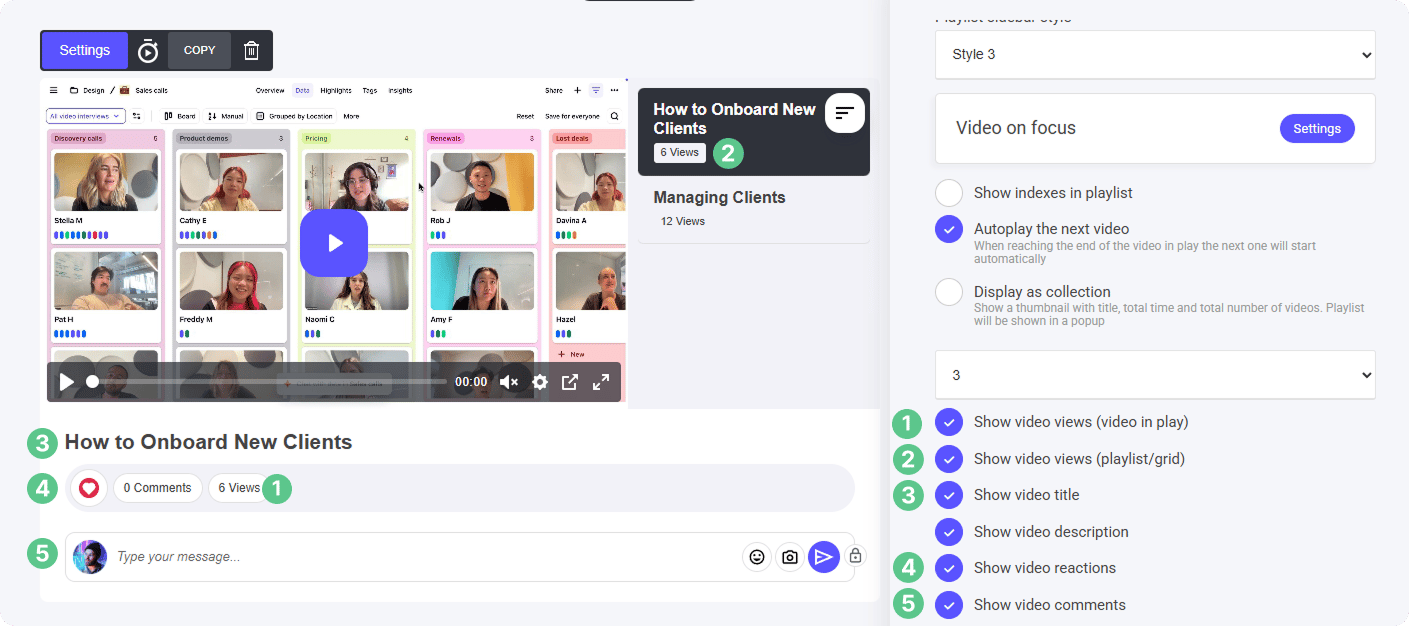
The video management interface provides **customizable display options** to enhance viewer interaction and streamline content organization. Here's a quick breakdown of key features:
1. Show Video Views (video in play)
2. Show Video Views (Playlist/grid)
3. Show Video Title
4. Show Video Reactions
5. Show Video Comments
Read more about comment management below:
[Comment Area](/builder/community-widgets/comment-area)
Additional Display Settings
The video management interface provides **customizable display options** to enhance viewer interaction and streamline content organization. Here's a quick breakdown of key features:
1. Show Video Views (video in play)
2. Show Video Views (Playlist/grid)
3. Show Video Title
4. Show Video Reactions
5. Show Video Comments
Read more about comment management below:
[Comment Area](/builder/community-widgets/comment-area)
 ### Mark as Watched
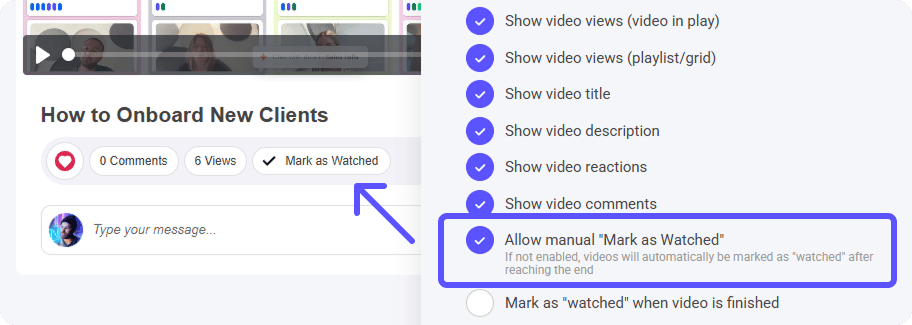
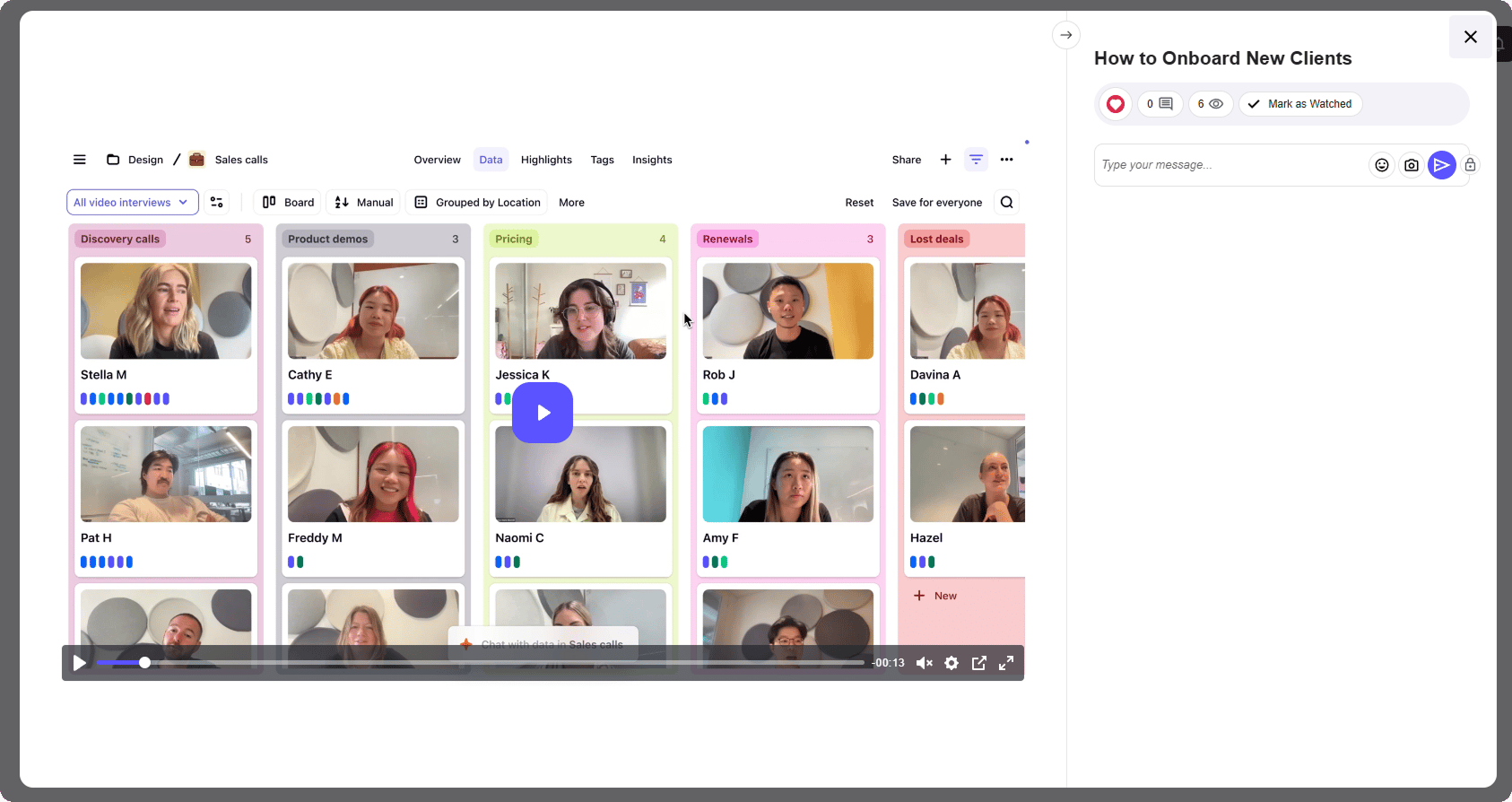
This feature allows viewers to **manually mark** a video as **watched**, giving them more control over their viewing experience.
**How It Works:**
* **Green Tick Icon** – Once marked as watched, a **green check** appears beside the video, signaling its completion.
* **Triggers Automation Flows** – If automated actions are set up in your **workflow**, marking a video as watched will **activate those automations** accordingly.
* **Streamlined Progress Tracking** – Helps viewers **keep track** of completed content, making playlists and courses more user-friendly.
A great way to **enhance engagement** while ensuring a seamless content flow!
### Mark as Watched
This feature allows viewers to **manually mark** a video as **watched**, giving them more control over their viewing experience.
**How It Works:**
* **Green Tick Icon** – Once marked as watched, a **green check** appears beside the video, signaling its completion.
* **Triggers Automation Flows** – If automated actions are set up in your **workflow**, marking a video as watched will **activate those automations** accordingly.
* **Streamlined Progress Tracking** – Helps viewers **keep track** of completed content, making playlists and courses more user-friendly.
A great way to **enhance engagement** while ensuring a seamless content flow!
Grid of Videos
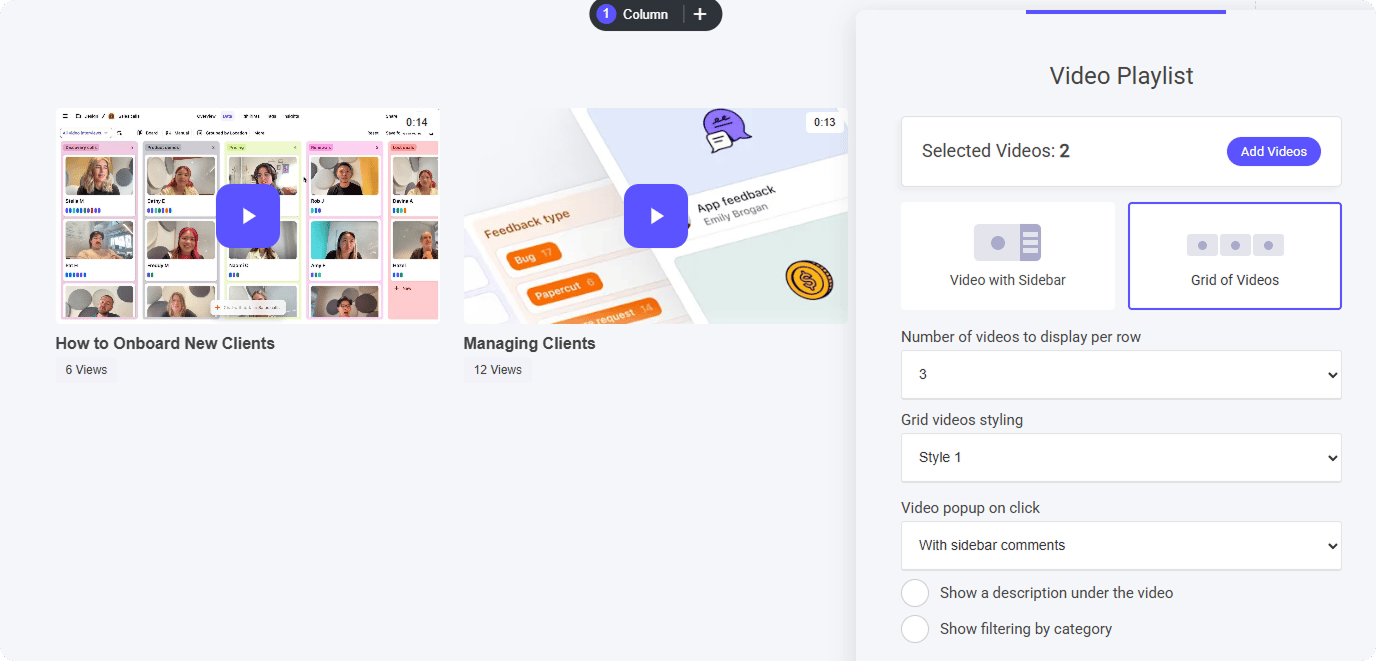
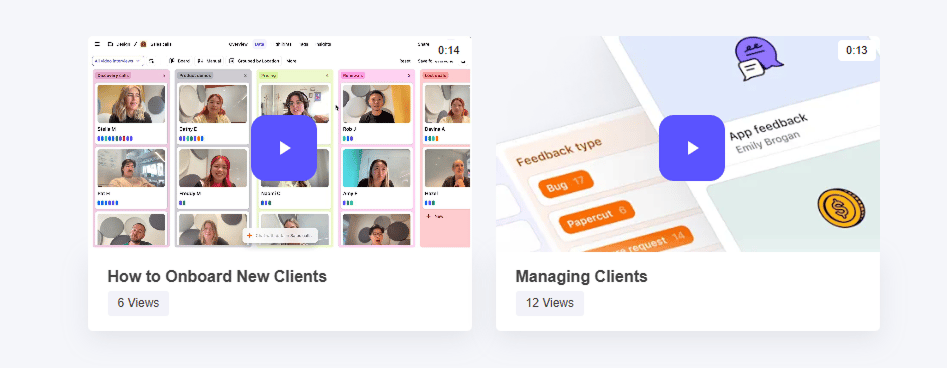
### Number of Videos to Display per Row You have full control over **how many videos** appear per row in the **grid display**. * Choose between **2 to 6 videos per row** based on your preferred layout. * Optimize for **visual clarity** and **spacing** to match your design needs. * Create a **structured browsing experience** similar to modern streaming platforms. ### Grid Styling When displaying your videos in a **grid format**, you have two styling choices: 1. **Simple** – A clean, minimalist layout that ensures a **streamlined, distraction-free** browsing experience. 2. **Bordered (Tile Effect)** – Adds defined borders around each video, creating a **structured, visually distinct** tile-style appearance.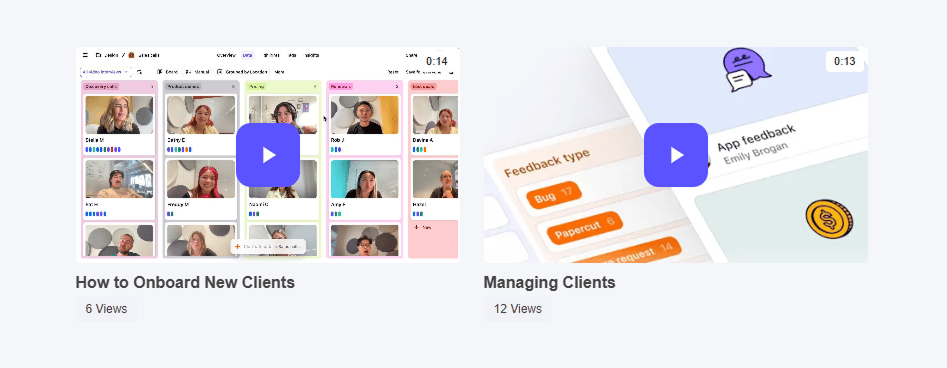
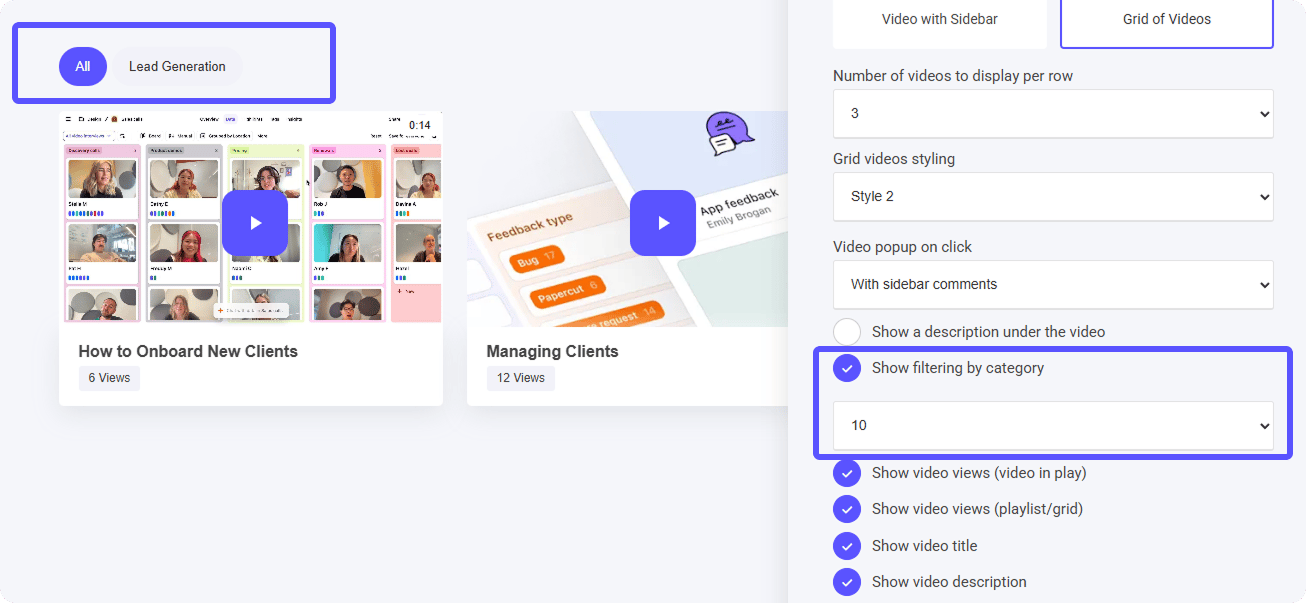
 ### Filter by Category
With **category filtering**, viewers can easily **sort** through multiple video categories using **neat, accessible buttons** displayed above the grid.
**How It Works:**
* **Category Buttons** – Organized at the top of the grid for quick navigation.
* **Effortless Filtering** – Selecting a category instantly refines the displayed videos, ensuring faster searchability.
* **Ideal for Large Playlists** – Keeps content structured, making it easier to find relevant videos in multi-category collections.
This feature enhances **user experience**, allowing for a more intuitive way to explore and engage with playlist content.
[Video Manager](/builder/video/getting-started/video-manager#categories) Learn more about categories
### Filter by Category
With **category filtering**, viewers can easily **sort** through multiple video categories using **neat, accessible buttons** displayed above the grid.
**How It Works:**
* **Category Buttons** – Organized at the top of the grid for quick navigation.
* **Effortless Filtering** – Selecting a category instantly refines the displayed videos, ensuring faster searchability.
* **Ideal for Large Playlists** – Keeps content structured, making it easier to find relevant videos in multi-category collections.
This feature enhances **user experience**, allowing for a more intuitive way to explore and engage with playlist content.
[Video Manager](/builder/video/getting-started/video-manager#categories) Learn more about categories