> ## Documentation Index
> Fetch the complete documentation index at: https://docs.bosscart.io/llms.txt
> Use this file to discover all available pages before exploring further.
# Image Comparison
> This element lets visitors compare two images side by side using a draggable divider, perfect for showing transformations, renovations, product upgrades, or design revisions.
This element lets visitors compare two images side by side using a draggable divider, perfect for showing transformations, renovations, product upgrades, or design revisions.
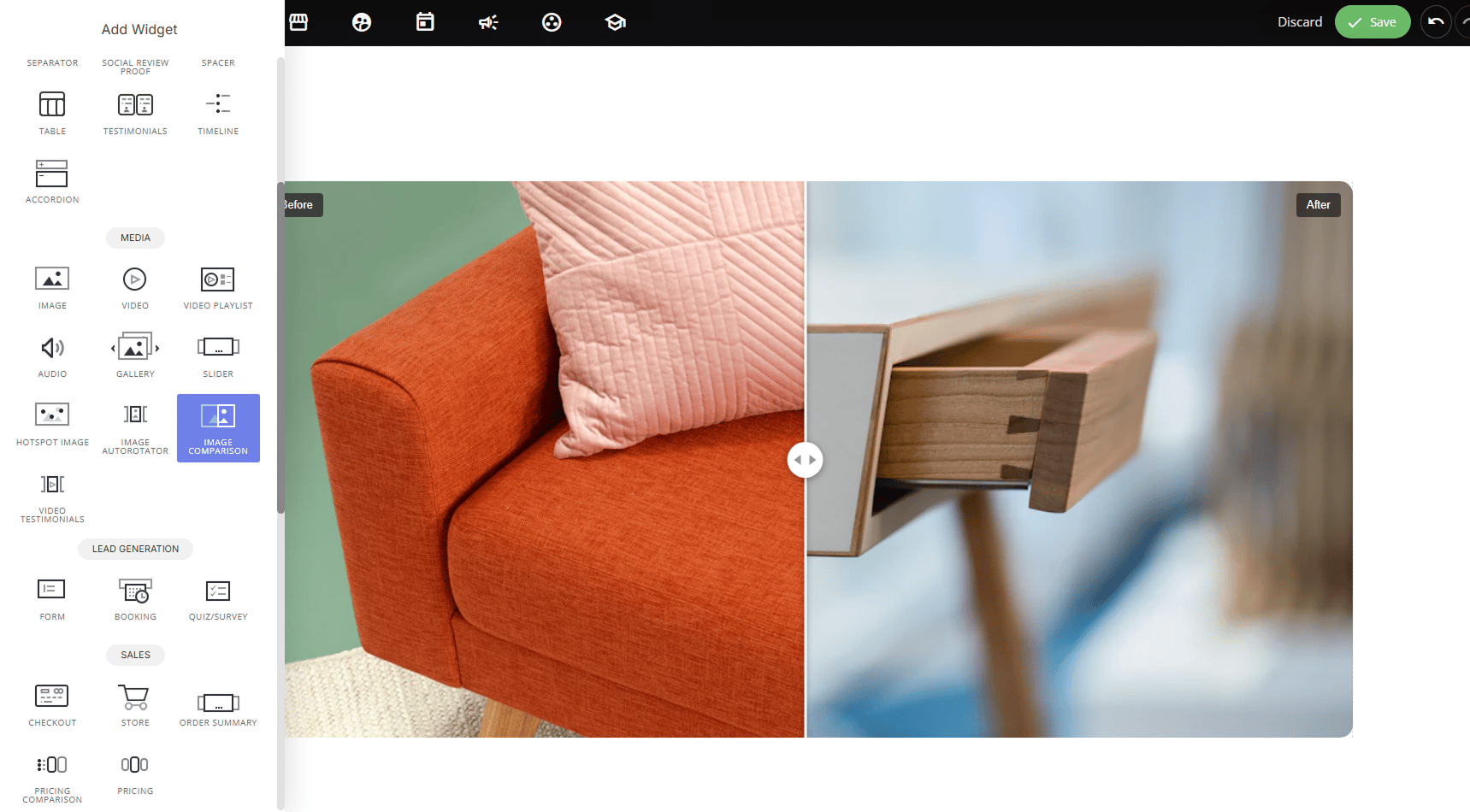 #### **Why use it:**
* **Highlights transformation instantly:** dragging to reveal "before" and "after" is far more compelling than two separate static images.
* **Encourages interaction**: the drag-to-reveal effect invites visitors to engage rather than passively scroll past.
* **Versatile use cases:** home renovations, product redesigns, photo editing, fitness/progress results, or any side-by-side comparison.
### **Display Options:**
**Interactive (drag):** visitors manually drag the slider handle left/right to reveal more of each image at their own pace.
#### **Why use it:**
* **Highlights transformation instantly:** dragging to reveal "before" and "after" is far more compelling than two separate static images.
* **Encourages interaction**: the drag-to-reveal effect invites visitors to engage rather than passively scroll past.
* **Versatile use cases:** home renovations, product redesigns, photo editing, fitness/progress results, or any side-by-side comparison.
### **Display Options:**
**Interactive (drag):** visitors manually drag the slider handle left/right to reveal more of each image at their own pace.
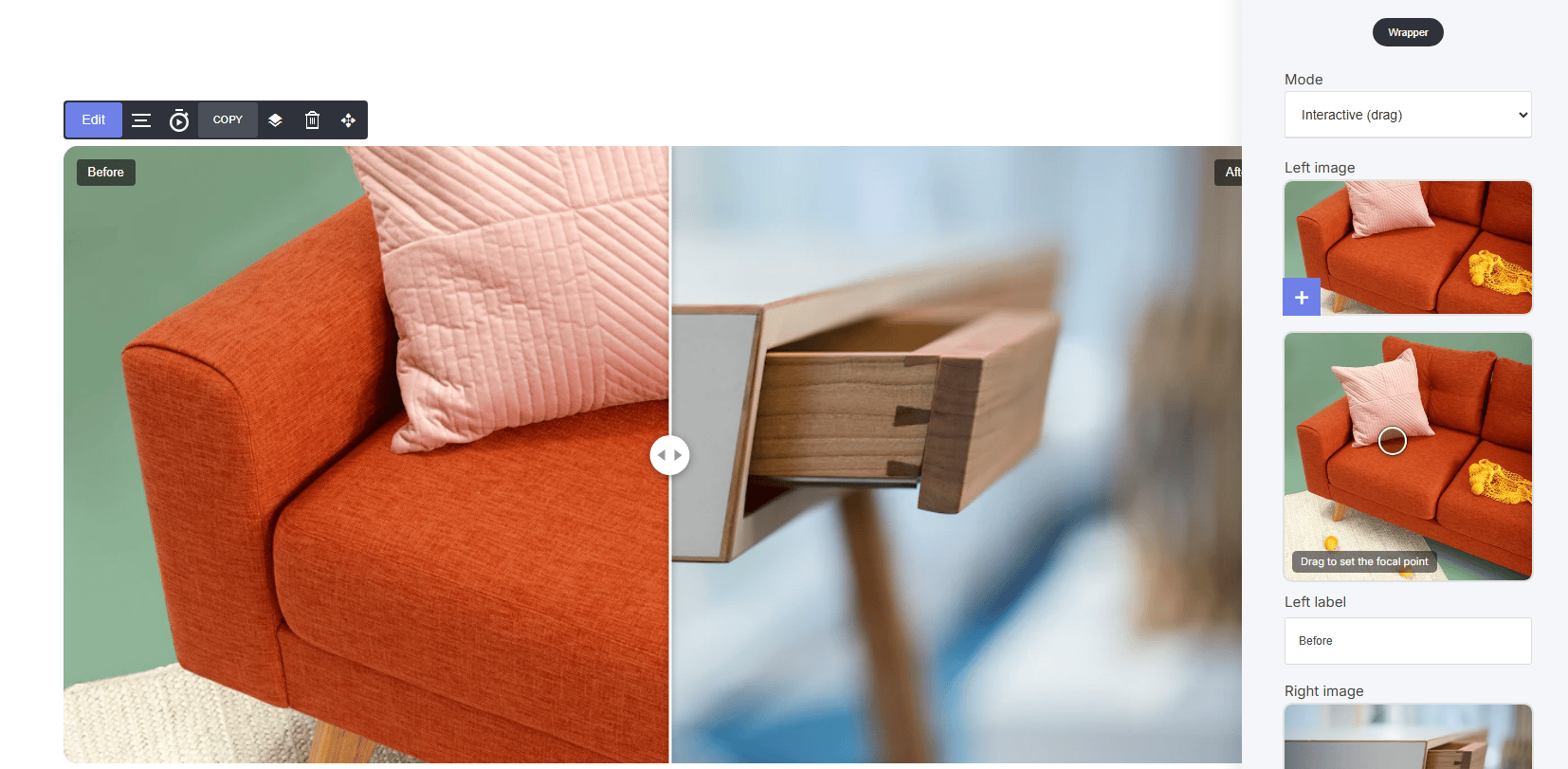 **Reveal on scroll:** the comparison animates automatically as the visitor scrolls past the section, no interaction required.
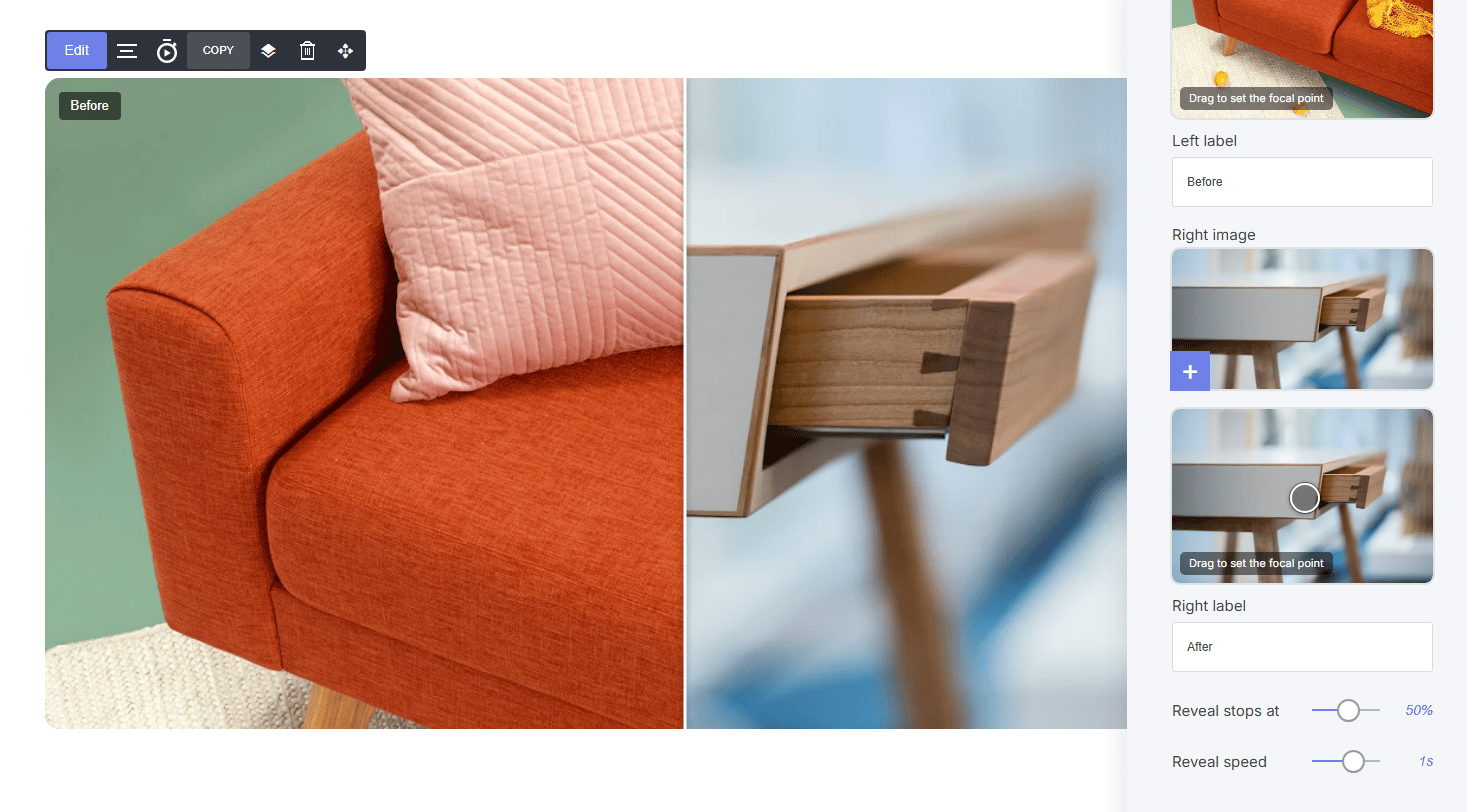 ### **How to set it up:**
* Upload a **Left image** and **Right image**
* **Drag to set the focal point** on each image — this ensures the most important part of the photo stays visible/centered regardless of screen size or crop
* Customize **Left label / Right label** (e.g., "Before" / "After")
### **How to set it up:**
* Upload a **Left image** and **Right image**
* **Drag to set the focal point** on each image — this ensures the most important part of the photo stays visible/centered regardless of screen size or crop
* Customize **Left label / Right label** (e.g., "Before" / "After")
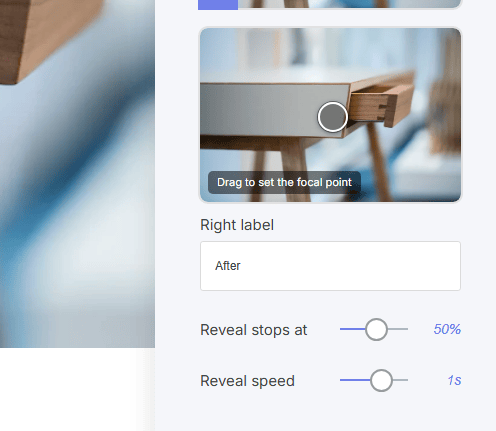 **Reveal on Scroll settings**
* **Reveal stops at:** set how far the reveal goes by default (e.g., starts at 50%)
* **Reveal speed**: controls animation speed (used with Reveal on scroll mode)
**Reveal on Scroll settings**
* **Reveal stops at:** set how far the reveal goes by default (e.g., starts at 50%)
* **Reveal speed**: controls animation speed (used with Reveal on scroll mode)