> ## Documentation Index
> Fetch the complete documentation index at: https://docs.bosscart.io/llms.txt
> Use this file to discover all available pages before exploring further.
# Gallery
> The gallery widget makes it easy to showcase images in a visually appealing way.
The **gallery widget** makes it easy to showcase images in a visually appealing way.
\*\*Layout Options: \*\***Updated**
* **Grid Format** – Arrange images in a structured, organized layout.
* **Interactive Carousel** – Display images in a **scrollable format** for dynamic presentation.
* **Masonry -** Display multiple sized images in a grid like format.
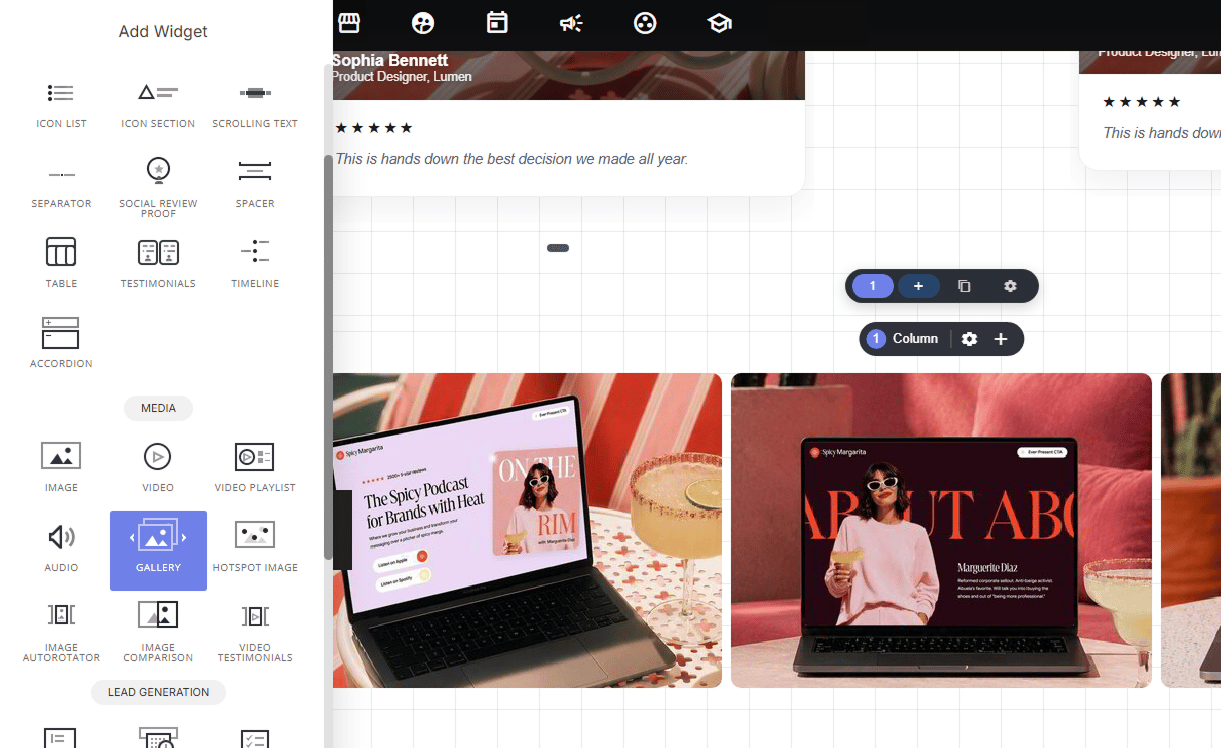
Simply **drag and drop the gallery widget** onto your page and customize the settings to match your design preferences!
 ### **Adding images**
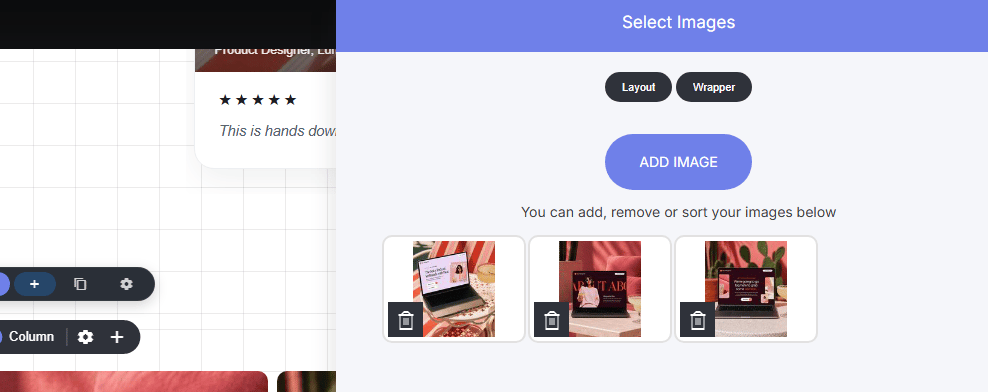
To add an image or multiple images, select the edit images tab
### **Adding images**
To add an image or multiple images, select the edit images tab
 ### **Edit the styling**
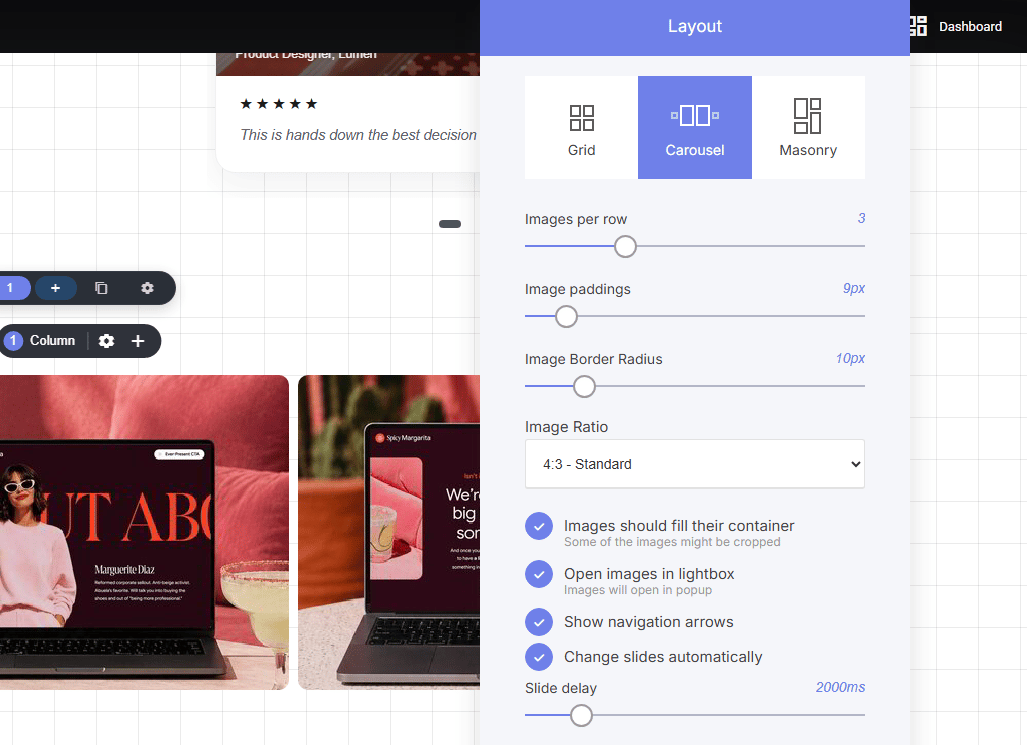
There are three main styling options to chose from: Grid, Carousel and masonry. Within each style option you'll be able to:
* Set the amount of images to display per row
* Add padding between the images
* Image border radius
* Image ratio 'size'
Additional settings are. open the image when clicked in to a larger window, '**lightbox**', display navigation arrows, for visitors to click and scroll through the images, and add animation so the slides move automatically.
### **Edit the styling**
There are three main styling options to chose from: Grid, Carousel and masonry. Within each style option you'll be able to:
* Set the amount of images to display per row
* Add padding between the images
* Image border radius
* Image ratio 'size'
Additional settings are. open the image when clicked in to a larger window, '**lightbox**', display navigation arrows, for visitors to click and scroll through the images, and add animation so the slides move automatically.
 ### **Editing the image position**
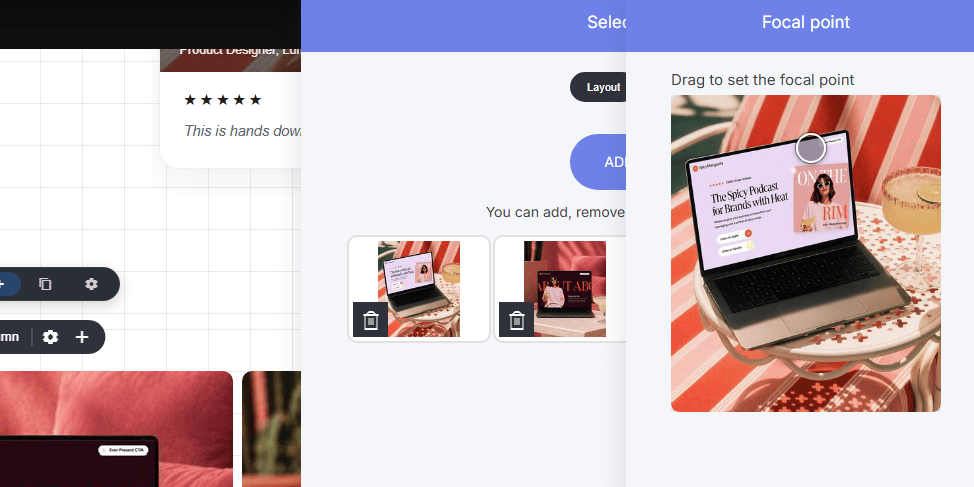
Sometimes you may want to adjust the portion of image displayed, to do so open the images you have selected, select an image you want to adjust. Here you will be able to adjust the focus part of the image by moving the circle on the image.
### **Editing the image position**
Sometimes you may want to adjust the portion of image displayed, to do so open the images you have selected, select an image you want to adjust. Here you will be able to adjust the focus part of the image by moving the circle on the image.