> ## Documentation Index
> Fetch the complete documentation index at: https://docs.bosscart.io/llms.txt
> Use this file to discover all available pages before exploring further.
# Individual Email Sending
> Create and send an individual email to a single contact from the contact's profile in the CRM
## Create and send an individual email to a single contact from the contact's profile in the CRM
You can only send an individual email to a contact from the CRM if that contact is a Subscriber on one of your email lists.
Easily reach your **subscribed email contacts** from within your **builder dashboard**.
**Steps to Send an Email:**
1. **Navigate to the Contacts Tab** – Open the section where all subscribers are listed.
2. **Search for the Contact** – Locate the person you want to email.
3. **Open Their Contact Profile** – Access individual user details.
4. **Click the "Email Icon"** – Found in the **top right corner** of their profile.
5. **Compose & Send Your Email** – A new email window will appear in the **bottom right** where you can draft and send your message.
This keeps communication **quick, seamless, and fully integrated into your workflow**!
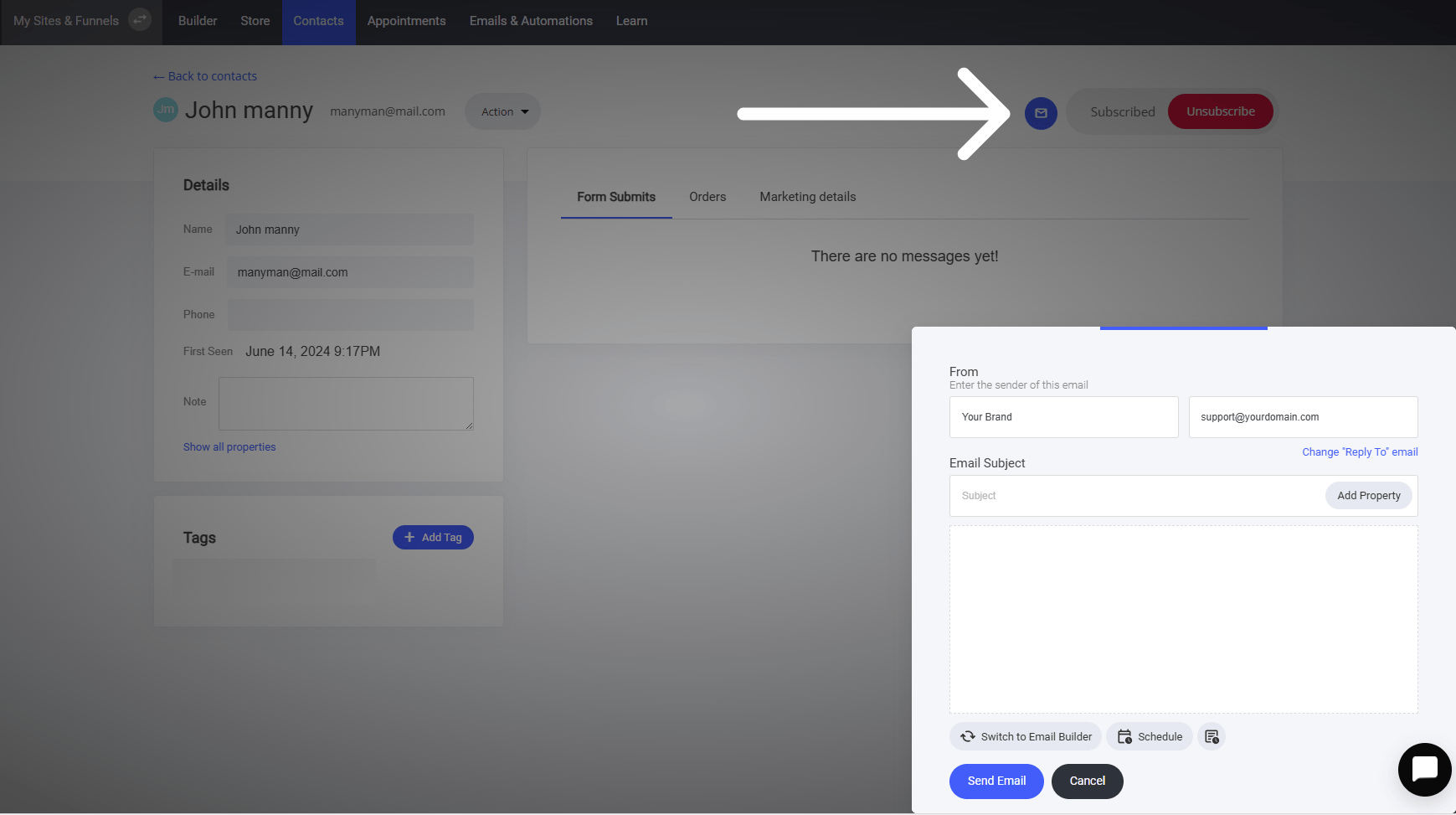 ### Individual Email Settings and Options
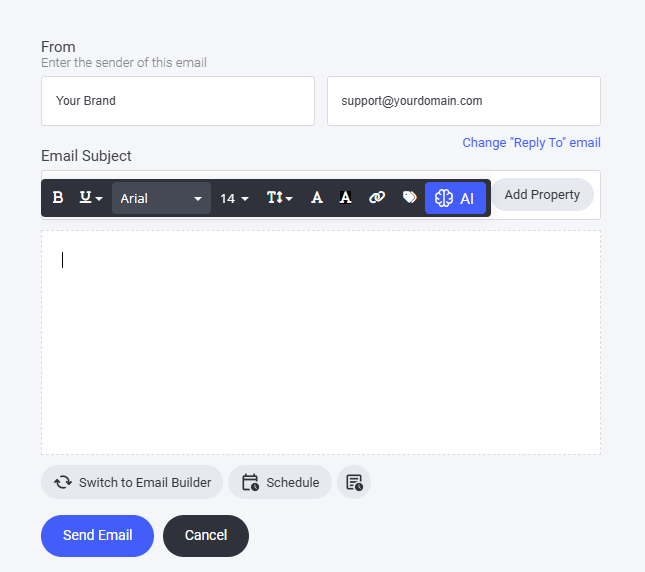 ### Creating the profile email
You have two ways to send the email. First, you can send it directly from here, using the [A.I writing assistant](/builder/platform/ai-writing-assistant) for help. Or, you can "**Switch to Email Builder**" to access your saved templates and customize your email more.
### **Schedule**
There are two options available to you: you can either click the "Send Email" button to send the email immediately or choose to schedule the email to be sent at a specified time when it is required. This provides you with the flexibility to manage your communications in a manner that best suits your needs, whether you need to send an urgent message right away or plan your email delivery for a more appropriate or strategic time in the future.
You can also check any other emails you have scheduled for that contact by clicking the scheduled email icon.
### Creating the profile email
You have two ways to send the email. First, you can send it directly from here, using the [A.I writing assistant](/builder/platform/ai-writing-assistant) for help. Or, you can "**Switch to Email Builder**" to access your saved templates and customize your email more.
### **Schedule**
There are two options available to you: you can either click the "Send Email" button to send the email immediately or choose to schedule the email to be sent at a specified time when it is required. This provides you with the flexibility to manage your communications in a manner that best suits your needs, whether you need to send an urgent message right away or plan your email delivery for a more appropriate or strategic time in the future.
You can also check any other emails you have scheduled for that contact by clicking the scheduled email icon.