> ## Documentation Index
> Fetch the complete documentation index at: https://docs.bosscart.io/llms.txt
> Use this file to discover all available pages before exploring further.
# Subscription managment
> Subscriptions can be managed by both customers and administrators, depending on access level. The sections below outline how to view and manage subscriptions from each area of...
## Subscription management
Subscriptions can be managed by both customers and administrators, depending on access level. The sections below outline how to view and manage subscriptions from each area of the platform.
### For Customers: Viewing & Managing Your Subscription
**Open the Subscriptions page**
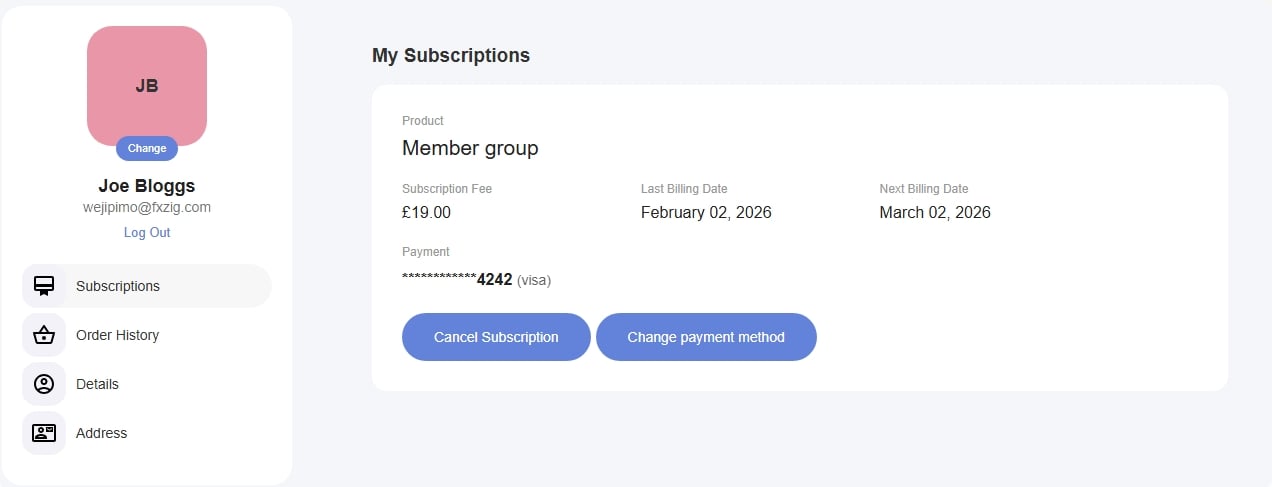
From your member account profile, select **Subscriptions** in the sidebar.
This page displays your active subscription, including:
* **Product name**
* **Subscription fee**
* **Last billing date**
* **Next billing date**
* **Current payment method**
You can also cancel your subscription or update your payment method from here.
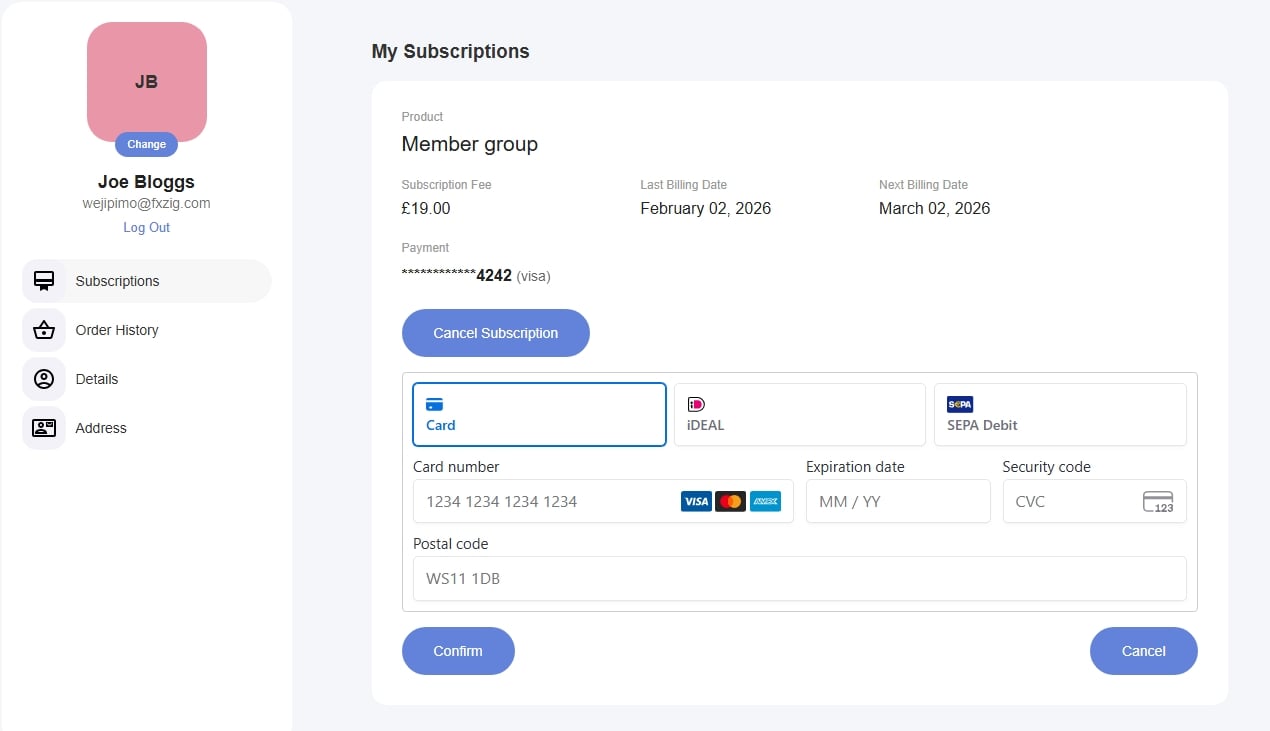 ### Change your payment method
Click **Change payment method** to update the card or payment option used for this subscription.
Enter the new payment details and confirm. Once saved, the updated payment method will immediately appear, including the card type and last four digits, making it easy to identify which payment method is active.
### Change your payment method
Click **Change payment method** to update the card or payment option used for this subscription.
Enter the new payment details and confirm. Once saved, the updated payment method will immediately appear, including the card type and last four digits, making it easy to identify which payment method is active.
 ### For Administrators: Managing Customer Subscriptions
**Open the Subscriptions list**
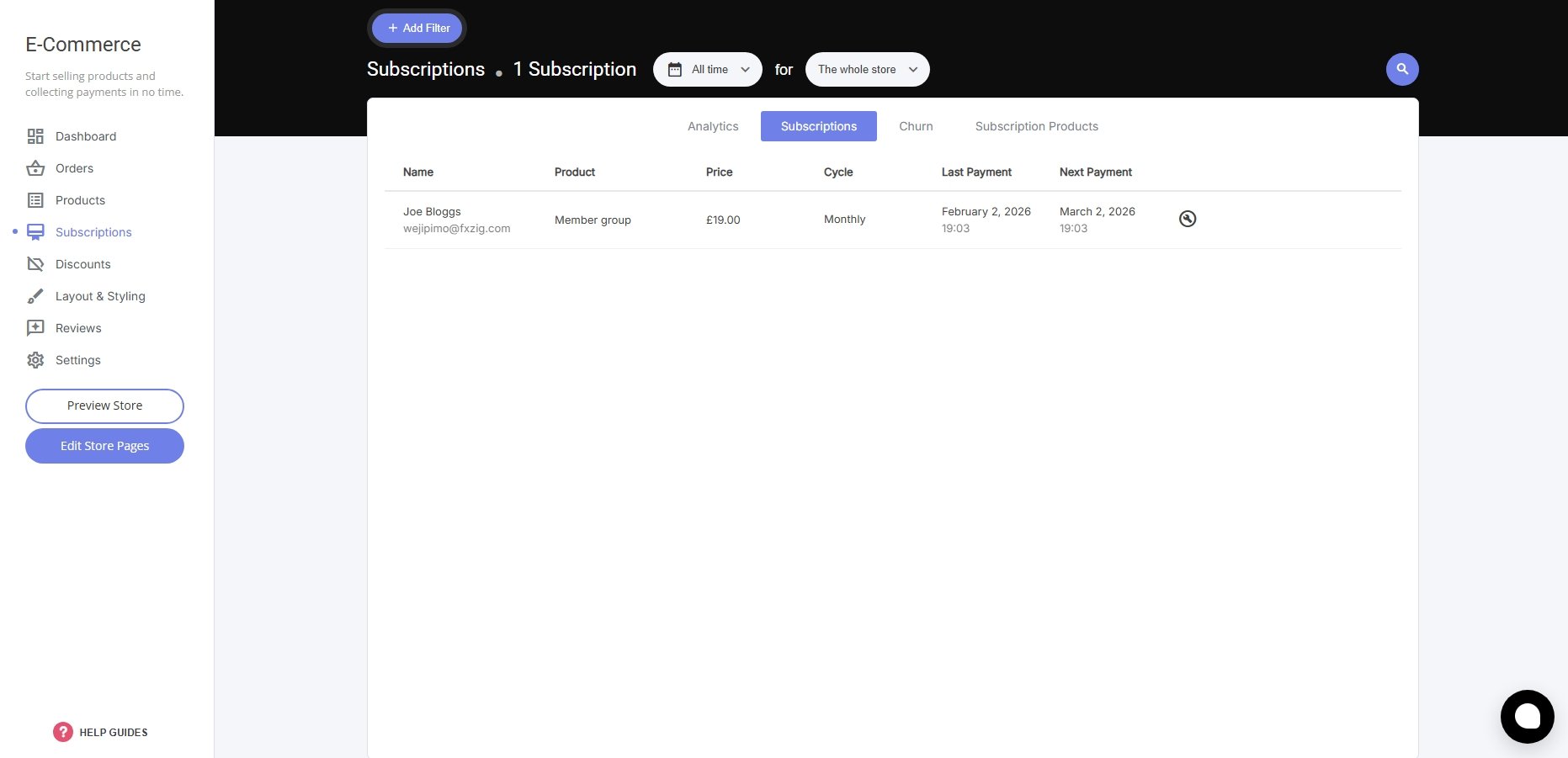
Navigate to **E-Commerce → Subscriptions** from the admin dashboard.
This view shows all subscriptions across the store, including:
* **Customer name and email**
* **Product**
* **Price**
* **Billing cycle**
* **Last payment date**
* **Next payment date**
### For Administrators: Managing Customer Subscriptions
**Open the Subscriptions list**
Navigate to **E-Commerce → Subscriptions** from the admin dashboard.
This view shows all subscriptions across the store, including:
* **Customer name and email**
* **Product**
* **Price**
* **Billing cycle**
* **Last payment date**
* **Next payment date**
 ### **Open a subscription**
Click on a subscription to view its full details.
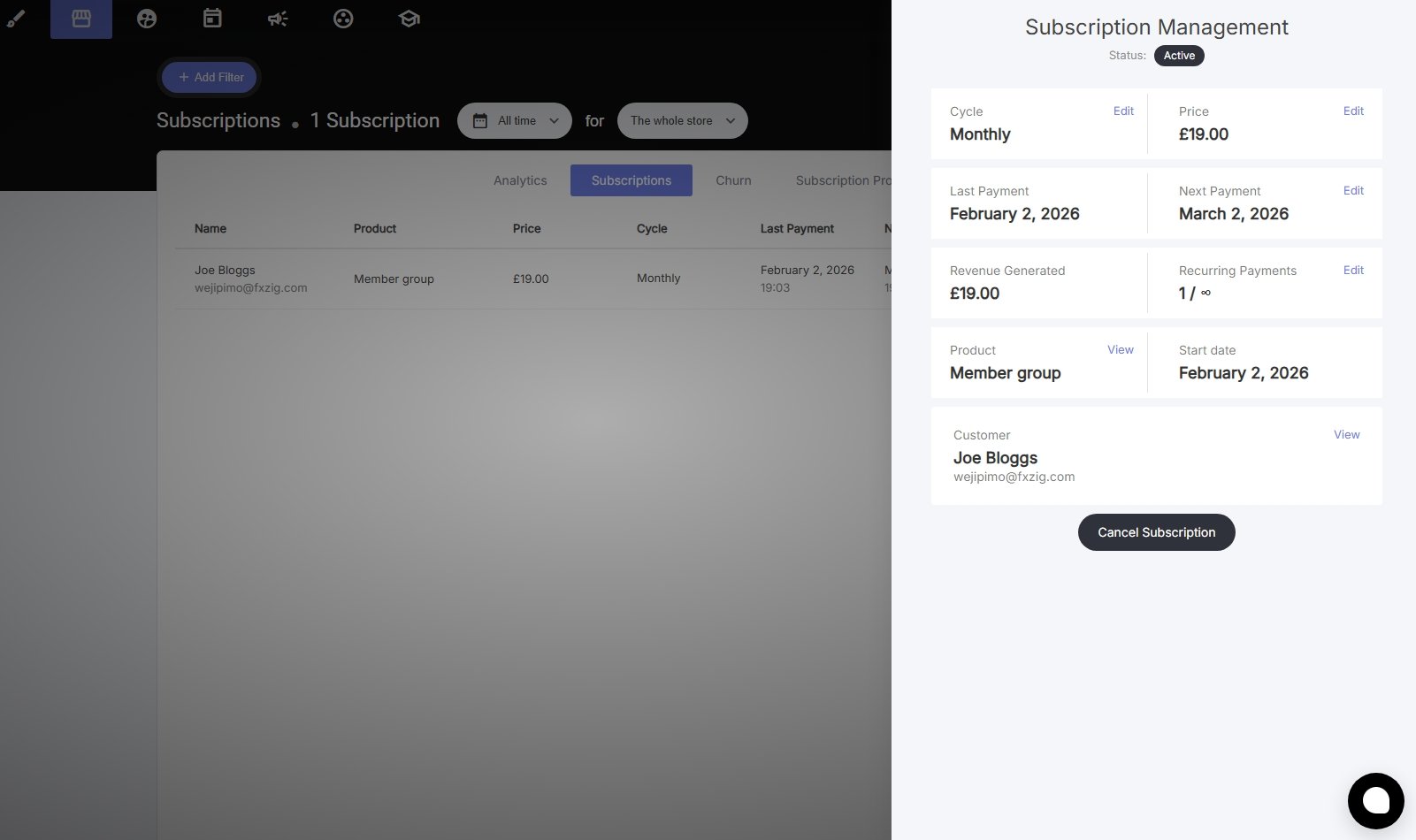
This opens the **Subscription Management** panel, where the current status and configuration are displayed.
### **Open a subscription**
Click on a subscription to view its full details.
This opens the **Subscription Management** panel, where the current status and configuration are displayed.
 ### Edit subscription details
From the Subscription Management panel, admins can:
* **Change the billing cycle (e.g. monthly)**
* **Update the subscription price**
* **Adjust the next payment date**
* **View total revenue generated**
* **Track how many recurring payments have been processed**
* **View the associated product and customer**
Changes take effect for upcoming and ongoing payments, depending on the update made.
#### Notes
* Each subscription is managed independently.
* Payment methods are stored per subscription, allowing different subscriptions to use different billing options.
* Subscription data is updated in real time and reflected immediately after changes are saved.
### Edit subscription details
From the Subscription Management panel, admins can:
* **Change the billing cycle (e.g. monthly)**
* **Update the subscription price**
* **Adjust the next payment date**
* **View total revenue generated**
* **Track how many recurring payments have been processed**
* **View the associated product and customer**
Changes take effect for upcoming and ongoing payments, depending on the update made.
#### Notes
* Each subscription is managed independently.
* Payment methods are stored per subscription, allowing different subscriptions to use different billing options.
* Subscription data is updated in real time and reflected immediately after changes are saved.