> ## Documentation Index
> Fetch the complete documentation index at: https://docs.bosscart.io/llms.txt
> Use this file to discover all available pages before exploring further.
# Managing Orders
> The Orders Tab provides a comprehensive overview of all transactions within your storefront and specific funnels.
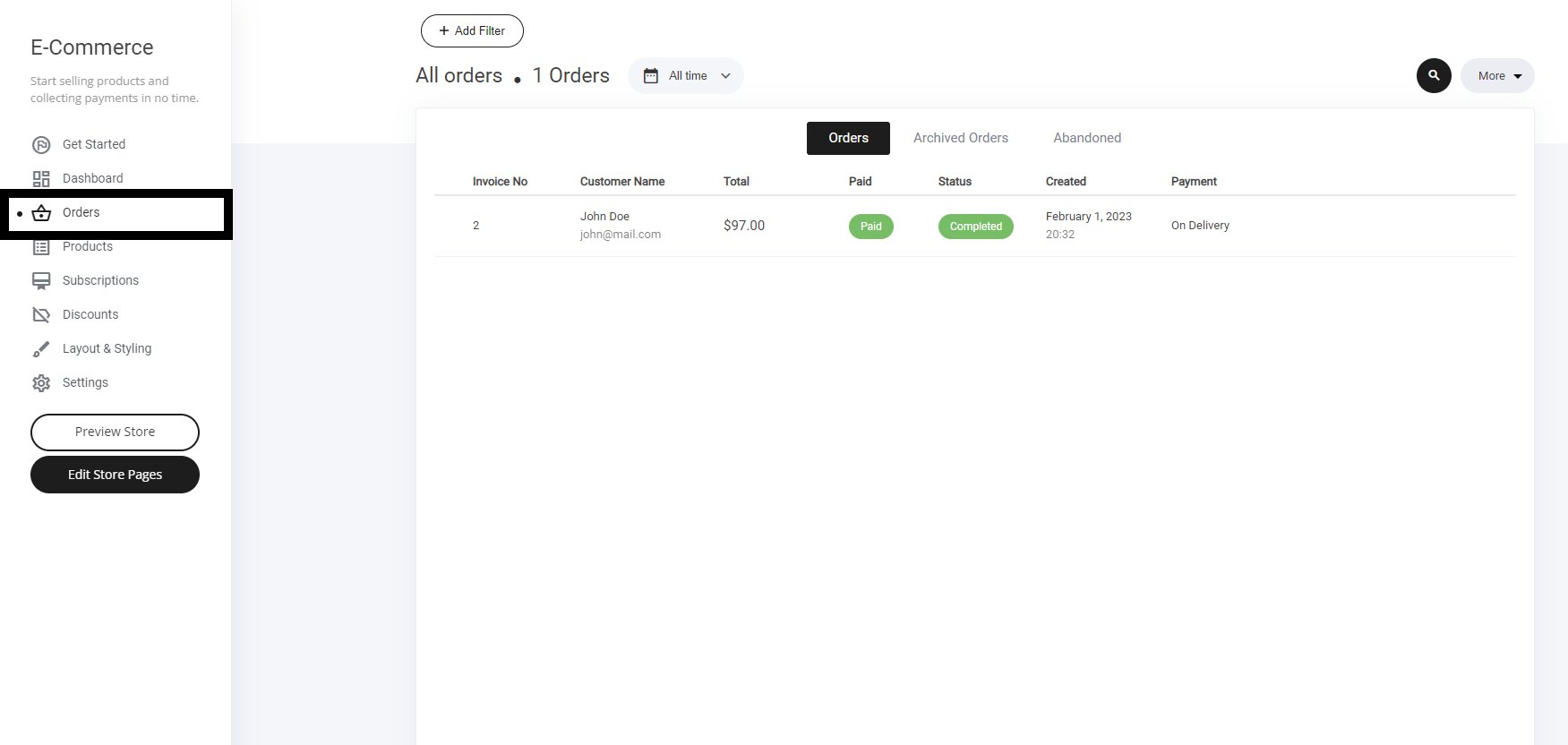 The **Orders Tab** provides a **comprehensive overview** of all transactions within your storefront and specific funnels.
**Key Features:**
* **View & Edit Orders** – Track incoming purchases and make necessary modifications.
* **Archived Orders** – Store completed transactions for future reference.
* **Abandoned Cart** – Monitor users who left items in their cart without purchasing.
* **Paid Status Changes** – Update payment confirmations or adjust status as needed.
* **Order Status** – Keep track of fulfillment progress and customer notifications.
* **Export Orders** – Generate reports for bookkeeping or further analysis.
This **streamlined order management system** ensures a **smooth and efficient shopping experience!**
The **Orders Tab** provides a **comprehensive overview** of all transactions within your storefront and specific funnels.
**Key Features:**
* **View & Edit Orders** – Track incoming purchases and make necessary modifications.
* **Archived Orders** – Store completed transactions for future reference.
* **Abandoned Cart** – Monitor users who left items in their cart without purchasing.
* **Paid Status Changes** – Update payment confirmations or adjust status as needed.
* **Order Status** – Keep track of fulfillment progress and customer notifications.
* **Export Orders** – Generate reports for bookkeeping or further analysis.
This **streamlined order management system** ensures a **smooth and efficient shopping experience!**
 ### **Orders**
The orders tab show a list of people who have purchased from you. Here you can also select and update order status. You can also select the customer to view their profile via the CRM.
### **Orders**
The orders tab show a list of people who have purchased from you. Here you can also select and update order status. You can also select the customer to view their profile via the CRM.
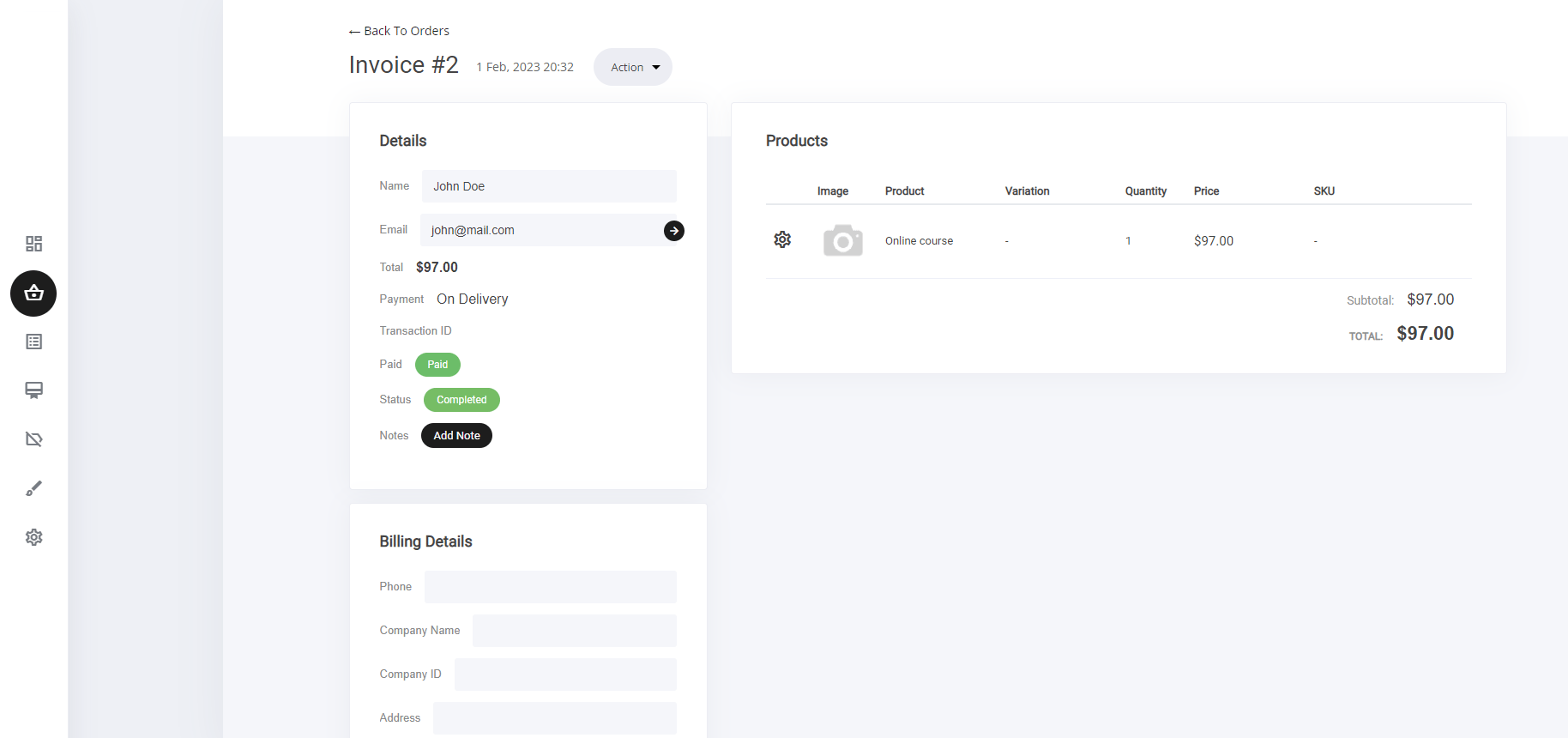 You will notice an actions tab that is located next to the invoice number '**Invoice #201**' here are some new options you can use:
1. **+ Add new item**
2. **Archive order**
3. **Send order details to customer**
4. **Print**
You will notice an actions tab that is located next to the invoice number '**Invoice #201**' here are some new options you can use:
1. **+ Add new item**
2. **Archive order**
3. **Send order details to customer**
4. **Print**
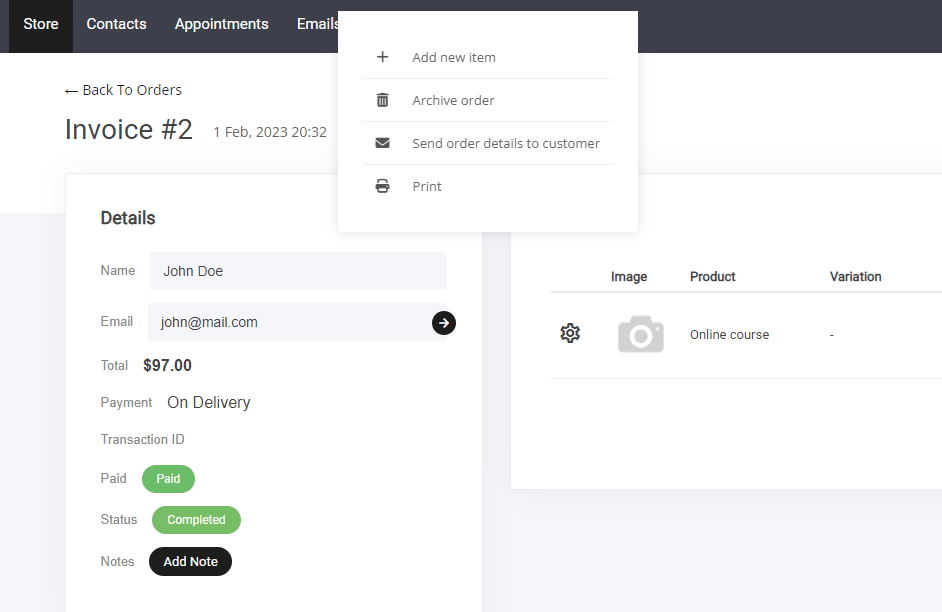 1\. **Add new item** - You can now add more items to the users profile and will be added to their existing order ready for a payment email to be automatically sent.
**Adding a new item:**
Select add new item > Select product from list > Change the qty and price if required > Now the item will be added to the customers profile as shown below
1\. **Add new item** - You can now add more items to the users profile and will be added to their existing order ready for a payment email to be automatically sent.
**Adding a new item:**
Select add new item > Select product from list > Change the qty and price if required > Now the item will be added to the customers profile as shown below
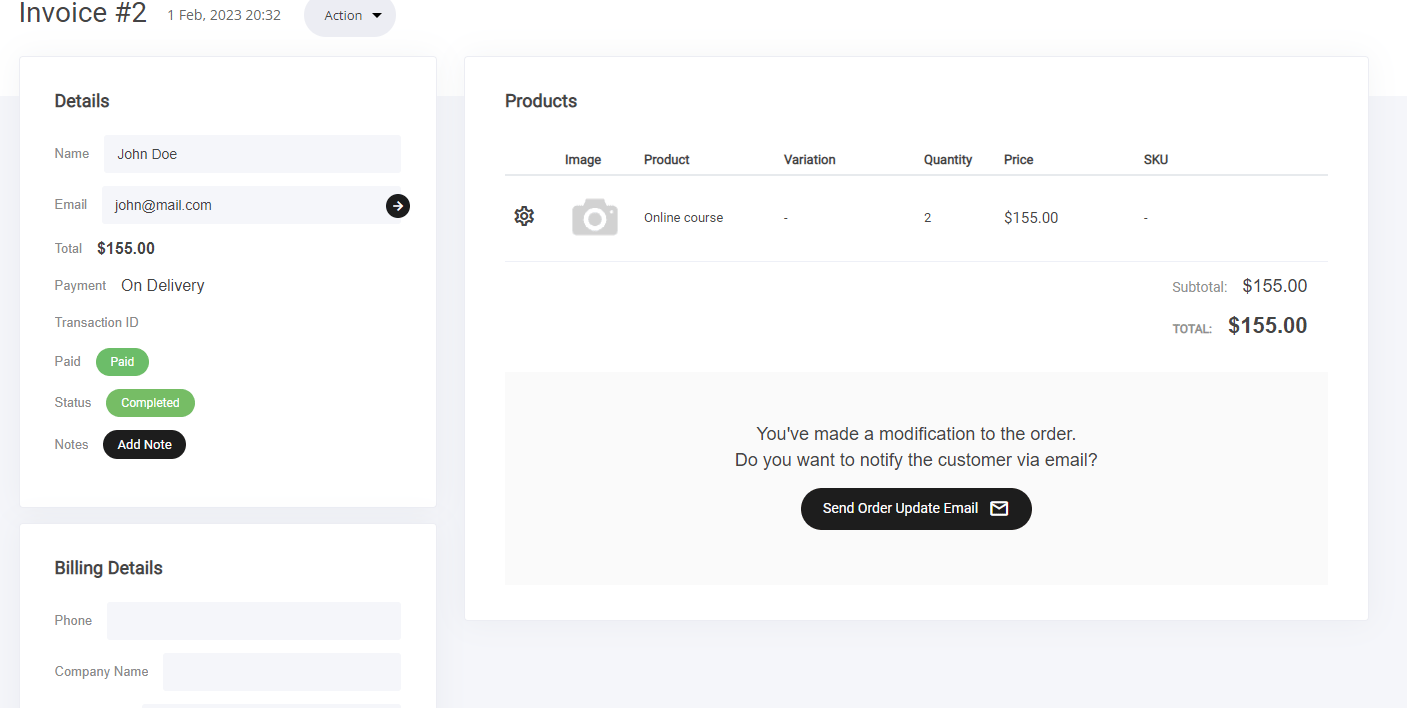 You can now send an email to the customer using the blue button - Send order update email