> ## Documentation Index
> Fetch the complete documentation index at: https://docs.bosscart.io/llms.txt
> Use this file to discover all available pages before exploring further.
# Community Settings
> Let's start out by taking a look at the main community settings. First select the Settings tab located to the left of the screen.
Let's start out by taking a look at the main community settings. First select the **Settings** tab located to the left of the screen.
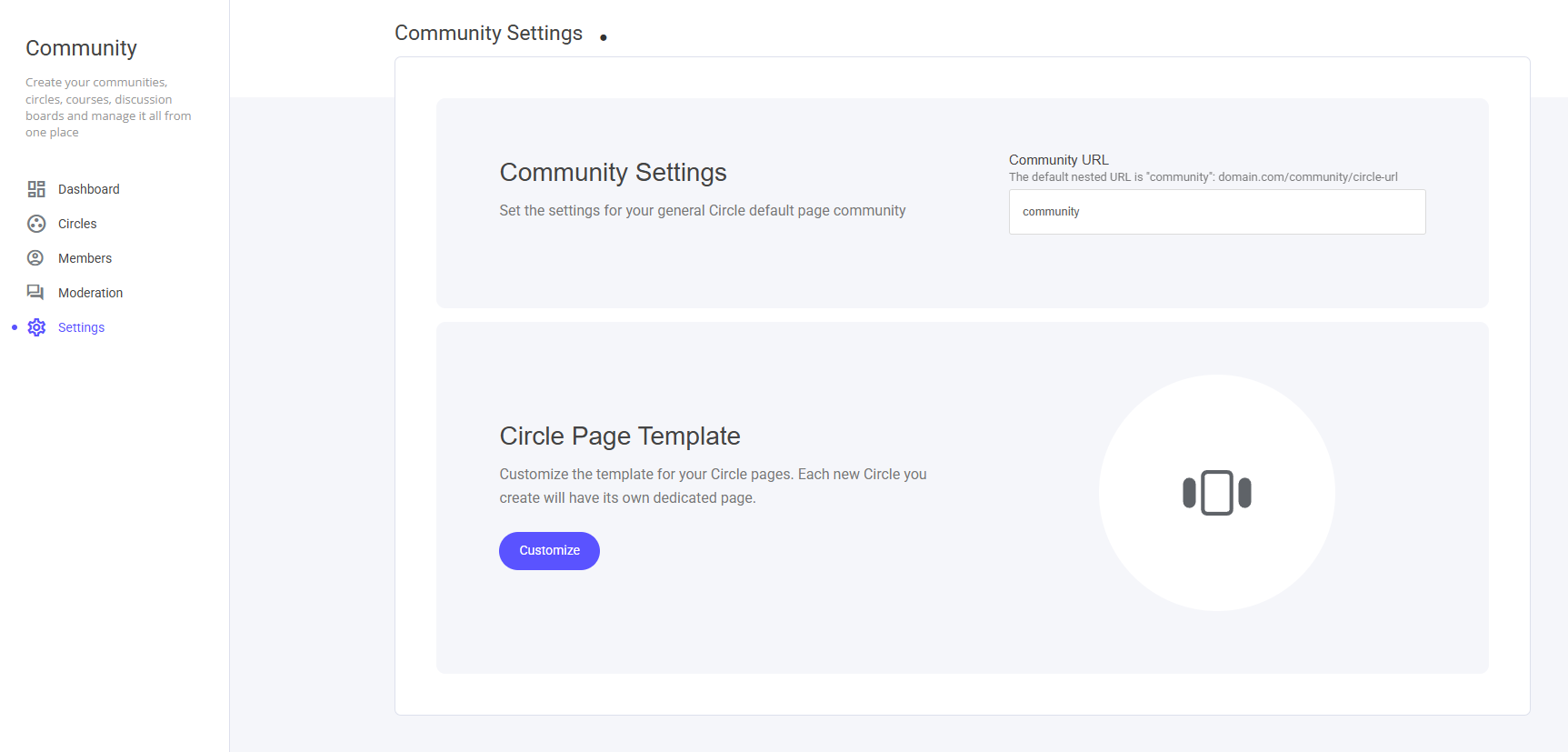 From here you will be able to modify the Community URL if required.
By default the URL is pre-set to [www.yourdomain.com/\*\*community](http://www.yourdomain.com/**community)\*\*
In the displayed image, you'll see the URL ending with a Circle URL. Each of your Circles will have its own unique URL to direct members to your community.
### Circle Page Template
The Circle Page template section functions like other system pages, allowing you to modify the main display of your Main Community/Circle.
From here you will be able to modify the Community URL if required.
By default the URL is pre-set to [www.yourdomain.com/\*\*community](http://www.yourdomain.com/**community)\*\*
In the displayed image, you'll see the URL ending with a Circle URL. Each of your Circles will have its own unique URL to direct members to your community.
### Circle Page Template
The Circle Page template section functions like other system pages, allowing you to modify the main display of your Main Community/Circle.
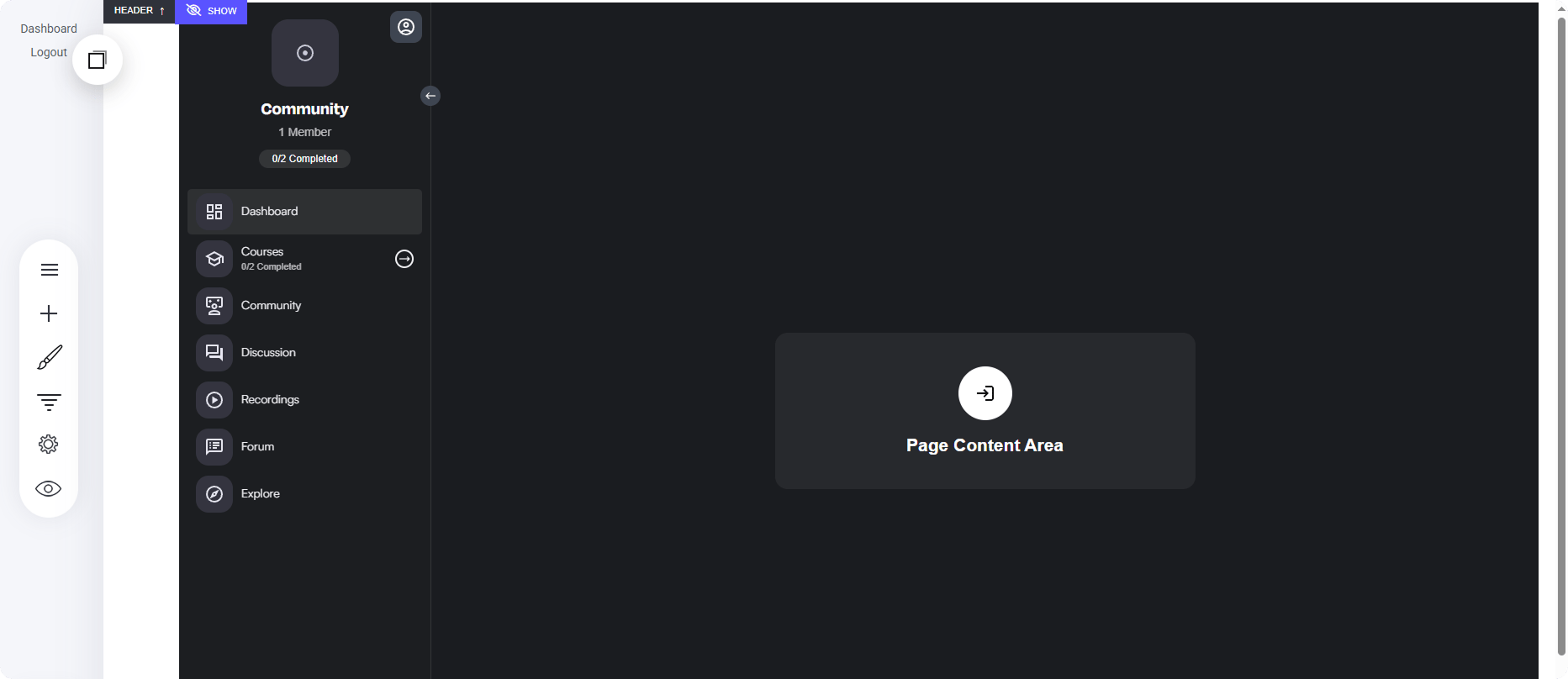 On the System page, you'll have the ability to edit the main page styling, such as adding new widgets, blocks, and containers to the primary Community layout page. **Please note**: this is not where you edit the main Community or Circle content, such as adding pages or new courses. That is done when editing the specific Circle.