> ## Documentation Index
> Fetch the complete documentation index at: https://docs.bosscart.io/llms.txt
> Use this file to discover all available pages before exploring further.
# Article Basics
> Crafting engaging blog content is easy with the article editor!
### Article Creation Overview
Crafting engaging blog content is easy with the **article editor**!
**How to Start or Edit a Post:**
1. **Click "Add Post"** – Create a brand-new article.
2. **Select an Existing Title** – Open a post you wish to edit.
3. **Access the Article Editor** – A dedicated editing interface will appear for customization.
From here, you can **refine formatting, structure, and content** to create compelling articles!
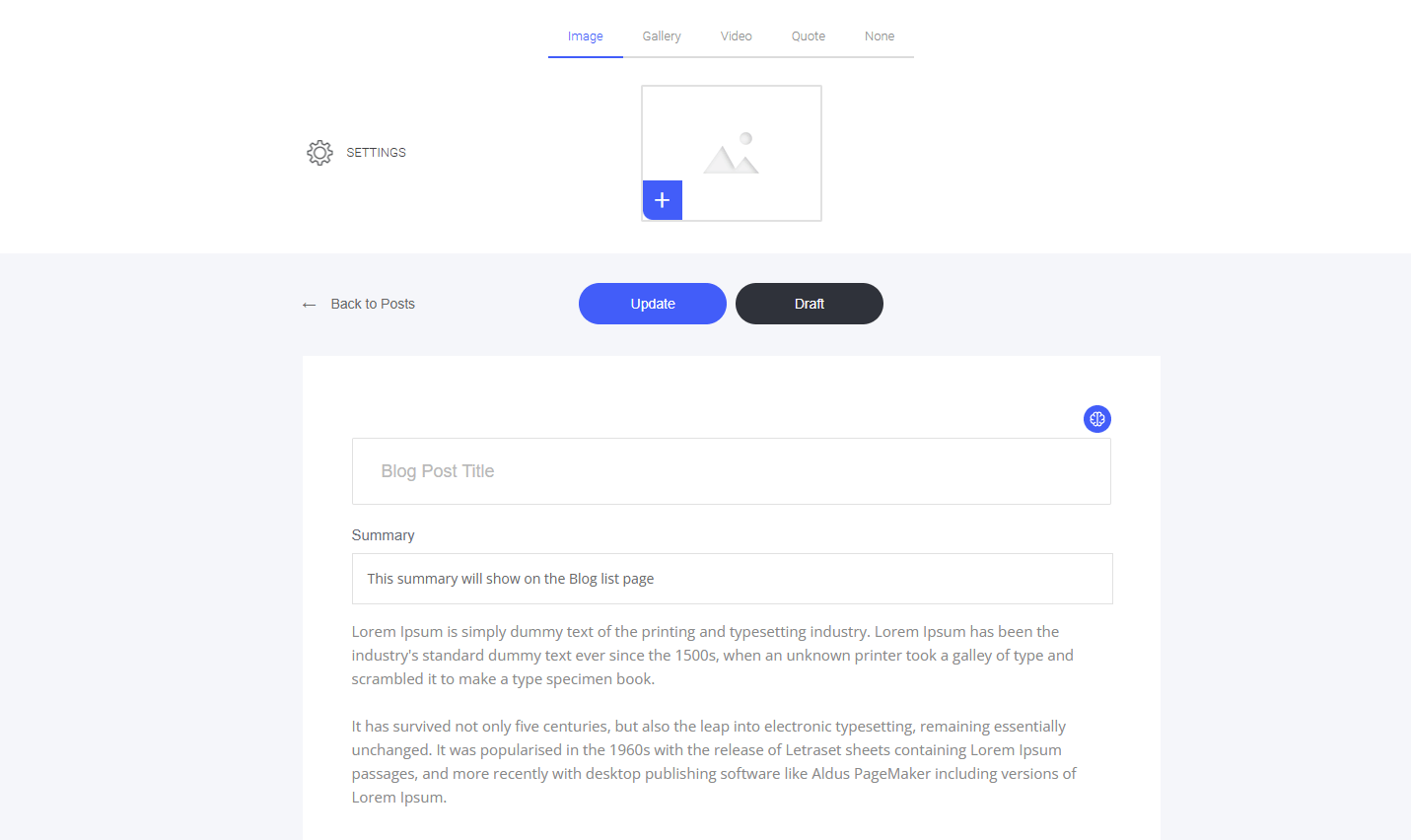 **Inside this blog editor, you can:**
* Change the main image or media you wish to use for that article
* Give the article a name (This will also be your H1 Heading Tag for SEO)
* Add a summary to the blog (This will display on the main blog page, and it is also the Meta Description used for SEO)
* Create the actual article content in the drag-and-drop builder
* Adjust the settings for each individual blog article or post
**Blog Summary:** If you cannot think of what to write for your blog summary - Use the A.I writing assistant to assist you. It will formulate a summary based on your entire blog content.
### Update vs Draft
Both are "save" buttons. The difference is this...
### Publishing a Blog Article
When you select **'Update'**, the article will be published and will be visible on your website's blog.
If the article was already published, it will just update with the changes you made.
### Saving a Blog Article as a Draft
To save your article as a draft so that you can finish it later, hit the **'Draft'** button.
**Inside this blog editor, you can:**
* Change the main image or media you wish to use for that article
* Give the article a name (This will also be your H1 Heading Tag for SEO)
* Add a summary to the blog (This will display on the main blog page, and it is also the Meta Description used for SEO)
* Create the actual article content in the drag-and-drop builder
* Adjust the settings for each individual blog article or post
**Blog Summary:** If you cannot think of what to write for your blog summary - Use the A.I writing assistant to assist you. It will formulate a summary based on your entire blog content.
### Update vs Draft
Both are "save" buttons. The difference is this...
### Publishing a Blog Article
When you select **'Update'**, the article will be published and will be visible on your website's blog.
If the article was already published, it will just update with the changes you made.
### Saving a Blog Article as a Draft
To save your article as a draft so that you can finish it later, hit the **'Draft'** button.