> ## Documentation Index
> Fetch the complete documentation index at: https://docs.bosscart.io/llms.txt
> Use this file to discover all available pages before exploring further.
# Blog Article Categories
> Categories are great for segmenting your content and will also allow readers to filter your content based on the categories you created. Articles/posts can be assigned to...
Categories are great for segmenting your content and will also allow readers to filter your content based on the categories you created. Articles/posts can be assigned to multiple categories.
### Adding a Blog Article/Post to Categories
Categories help **group related content**, making it easier for readers to find topics of interest.
**How to Add Categories to Blog Articles:**
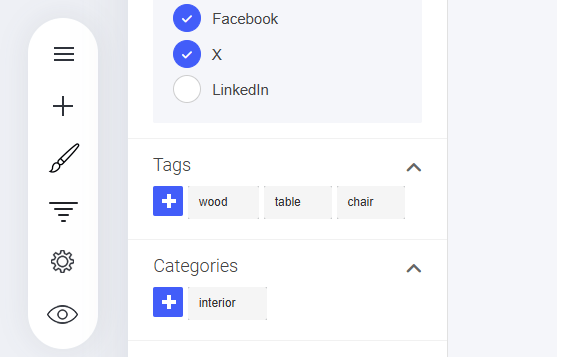
1. **Open the Blog Post Settings Menu** – Navigate to the article you want to categorize.
2. **Locate the 'Categories' Section** – Look for the relevant field within the settings.
3. **Click the '+' Button** – Add a new category.
4. **Type or Select Your Category** – Choose or create the appropriate category label.
5. **Save Your Changes** – Ensure the new categorization is applied.
A **simple yet powerful** way to organize content efficiently!
 ### How To Display Your Blog Categories
You can display the categories in your sidebar (or anywhere else on your site) by using the [Blog widget](/builder/platform/widgets/other/blog). Here's how\...
* Drag the Blog Widget into where you want it on your page.
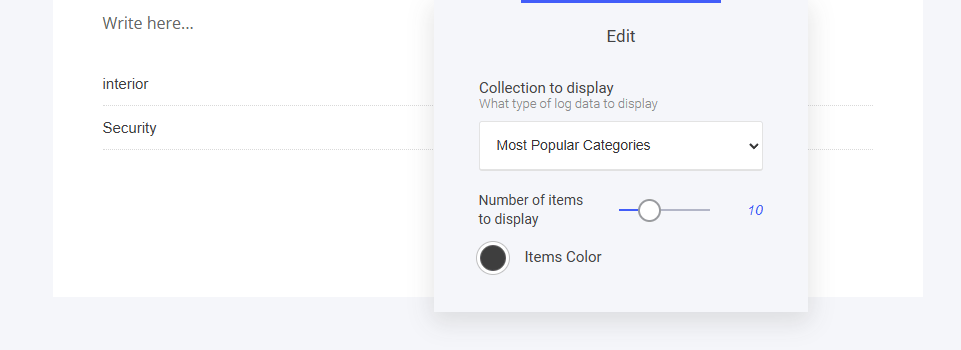
* Select **'Most Popular Categories'** from the drop-down menu in the widget settings.
### How To Display Your Blog Categories
You can display the categories in your sidebar (or anywhere else on your site) by using the [Blog widget](/builder/platform/widgets/other/blog). Here's how\...
* Drag the Blog Widget into where you want it on your page.
* Select **'Most Popular Categories'** from the drop-down menu in the widget settings.